FishEUTrust Platform User Manual
List of Tables
- Table 1: Abbreviations
- Table 2: Platform-related links
- Table 3: Explanation of the password regular expression
The FishEUTrust platform enables product traceability through immutable batch lifecycle management, integrating sensor data and domain expertise rules for data interpretation, with data integrity protected by a blockchain-based tamper-proof ledger, access managed through digital product passports and novice users introduced to seafood value chains through integrated gamification.
Table of Contents
- 1. About This Manual
- 2. Introduction
- 3. Registration and Password Reset
- 4. Login and Logout
- 5. Organizations and Teams
- 6. Data Provision Tokens
- 7. Batch Lifecycle
- 8. Batch Transfer
- 9. Batch Selection
- 10. Batch Access
- 11. Batch Attributes
- 12. Data Sources
- 13. Data Source Access
- 14. Measurement Variables
- 15. Measurements
- 16. Locations
- 17. Analyses
- 18. Data Source Subscriptions
- 19. Documents
- 20. Metrics - Product Components and Impacts
- 21. Digital Product Passports
- 22. Common UI Patterns
- 23. HookIT Browser Game
- 24. TODO Frequently Asked Questions (FAQ)
- 24.1. What the Platform Is Not About
- 24.2. Batch Spliting Content Distribution
- 24.3. Beginning of the Value Chain
- 24.4. Inconsistent Batch Measurement or Analysis Timestamp
- 24.5. Invalid Measurement or Analysis Data Is Not Rejected
- 24.6. Fixing Mistakes
- 24.7. Data Authenticity
- 24.8. Dynamic Configuration of New Third-Party Platforms Is Unsupported
1. About This Manual
Chapters in this manual are organized to be read from beginning to end while applying and testing the described features along the way. Alternatively, readers may jump directly to a specific chapter, as each contains links to prerequisite chapters covering concepts or steps required to complete the described tasks. After following a link, use the Back button or Alt + Left Arrow to return to the exact point where you left off and continue reading.
| FEUT | FishEUTrust |
| APP | Application |
| API | Application Programming Interface |
| UI | User Interface |
| JSON | JavaScript Object Notation |
| JWT | JSON Web Token |
| CSV | Comma-Separated Values |
| UUID | Universally Unique Identifier |
| CSRF | Cross-Site Request Forgery |
| HENI | HEalth Nutritional Index |
| GHG | GreenHouse Gas (emissions) |
| PWA | Progressive Web App |
| User interface | https://feut.belit.co.rs/feut-ui-platform/#/ |
| API documentation | https://feut.belit.co.rs/feutpc/swagger-ui/index.html |
| HookIT Game | https://feut.belit.co.rs/game/ |
| User manual | https://feut.belit.co.rs/manual/ |
| About the project | https://www.fisheutrust.org/ |
| Privacy policy | https://feut.belit.co.rs/manual/privacy.html |
| Dialogical demo | dialogical_demo.pptx |
TODO: chapter dependency graph
Technical details, implementation notes and API-related information are presented in gray rectangles like this one. API links lead directly to the corresponding Swagger documentation about HTTP endpoints, request and response schemas, error codes, etc. Skip these sections if you are only interested in using the graphical interface.
For any questions, suggestions, or bug reports, feel free to contact us at:
- Email: support.fish.eu.trust@belit.co.rs
- Address: Trg Nikole Pašića 9, Belgrade 11000
2. Introduction
The FishEUTrust project aims to improve traceability, sustainability, business intelligence and trust across European seafood value chains through a range of technologies, including product lifecycle tracing, water quality and environmental monitoring, food freshness estimation, detection of toxins, bacteria, antibiotics, pharmaceuticals and pathogens in food, smart labels for products, integration of sensors, IoT, gamification, nutritional data and blockchain. The platform connects these components, providing end-to-end tracking of seafood and related information from breeding or fishing, through storage, transportation, repacking and processing, to the end consumer, enabling traceability at varying levels of granularity with data management, analytics and visualization.
At the core of the traceability is the batch - a minimal traceable unit and the central point for tracking products and their lifecycles throughout the value chain. This concept is abstract and can represent various units, such as aquaculture life stages, a single fish, a part of fish, any number of fish, mussels, cans, or any combination thereof. A batch can be split into smaller batches, multiple batches can be merged into a new larger batch and a batch can be transformed into another batch (for example, when raw food is processed into canned food). All these operations only accumulate new records and create links between existing and new records to enable historical data traversal; there are no updates or deletions of critical traceability data. Connected to the batches are their attributes - versioned key-value pairs used for grouping and as descriptive information, documents and certificates, data access rights transfer information, locations, measurements and analyses from sensors and external platforms and more. This data is also immutable, although certain records can be marked as invalid by providing a validity range.
Rights over the data are linked to registered organizations and their internal team hierarchies and can be transferred between organizations and teams. The platform secures operations through account, role and permission management, with API communication secured through stateless sessions using JWTs or more narrowly scoped access tokens, primarily intended to simplify continuous push-based sensor data submission. All access-related information, such as passwords, is securely handled in transit, in logs and at rest in the database using one-way hashing or encryption. A blockchain-based change detection mechanism is used to ensure that unauthorized modifications to database records cannot go unnoticed and that each affected record is identified as corrupted.
The platform offers flexible, runtime-extendable domain expert knowledge integration, including nutrient or product composition data, impact metrics such as the HEalth Nutritional Index (HENI) and GreenHouse Gas (GHG) emission levels, rule-engine-based interpretation of measurements (e.g., a semaphore-light system for water quality and food storage data) and more complex analyses (such as toxins, bacteria and antibiotics contamination detection or freshness estimation) contributing to complex event processing and the platform's notification system.
Digital product passports are a preview-only mobile-optimized view of the data available on the platform, linked to a batch (and its lifecycle). They serve as an entry point for end consumers who typically do not register on the platform and registered stakeholders who do not (yet) have access to the batch (e.g. during batch transfer process between organizations). The platform generates QR codes for passports as an access point that can be shared or printed on the product packaging or elsewhere.
The platform integrates with the HookIT simulation-based problem-solving browser game for education and project promotion, sharing domain expert rules used for game logic, importing quiz questions and generating additional questions from nutritional data and maintaining dynamic game configuration, player statistics and leaderboard state.
There is nothing that tightly couples this platform to seafood; it can be reused for any type of food or, more broadly, for tracking any type of product. The only components tied to the seafood domain are the data in the codebooks, dropdowns and the provided expert knowledge, all of which can be reconfigured or extended to other domains.
3. Registration and Password Reset
Users sign up by providing account name and email address. The Submit button remains disabled until the user confirms that they have read and agreed to the Privacy Policy.
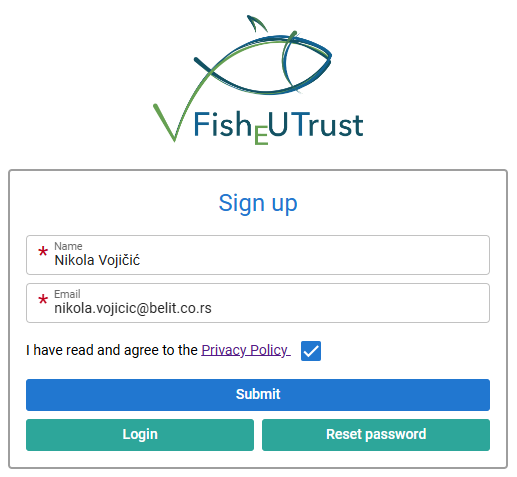
Figure 1: Sign up form
The password is not set directly during sign-up (/security/sign-up). Instead, a random UUID is generated as the initial password and immediately hashed using the BCrypt encoder. The raw password is never exposed or stored, making it inaccessible and effectively unguessable (since it is UUID).
After signing up, users set their password using the reset token sent to their registered email address.
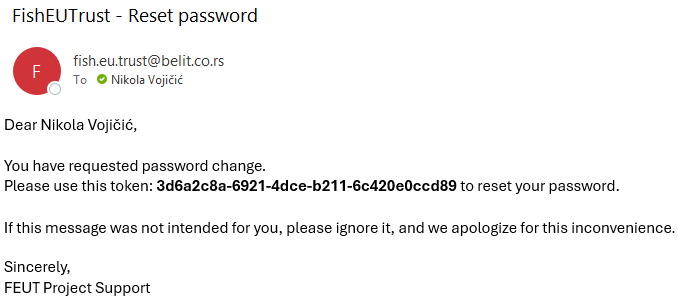
Figure 2: Reset password email with raw token
Created tokens (/token/account/password-reset/create) are UUID values that are hashed using the HMAC-SHA-256 algorithm before being stored in the database. Users receive and use raw (UUID) tokens.
The email is sent asynchronously if the provided address belongs to an existing, non-blocked account. Otherwise, no error is reported to prevent revealing whether an email address is registered. Successful email delivery is not guaranteed and delivery failures are not reported directly to the client application. Therefore, users should be informed accordingly, for example: “If you do not receive an email with password reset instructions, please try again later. It's possible that the mail server is currently down or experiencing high traffic”.
To reset the password, users provide the received token along with their new password.
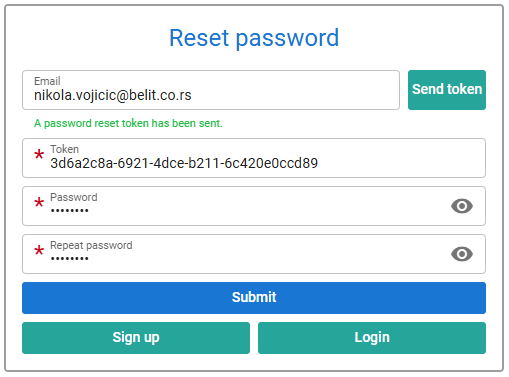
Figure 3: Reset password form
Password reset tokens expire after one day (subject to change) and can be validated (/token/validate) before being consumed (/token/account/password-reset/consume) to set a new password, which is also validated using following regular expression:
^ |
Start of text |
(?=.*[0-9]) |
A digit number must occur at least once |
(?=.*[a-z]) |
A lower case letter must occur at least once |
(?=.*[A-Z]) |
An upper case letter must occur at least once |
(?=.*[@#$%^&+=!?.,'*<>_]) |
A special character must occur at least once |
(?=\S+$) |
No whitespace allowed in the entire text |
.{8,} |
Anything, at least eight places |
$ |
End of text |
After successfully (re)setting the password, users can immediately login (see chapter 4) with the new password and should receive a password reset confirmation email. Receiving this email is not mandatory for logging in with the new password; it is simply a notification and may be delayed if the mail service is down.
Figure 4: Password reset confirmation email
If a user requests a password reset multiple times, only the most recently issued token remains valid.
4. Login and Logout
Registered users access the platform by providing their email and password.
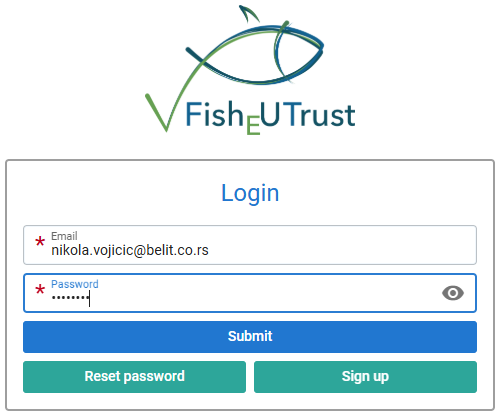
Figure 5: Login page - landing page for unauthenticated users
Permissions define operations that accounts are allowed to perform. For convenience, permissions are grouped into predefined roles. Each role represents a subset of permissions, which may overlap with those of other roles. Accounts can be assigned one role at a time and the role history is tracked.
Having permission to perform an operation does not imply permission to perform that operation on all data. For example, accounts may be allowed to view or add data for their own team's batches, but not for batches from other teams. This kind of access can be shared or invalidated (but not removed) and its granularity is controlled through access levels (e.g., read, write), which can be extended as needed (see chapters 10 and 13).
If the login credentials are correct, the user is redirected to the platform home page.
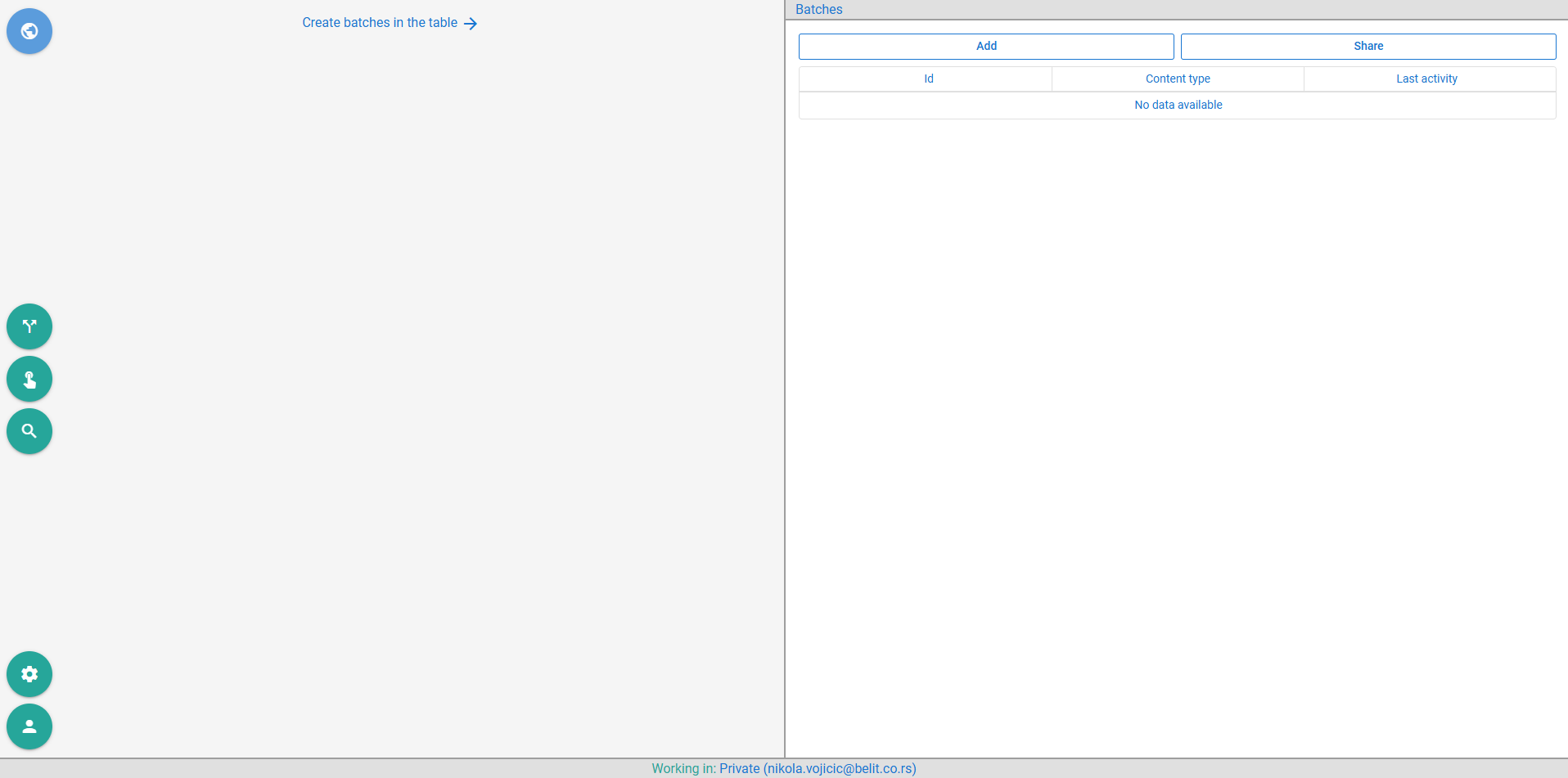
Figure 6: Home page - landing page for authenticated users
The footer displays the name of the team the account is currently logged into. Clicking the account icon in the bottom-left corner opens account-related options.
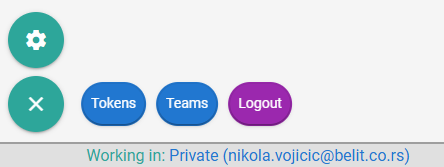
Figure 7: User account options
Clicking either the team name in the footer or the Teams button opens the Teams dialog (see chapter 5). The Tokens button opens the Data provision tokens dialog (see chapter 6). Clicking the Logout button ends the session and redirects the user to the login page (see Figure 5).
The system does not store sessions server-side; instead, all relevant session data is encoded in (stateless) JWTs, obtained when a client (either a user of UI or any third-party software) authenticates (/security/login). These JWTs must be included in the Authorization header of each request to secured endpoints, prefixed with "Bearer". In cases of authentication errors, deliberately obscure responses are returned to mitigate security breaches and unauthorized access attempts.
Storing raw login credentials should be avoided, on both client and server sides; instead, JWTs should be stored on the client, preferably in CSRF-protected cookies with the Secure and HttpOnly flags enabled and the SameSite attribute set to Strict or Lax.
JWTs expire after a period (currently set to 15 minutes, subject to change) and can be refreshed (/security/jwt/refresh) by sending them to the server (without requiring login credentials). Refreshing fails under certain conditions: if the associated account is blocked, if the JWT is blacklisted, or if the JWT was issued or refreshed too long ago (currently defined by a 7-day refresh leeway, subject to change).
Blacklisting invalidates all JWTs for the given account issued up to that point. Users blacklist their JWTs when they log out (/security/logout) and also invalidate previously issued JWTs on login and refresh. Administrators can blacklist JWTs (/security/jwt/blacklist) of other users to enforce a re-authentication, such as when a user's role has changed.
Administrators can block malicious or retired accounts from accessing secured areas of the system. Once blocked, these accounts remain restricted until they are explicitly unblocked (/security/account/toggle-block) and all their JWTs are blacklisted. The same can be done for email domains - disposable or unwanted domains can be blocked (/security/email/domain/block/save), unblocked (/security/email/domain/block/remove) and searched (/security/email/domain/block/search). When a domain is blocked, existing accounts with email addresses from that domain are logged out and cannot log in again, while new users are prevented from registering with email addresses form the blocked domain.
These are the recommended security flow steps for client applications:
- Obtain a JWT using login credentials.
- Upon receiving an Unauthorized 401 response, try to refresh the JWT.
- If the refresh fails, redirect the user to the login form to repeat step 1.
- If step 1 fails despite correct login credentials, the account is likely blocked.
- Response Forbidden 403 indicates that either:
- User doesn't have permission to perform the operation.
- User has the permission for operation but not access to requested data.
5. Organizations and Teams
Most data entered by non-administrators is associated with organizations and their teams rather than individual users. Every user must belong to at least one organization and may belong to multiple teams within those organizations, but can be active in only one team at a time. Upon registration, a private organization is created for each user.
As described in Figure 7, clicking the team name in the footer or the Teams button opens the following Teams dialog.
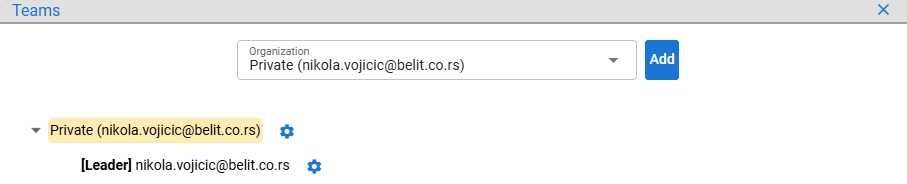
Figure 8: Teams dialog displaying the default organization
The Organization dropdown lists all organizations the user is a member of. Selecting an organization displays its members and team hierarchy. Yellow background indicates the organization or team the user is currently logged into.
Organizations are created by clicking the Add button and entering a name, which must be unique across the system.
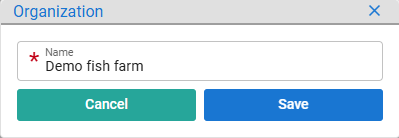
Figure 9: Creating organization
The organization creator is automatically assigned as its team leader, responsible for managing subteams and memberships. Blue background indicates that the user can log into that organization or team, but is currently logged into a different one.
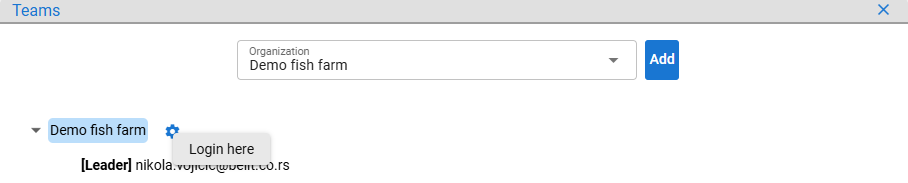
Figure 10: Switching organization
Upon the next login to the system (Figure 5), the user will be redirected to the last accessed organization.
Teams form a hierarchical structure, with organizations serving as the root teams. Users in higher-level teams inherit the permissions and data of their subordinate teams.
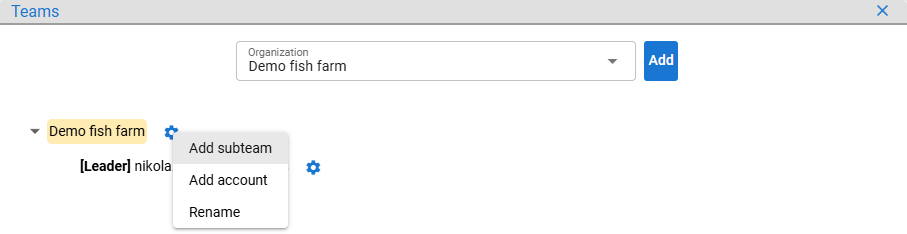
Figure 11: Subteam addition option
When adding subteams or renaming teams, team names must be unique within their parent team.
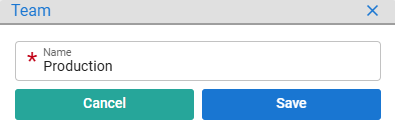
Figure 12: Subteam saving
Users view the memberships of teams they belong to. If team leaders want to add users from outside the selected organization to their team, they can do so only by specifying the user's email address.
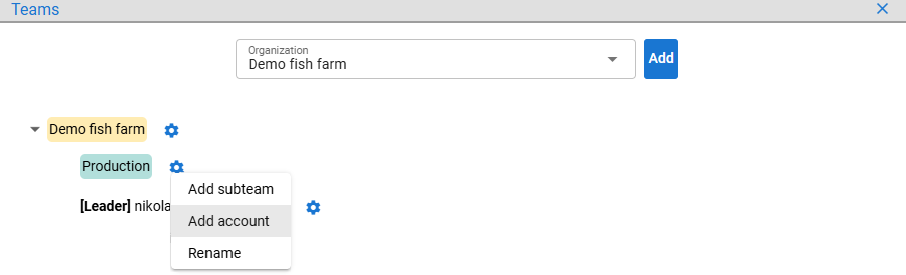
Figure 13: Adding an account to a subteam
The account with the provided email must be registered and can be set as a team leader.
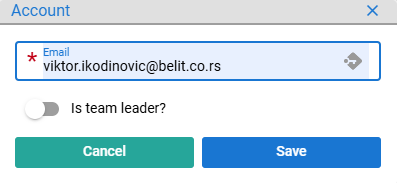
Figure 14: Adding an account to a subteam via email
After saving the membership, the account is listed in the Demo fish farm > Production team.
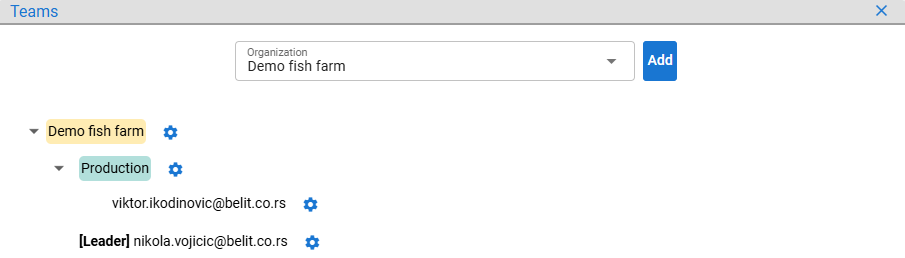
Figure 15: Updated organization membership
Accounts from the user's organizations are displayed in hierarchy and can be dragged between teams.
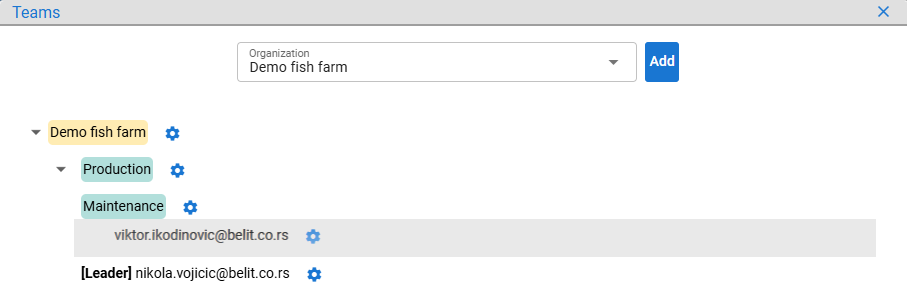
Figure 16: Adding an account to a subteam by drag and drop
Account membership can be added to the destination team by clicking the Copy button. If the Move button is used, the account is also removed from the source team.
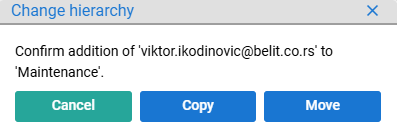
Figure 17: Options for account membership change
Here, Copy was chosen and the account became a member of another team while remaining in the original team.
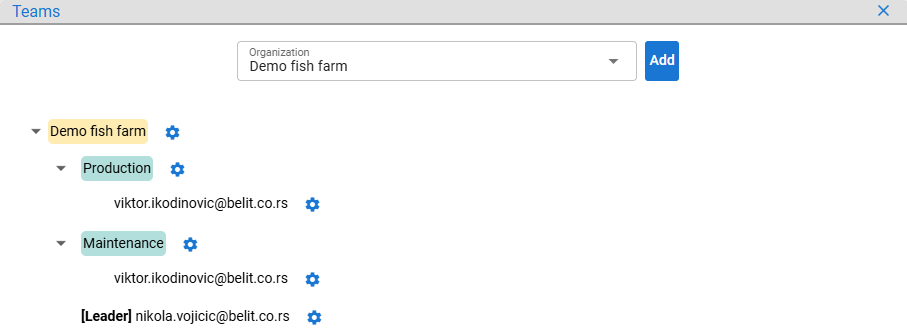
Figure 18: Account copied to another team
Leaders can also remove accounts from teams, promote them to leaders, or revoke their leadership.
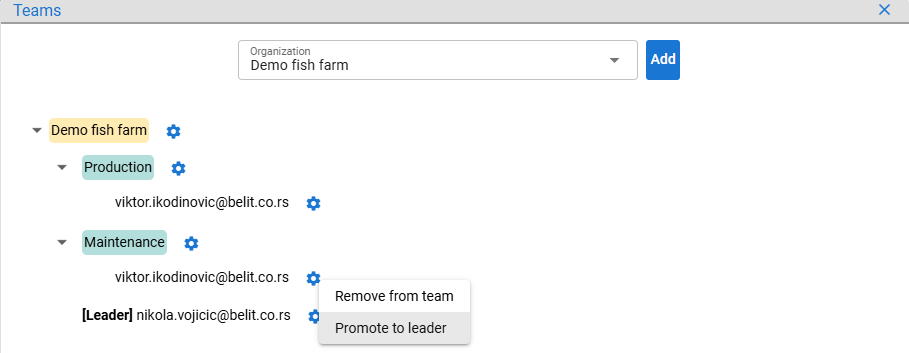
Figure 19: Account promotion to team leader
After the promotion, the account is listed as [Leader] in the Demo fish farm > Maintenance team.
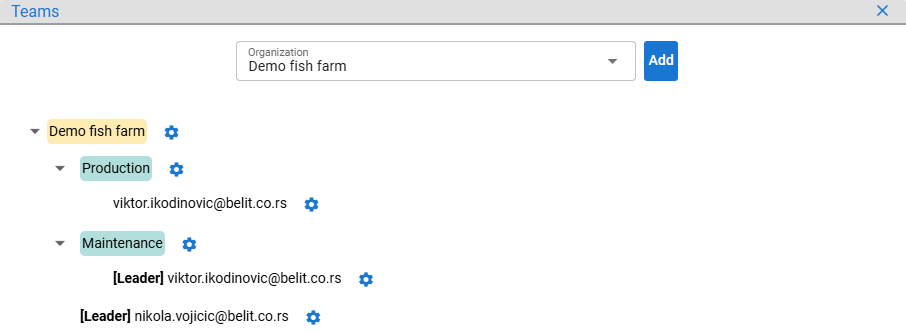
Figure 20: Account promoted to team leader
The team hierarchy can be rearranged by dragging one team onto another, similar to dragging an account to a team. However, the only available action is Move, since a team can have only one parent team.
A single API is used for all team hierarchy management operations (/team/save-or-update), including creating teams or organizations, updating existing ones, renaming them, or changing their position in the hierarchy by assigning a new parent team. Accounts can be added to teams (/team/account/save), removed from teams (/team/account/remove) and granted or revoked team leadership (/team/account/toggle-lead). All of this information can be retrieved (use /team/hierarchy/search for the full hierarchy, including accounts, or /team/path/search for simplified team paths suitable for dropdowns and similar inputs).
Switching to another team or organization (/security/team/switch) has a similar effect to logging in (see chapter 4): the user receives a new JWT and all previously issued JWTs are blacklisted. In addition, the selected team becomes the user's default, so subsequent logins automatically authenticate the user to that team or organization.
6. Data Provision Tokens
NOTE: Skip this chapter if you do not need programmatic (API) access to the platform.
To simplify service-to-service communication and avoid frequent JWT refreshes, a non-expiring data provision token can be used instead of a JWT in the HTTP request header X-Data-Provision-Token. This token is accepted only by a small set of APIs, currently: /measurement/save, /analysis/save and /analysis/relationship/save, which provide the basis for programmatic submission of measurements (see chapter 18.1) and analyses (see chapter 18.2) to the platform.
As described in Figure 7, clicking the Tokens button opens the following Data provision token dialog.
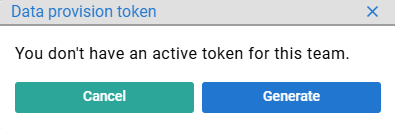
Figure 21: Data provision token dialog - token not yet generated
When the user generates the token, it is displayed in raw form in the dialog. This is visible only once, so users should store the token securely and use it in their application logic.
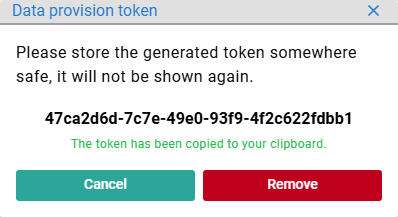
Figure 22: Data provision token dialog - token just generated
The next time the user opens the Data provision token dialog, the raw token is no longer visible. The user can revoke the existing token and generate a new one. Currently, each account can have only one token per team, and tokens can be used to send data (measurements, analyses, etc.) to subordinate teams as well. When an account is removed from a team, its token for that team stops working.
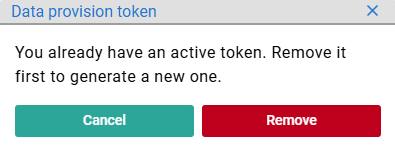
Figure 23: Data provision token dialog - token exists
Created tokens (/token/data-provision/create) are UUID values that are hashed using the HMAC-SHA-256 algorithm before being stored in the database. Users receive and use raw (UUID) tokens, which they can verify (/token/data-provision/exists) and revoke (/token/data-provision/consume).
7. Batch Lifecycle
The home page of the platform, where the user lands after logging in (see chapter 4), lists all active batches on the right and displays the lifecycles of selected active batches on the left. As shown in the image below, no batches are currently available and new batches can be added by clicking the Add button.
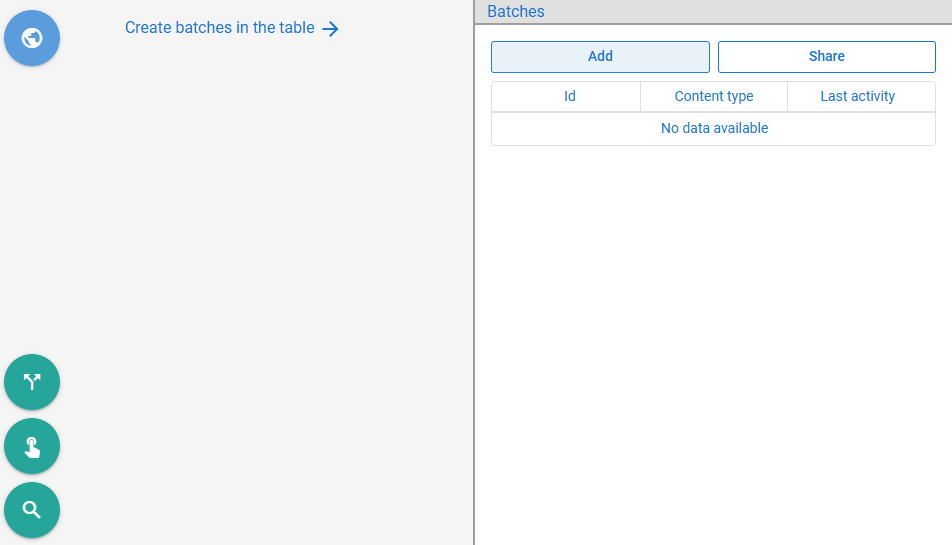
Figure 24: Home page before any batch exists in the team
Clicking Add opens the multi row form (see chapter 22.5). The batches to be added are defined by the content type (with extendable options, see chapter 22.4) and by the number of batches to be added per content type.
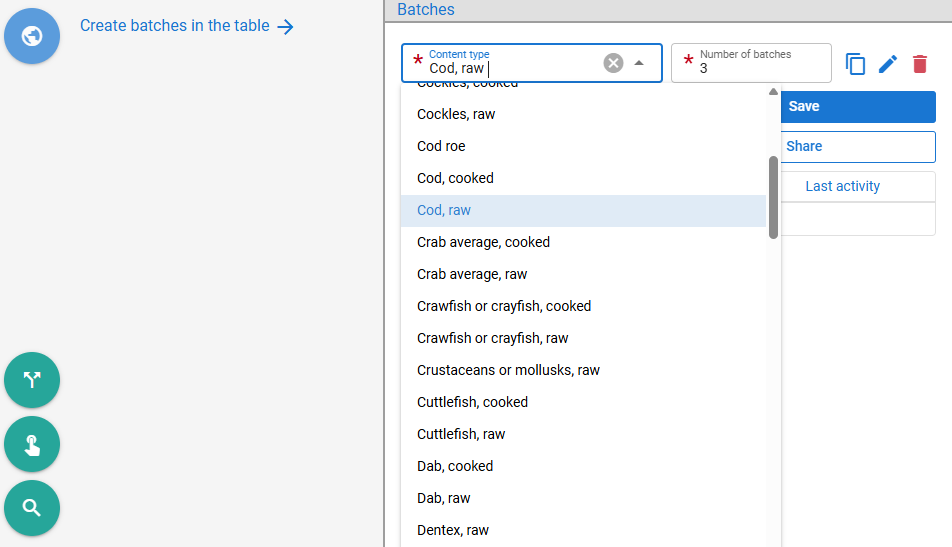
Figure 25: Adding new batches
After saving, the newly created batches appear in the table with their generated IDs and creation timestamps and are automatically selected, causing their lifecycles to be displayed on the left.
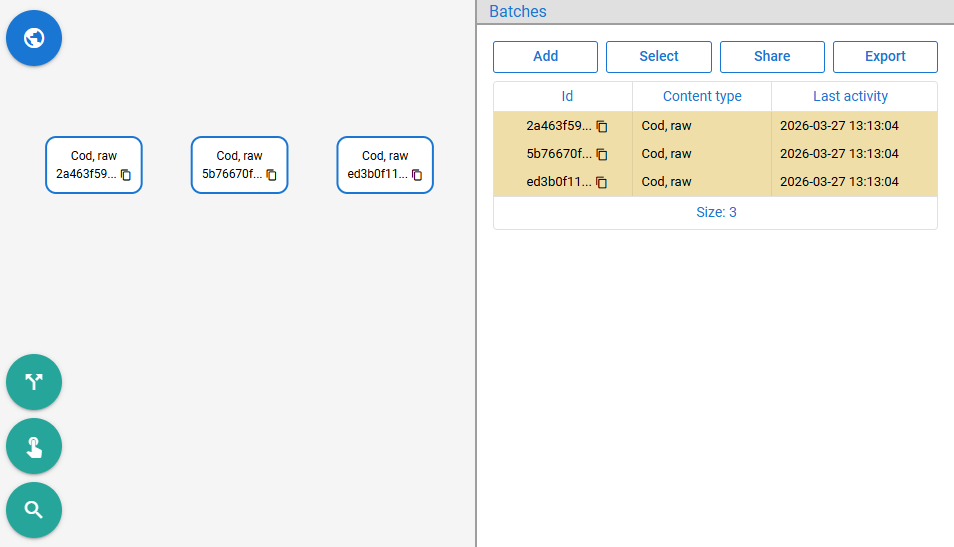
Figure 26: Three batches saved and selected for lifecycle preview
The teal-colored options on the far left operate on the batches selected in the left pane, not the right. The first set of options are batch operations, enabled based on the current selection; for example, Split requires a single selected batch, while Merge requires at least two.
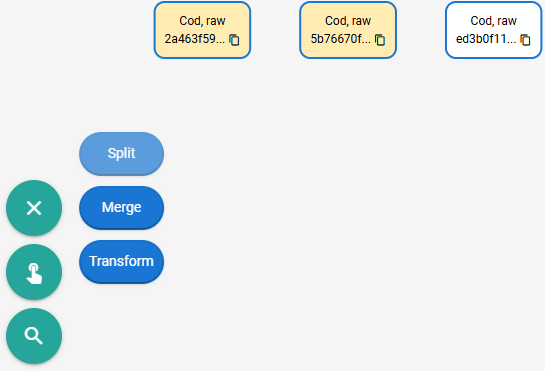
Figure 27: Selecting batches for merging
When two or more batches of the same content type are merged, a batch of that type is created, representing the merge result and containing links to the merged batches. The merged batches remain intact but become inactive: they cannot participate in further batch operations, disappear from the (active) Batches table on the right and are kept for traceability.
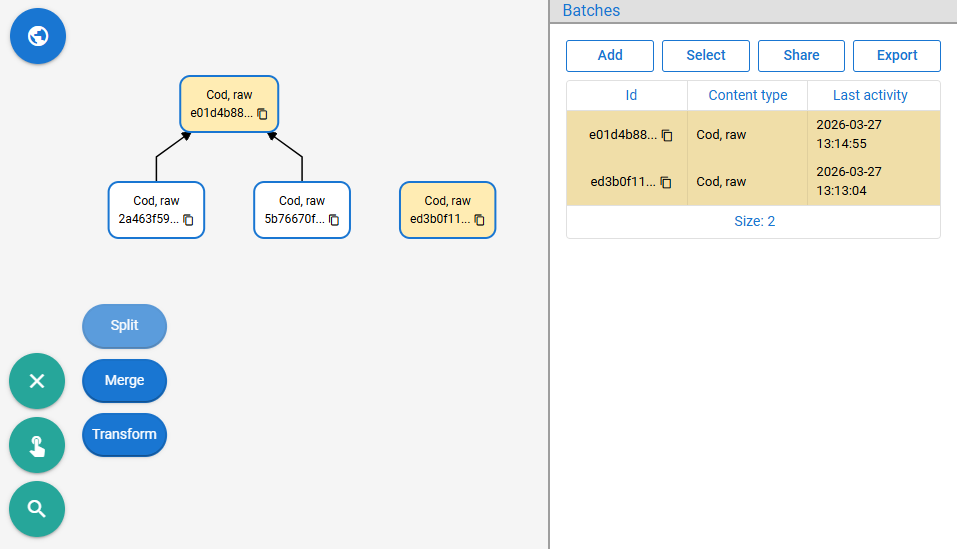
Figure 28: Homogeneous batch merge
The batch created through merging is active and appears in the Batches table on the right. It can participate in further operations; as shown in the next figure, it is merged with another batch, forming a deeper lifecycle history tree.
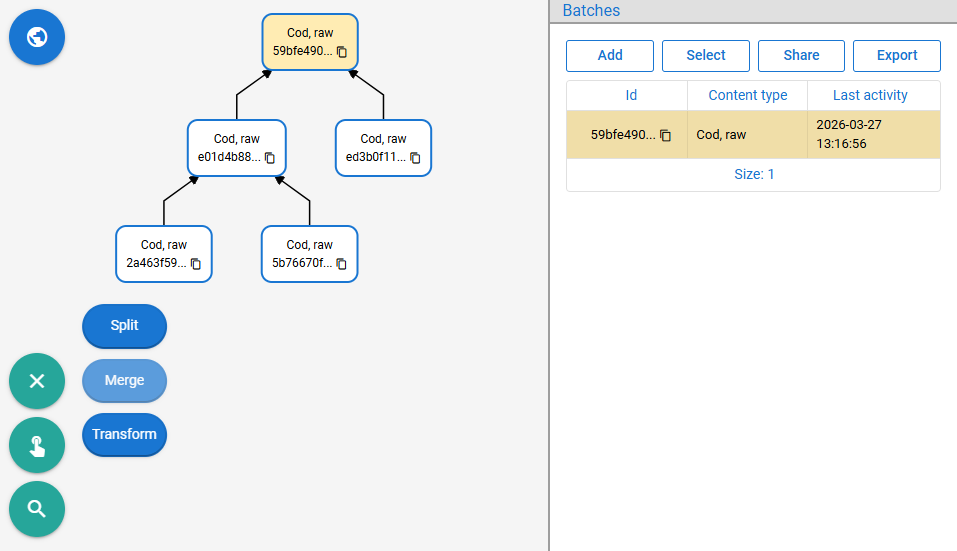
Figure 29: Successive merges build a deeper lifecycle history
A batch can be split into smaller batches. The split operation opens a dialog where the user defines the split types and the number of resulting batches in a multi-row form (see chapter 22.5). Since the batch being split is homogeneous, it can only be split into two or more batches of the same type.
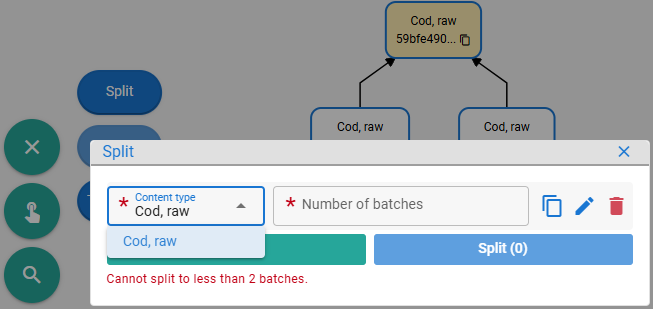
Figure 30: Homogeneous batch split dialog
In the example below, a single Cod, raw batch is split into five smaller batches of the same type.
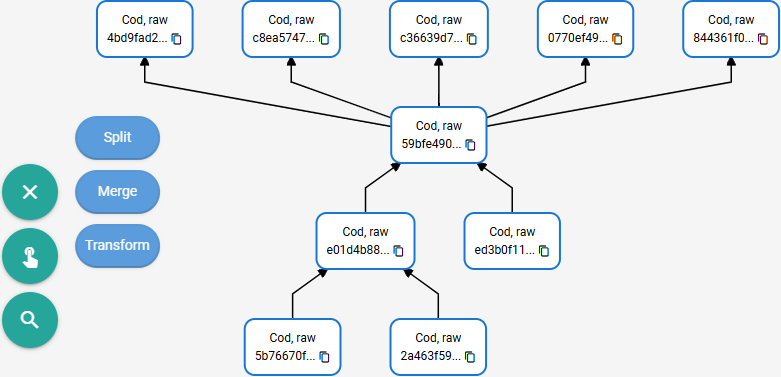
Figure 31: Homogeneous batch split
As with merging, the resulting parts become new batches with links to their source batch, i.e., the batch that was split.
The batch Transform operation is used when a content type changes into another due to processes such as food processing, fish growth through breeding, or similar transformations.
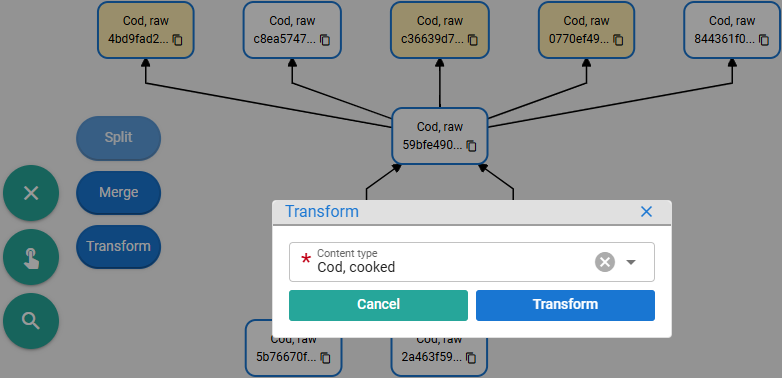
Figure 32: Batch transform dialog
In this example, three Cod, raw batches are cooked, resulting in three new Cod, cooked batches being added to the system. Each new batch retains a link to its corresponding source batch.
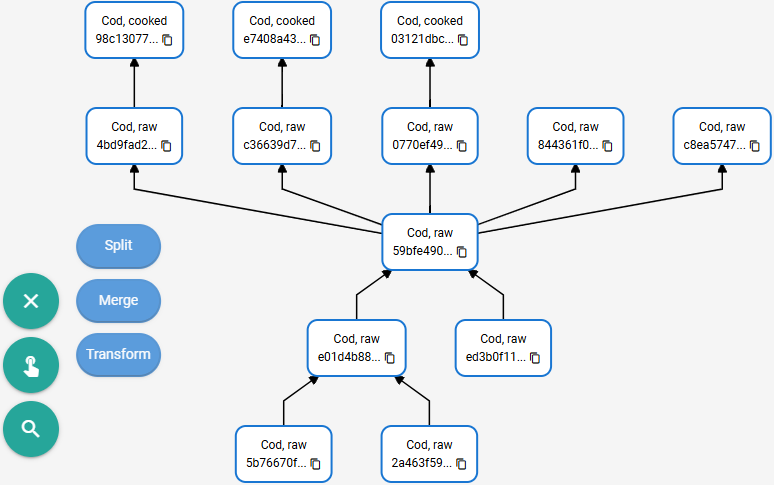
Figure 33: Batches transformed
When batches of different content types are merged, the resulting batch is assigned a Mixed type, representing a combination of different contents. Here, a Cod, raw batch and two Tuna, raw batches are merged into a Mixed batch.
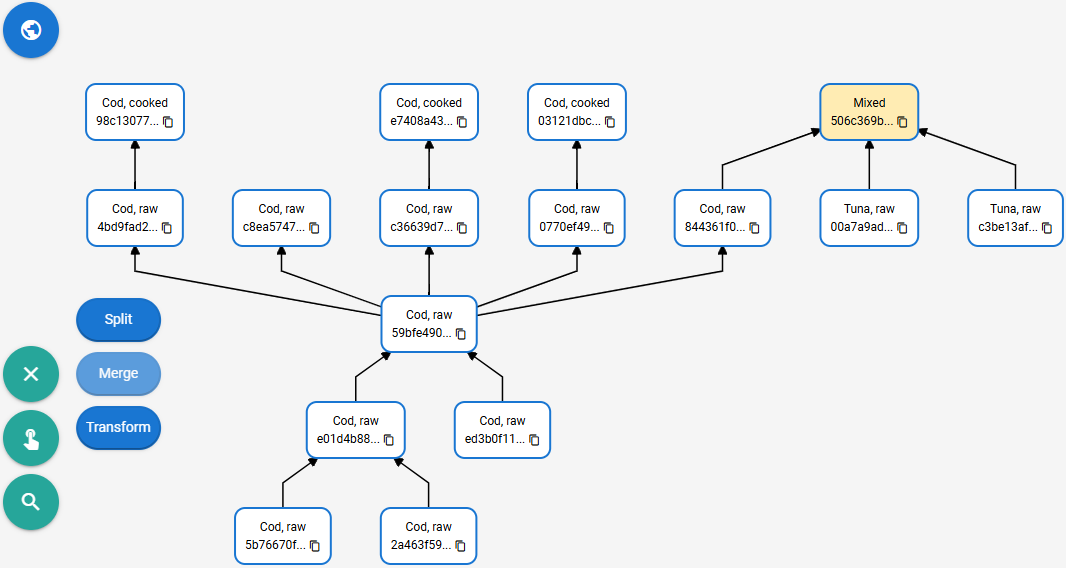
Figure 34: Heterogeneous batch merge
A Mixed batch can be split back into the original types, or one of the resulting splits must remain Mixed. These rules are enforced recursively when multiple Mixed batches are to be merged.
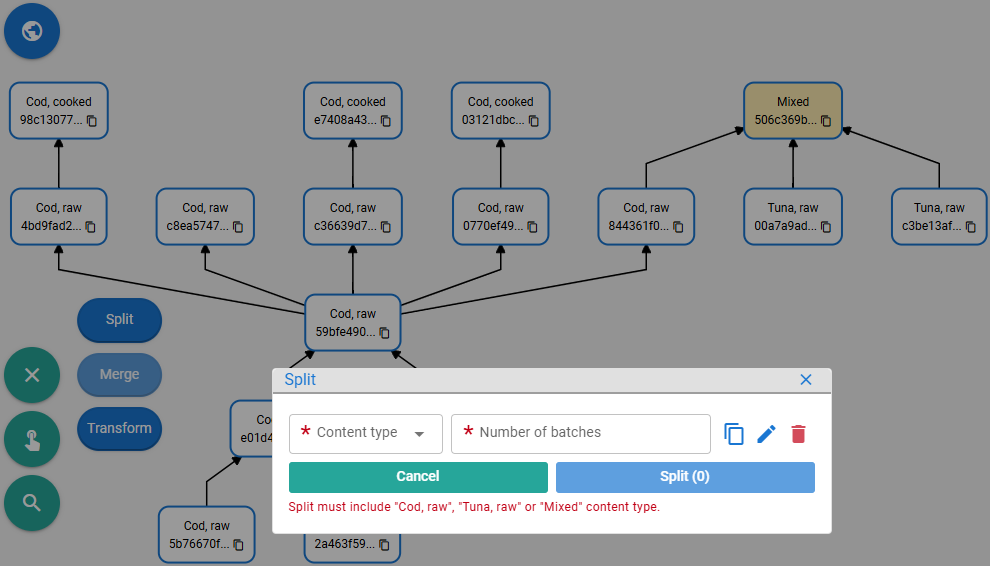
Figure 35: Split dialog enforcing the content-type constraints for a Mixed batch
When defining the split, the user selects the content types and the number of batches per type in a multi-row form (see chapter 22.5). Here, a portion of Tuna, raw is separated from the mixture, while the remainder stays Mixed.
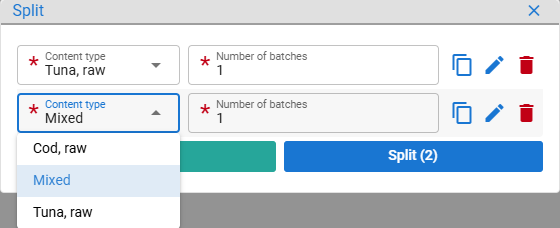
Figure 36: Filled split form for a Mixed batch
The items in the dropdown list only the valid options for the split.
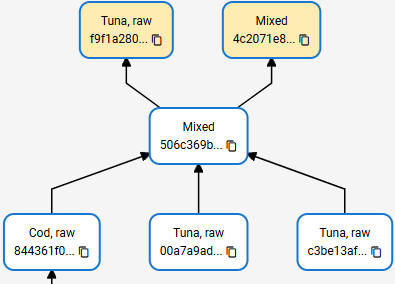
Figure 37: Heterogeneous batch split
To fully exhaust the mixture, the split must account for all content types that were combined. Here, the remaining Mixed batch is split again into Cod, raw and Tuna, raw, leaving no Mixed remainder.
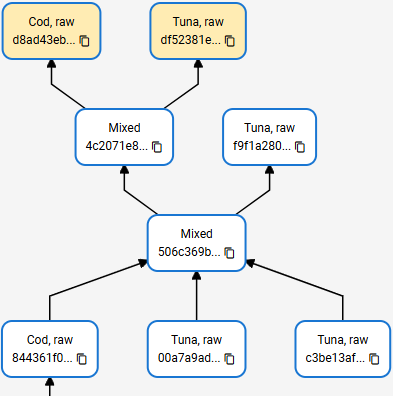
Figure 38: Exhausting the mixture by splitting into all mixed types
Sometimes, mixed batches cannot be split back to the types that were mixed. For example, when fish oils of different types are blended, they cannot be separated back into the original components. In such cases, the Mixed batch should be transformed into a concrete content type representing the blend (e.g., Blended fish oil). To avoid this additonal step the Merge dialog has a Content type dropdown with Mixed selected by default.
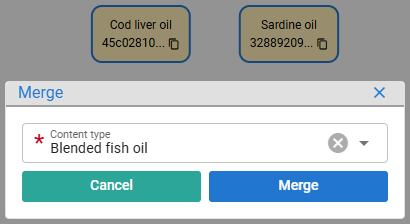
Figure 39: Transforming the mixed batch into a concrete type
After clicking Merge, the resulting Mixed batch is transformed into a Blended fish oil batch.
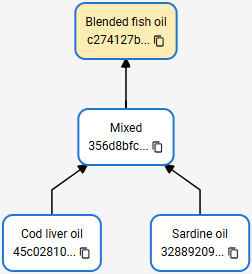
Figure 40: Transformed the mixed batch into a concrete type
This ensures that the resulting batch can only be split into batches of the blended product, rather than reverting to original components such as Cod liver oil or Sardine oil. Whether a mixture is splittable to original types is determined by users; some combinations - such as protected smaller oil bags - may still be separable.
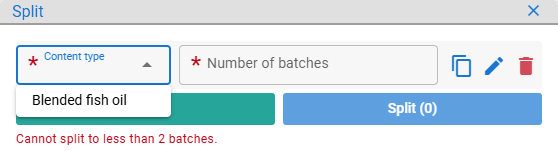
Figure 41: Split options limited to blended content type
Each batch is assigned a UUID when saved (/batch/save) or on split (/batch/split), merge (/batch/merge), or transform (/batch/transform) operations. Batches cannot be created directly as the Mixed type, nor can they be transformed into it. A batch cannot be transformed into the same content type it already has (except in the case of batch transfer, see chapter 8).
Active batches can be searched (/batch/search), along with their historical lifecycle information (/batch/relationship/search). From these, the content types of parent batches - those from which they were split, merged into them, or transformed into them - can be derived (/batch/content-type/parent/search), as well as candidate content types for the split operation (/batch/split/content-type/candidates/search).
8. Batch Transfer
Active batches can be transferred between organizations (for in-organization batch access, see chapter 10). In the Batches table, select the rows corresponding to the batches to be transferred, then click Share -> Transfer batches.
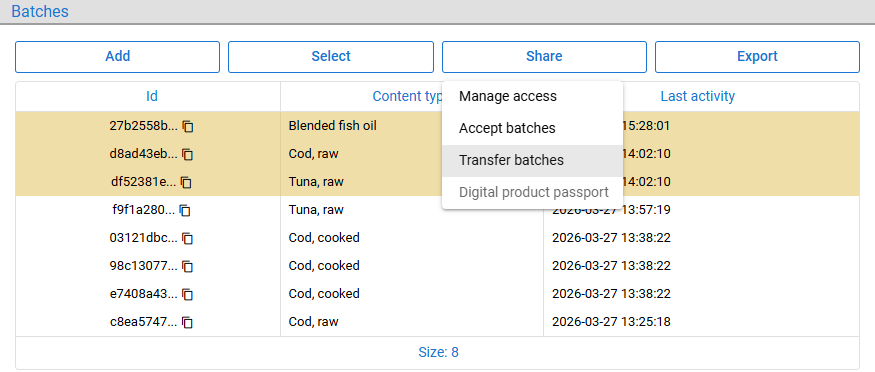
Figure 42: Selecting batches for transfer
A dialog opens displaying a generated batch transfer token that can be shared with a user from another organization. The platform does not currently provide a standard sharing method, so external messaging services can be used.
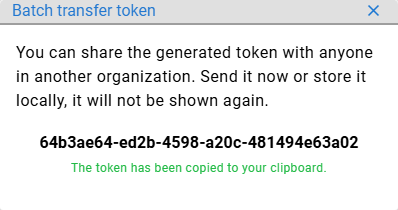
Figure 43: Batch transfer token generated
This approach allows the sender to share batches without needing to know the structure of the recipient's organization, while also ensuring that no data can be transferred without explicit acceptance. The receiver can review the contents of the token and choose to accept it, forward it to another team within their organization, or simply ignore it.
To accept the new batches, select Share -> Accept batches.
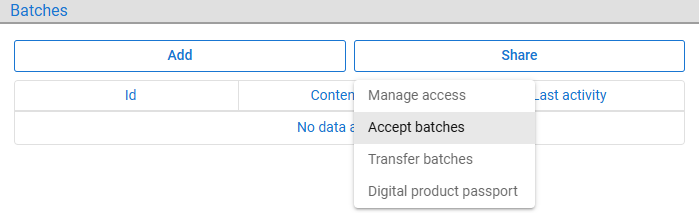
Figure 44: Accepting batches
This opens a dialog where the token can be pasted and information about its source and contents can be previewed. If accepted, the batches are transferred.
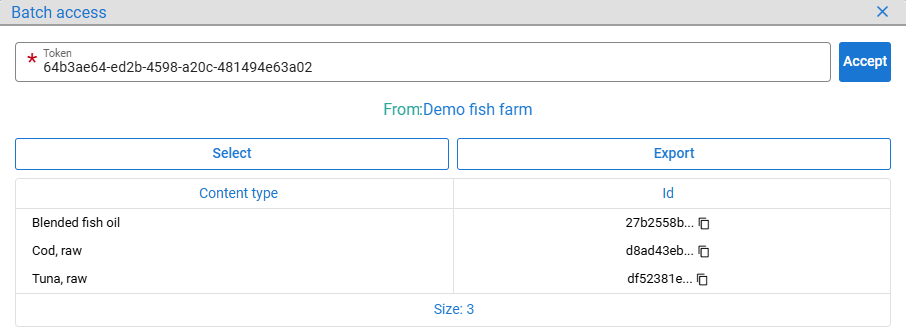
Figure 45: Viewing the batch transfer token contents
Behind the scenes, this is implemented as a batch transform operation (see chapter 7): the original batch remains in the source organization, while a new batch is created in the destination organization, with a link between the two.
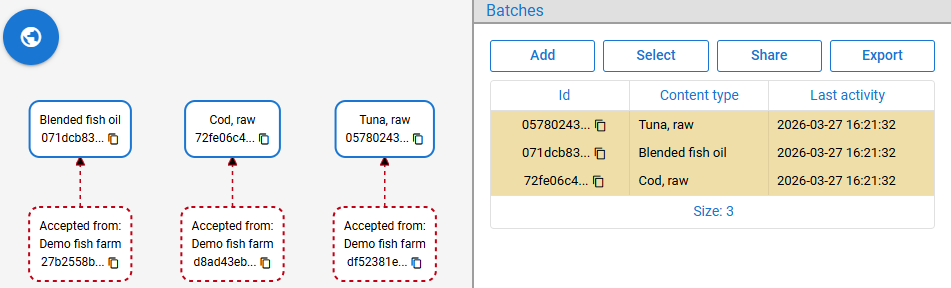
Figure 46: Batches accepted from another organization
Because a link exists between the batches, digital passport (see chapter 21) data can be traced back through the entire history, even when the batch is distributed across multiple stakeholders. Since passports display only the subset of data relevant for traceability, stakeholders do not expose their internal information.
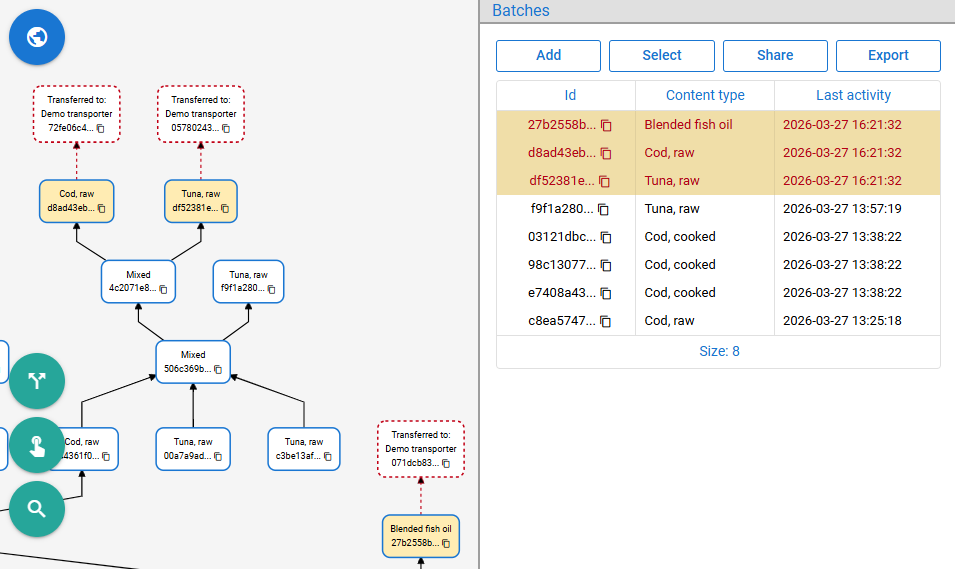
Figure 47: Batches transferred to another organization
All information about transferred batches remains in the source organization. In the Batches table, rows for these batches are colored red and can no longer be transferred or participate in any batch operation.
Created tokens (/token/access-transfer/batch/create) are UUID values that are hashed using the HMAC-SHA-256 algorithm before being stored in the database. Users receive and use raw (UUID) tokens, which they can verify (/token/access-transfer/batch/preview) and accept (/token/access-transfer/batch/consume). All participants in transfers can retrieve transfer information (/batch/transfer/search), including the old and new batch IDs and the source and destination organization information.
9. Batch Selection
Batch lifecycle (see chapter 7) forms a transitively reduced directed acyclic graph, where each node represents a batch and edges represent parent-child relationships established through split (one-to-many), merge (many-to-one) and transform (one-to-one) operations. Operations are performed on selected batches and batch-related data is fetched based on the current batch selection. Therefore, the UI provides several helper options for bulk selection of nodes when the second teal-colored option on the far left is selected.
All batches (nodes) can be selected by clicking All.
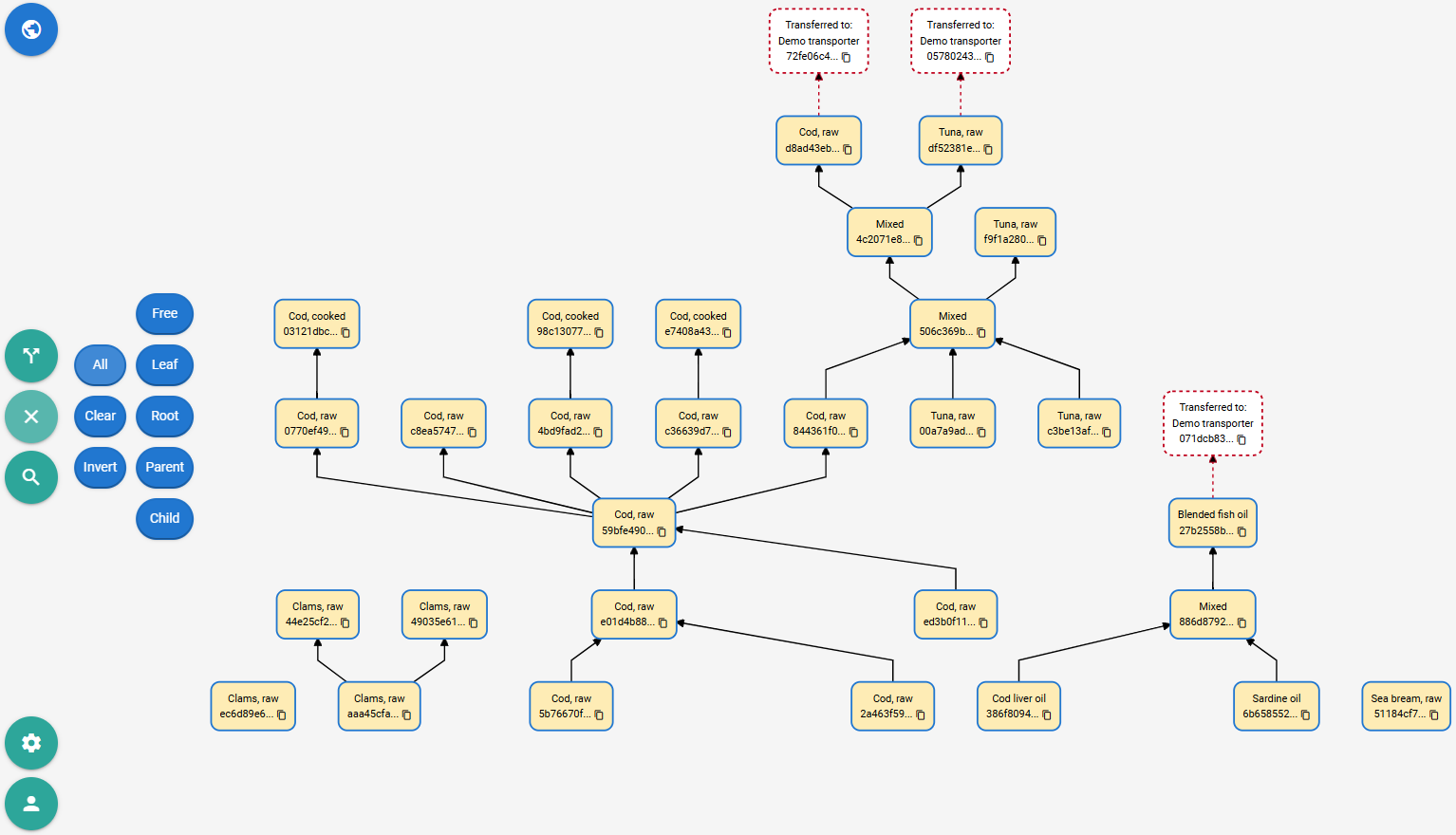
Figure 48: All batches selected
Clicking Clear deselects everything.
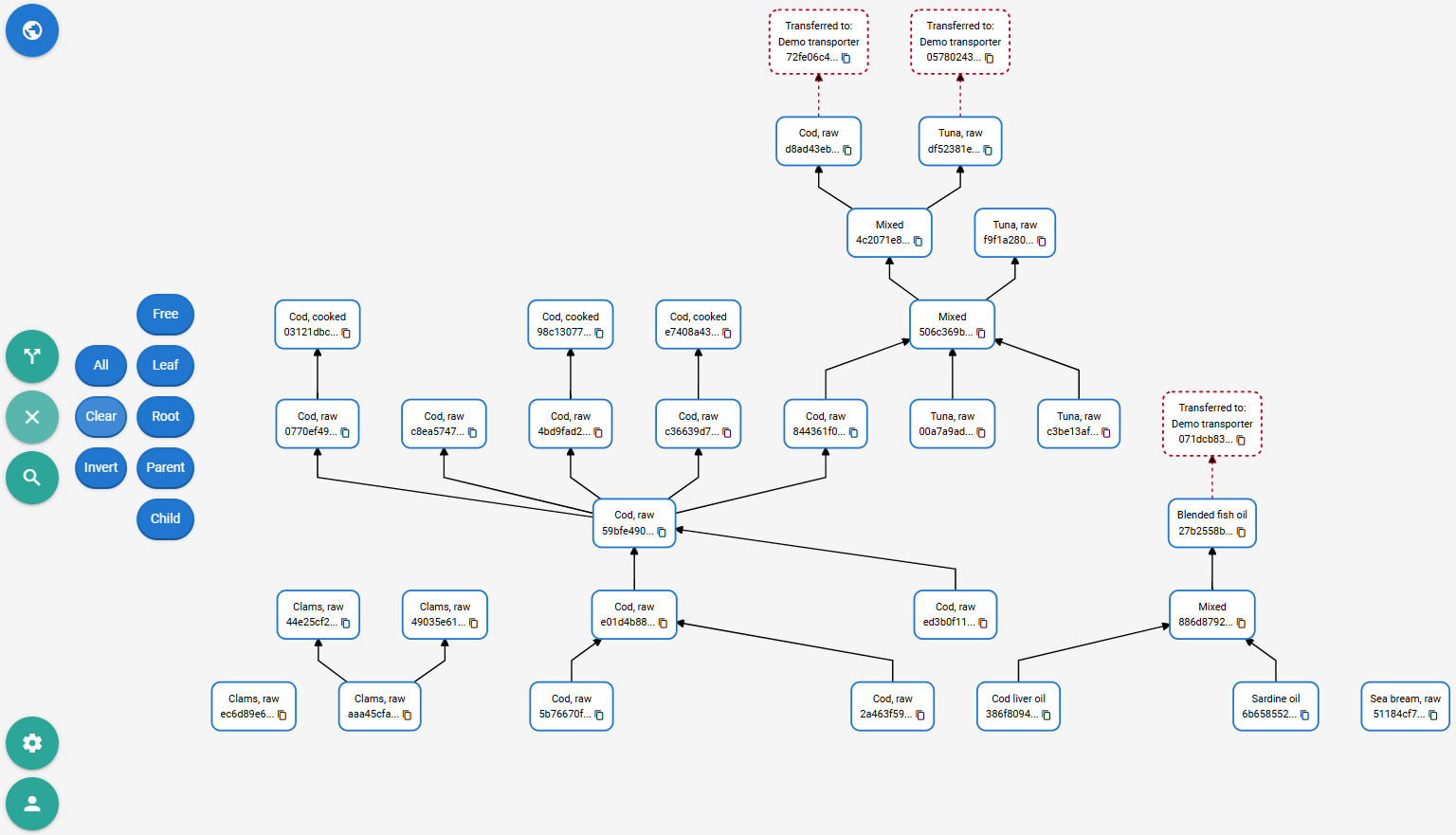
Figure 49: Batch selection cleared
Individual batches can, of course, be clicked and selected.
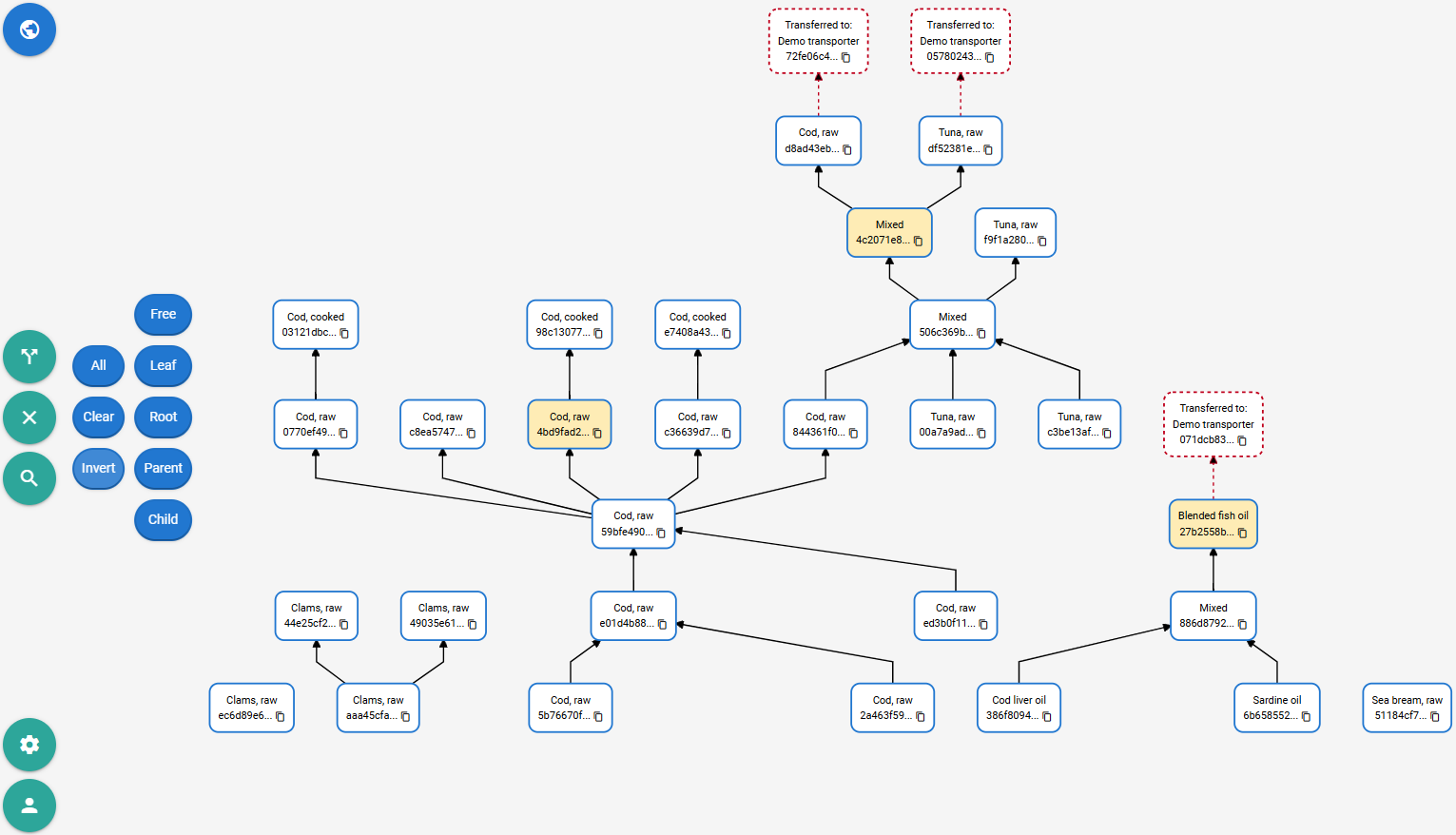
Figure 50: Batch selection by clicking
Invert replaces the selection with its complement.
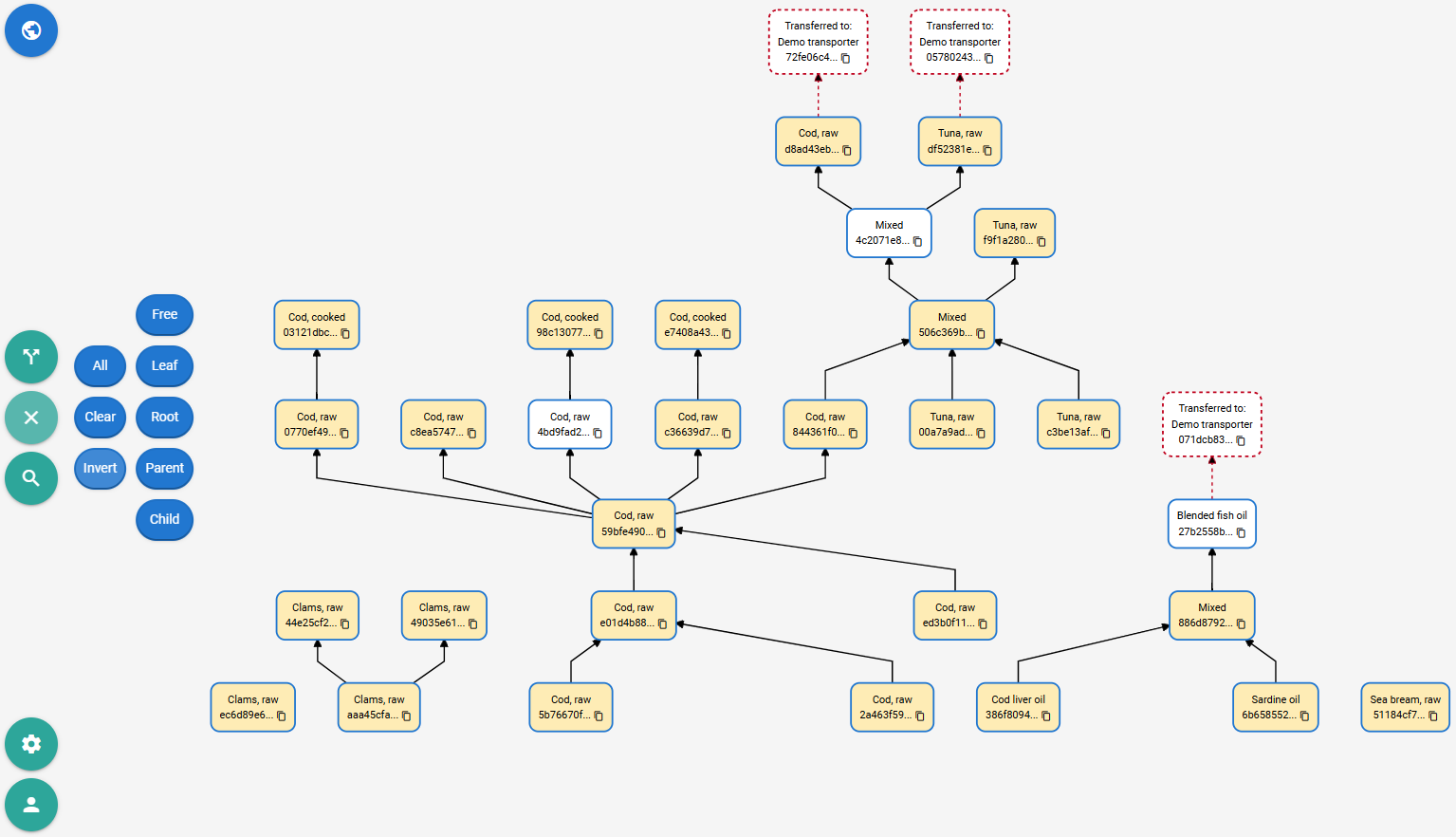
Figure 51: Batch selection inverted
Now Clear selection and click Free, which selects all batches without relationships.
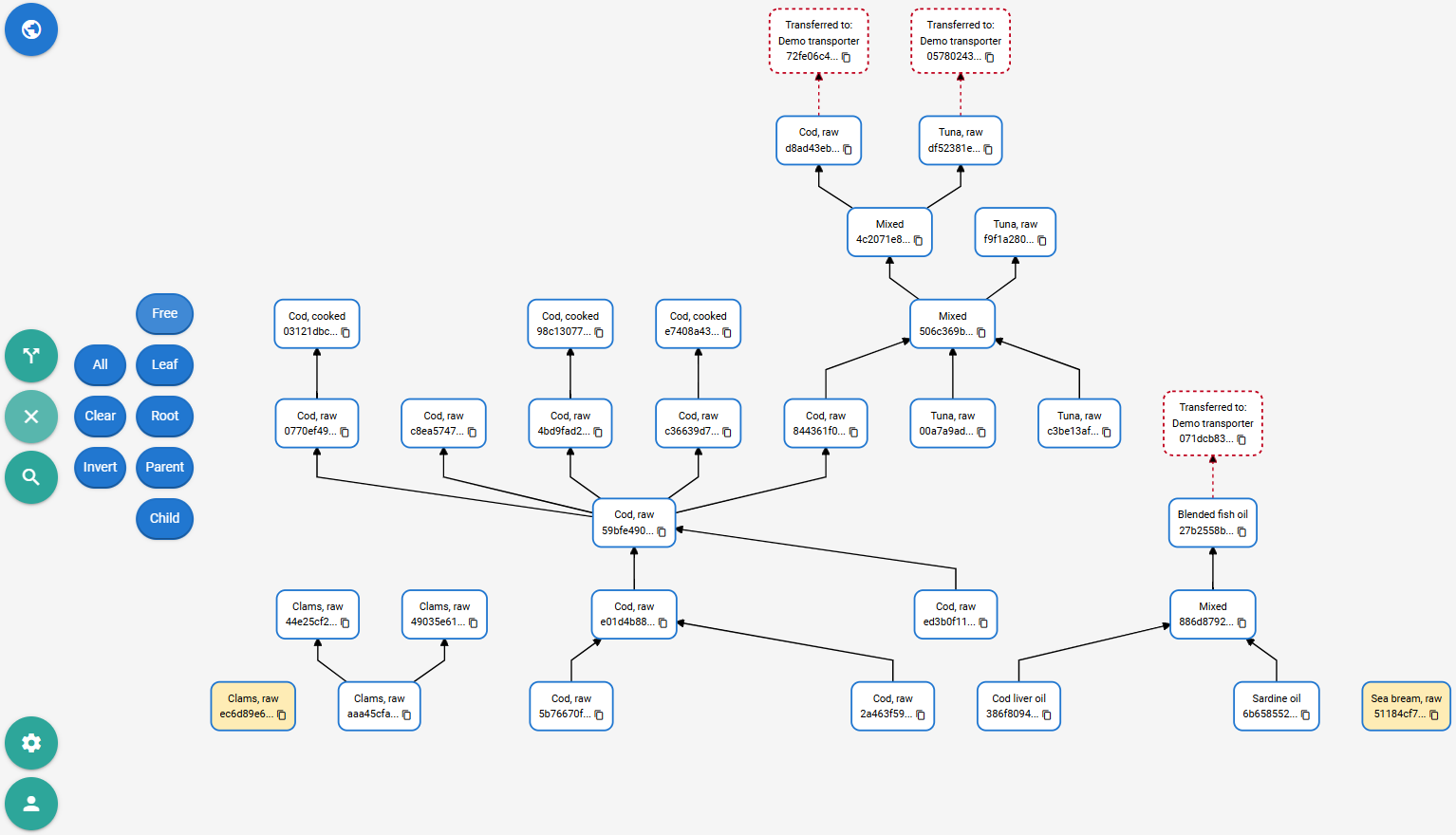
Figure 52: Batches without relationships selected
Now Clear selection and click Leaf, which selects all batches without child batches.
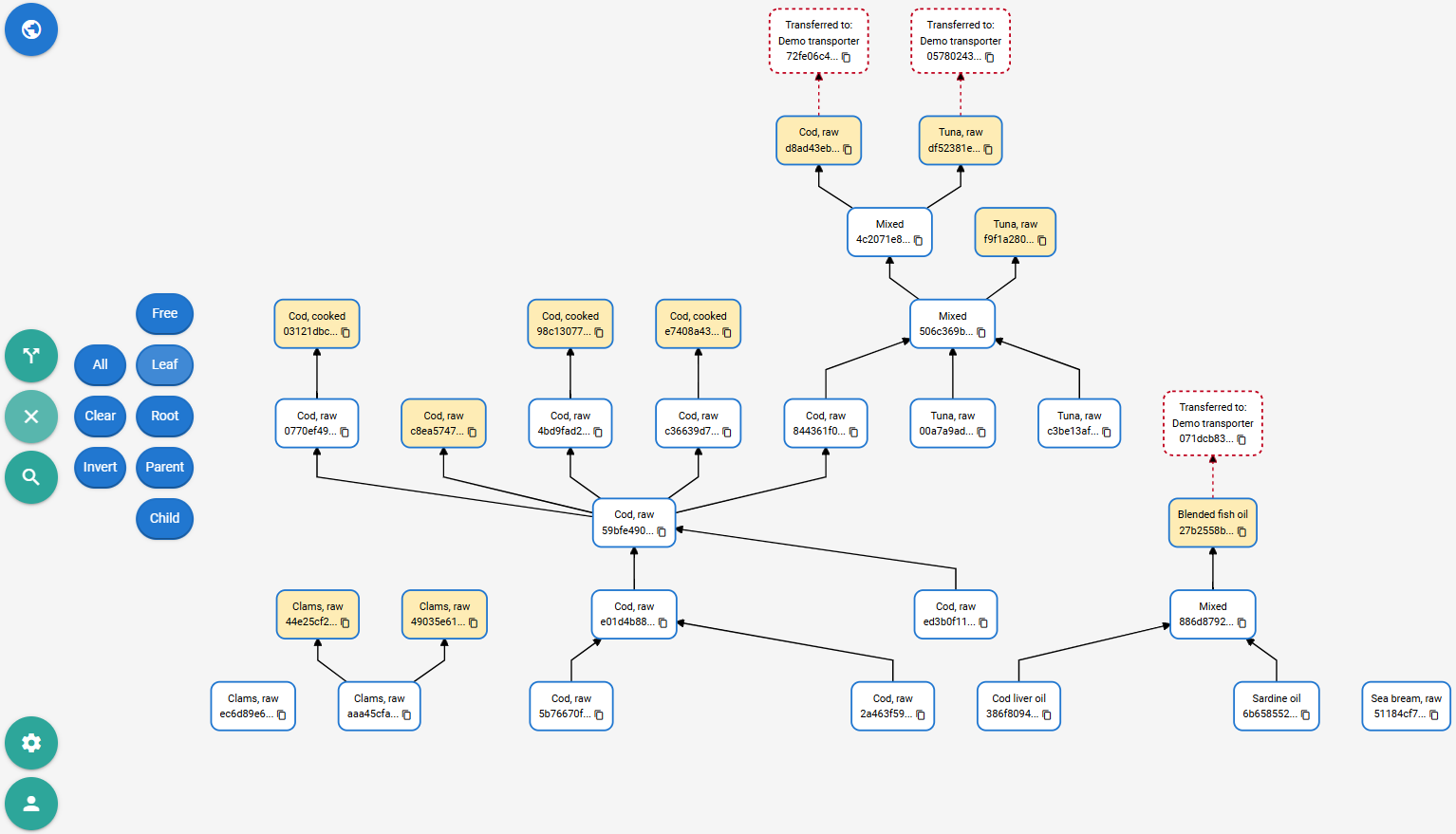
Figure 53: Batches without descendants selected
Clicking Parent extends the selection to parent batches of all selected batches.
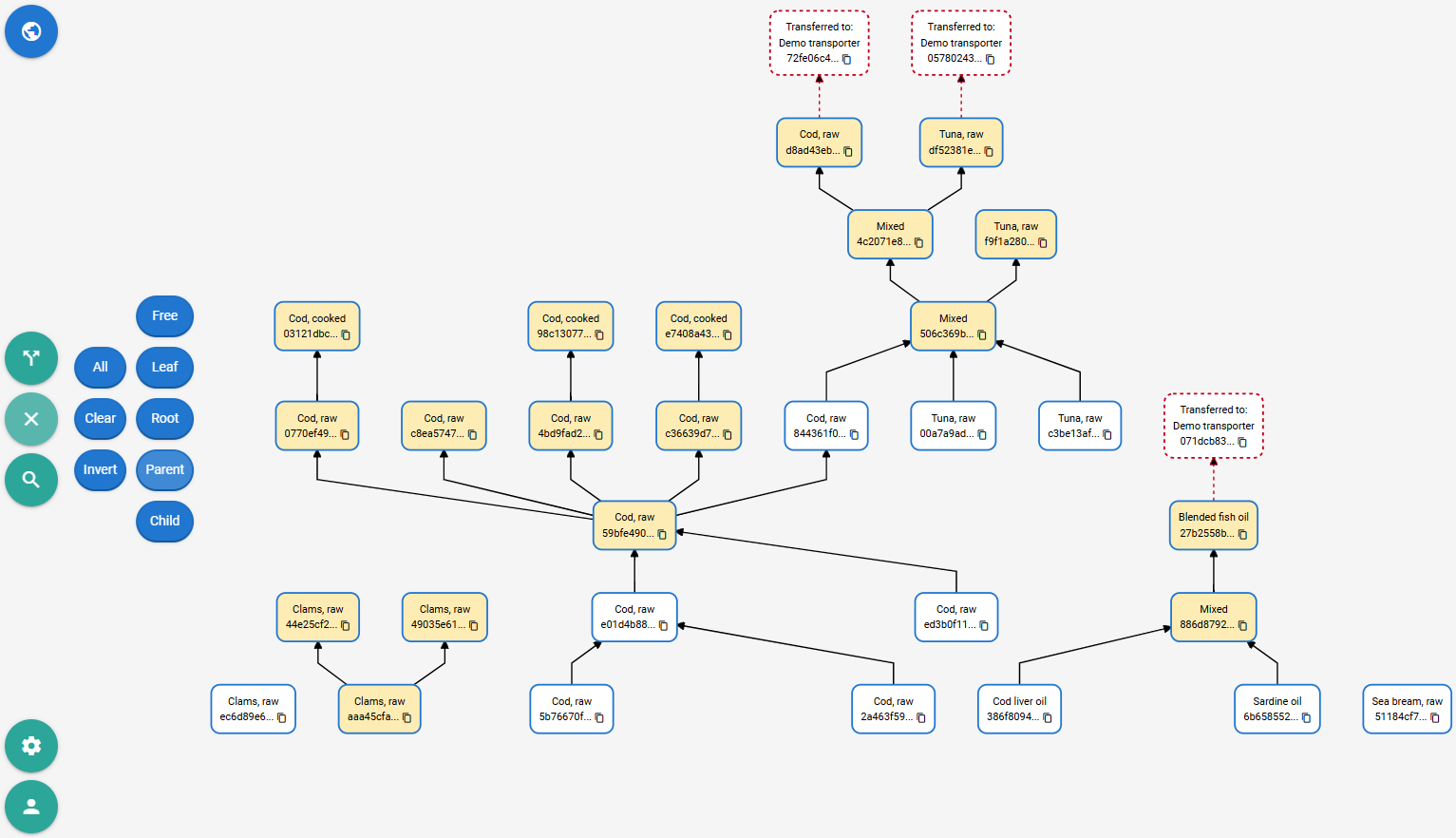
Figure 54: Parent batches selected
Clicking Parent again goes one step further.
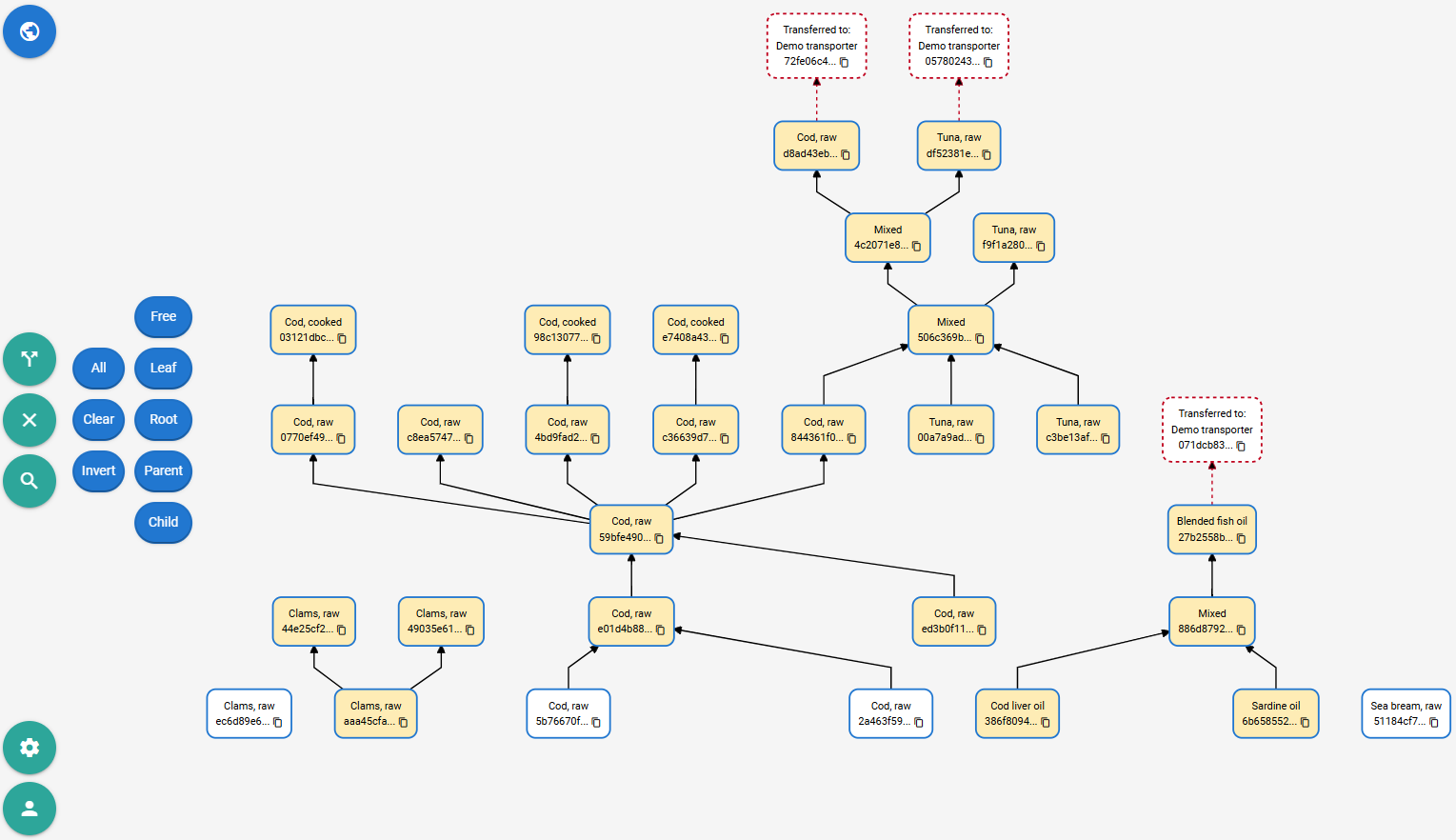
Figure 55: Parent batches selected again
Now Clear selection and click Root, which selects the batches without parent batches but with child batches.
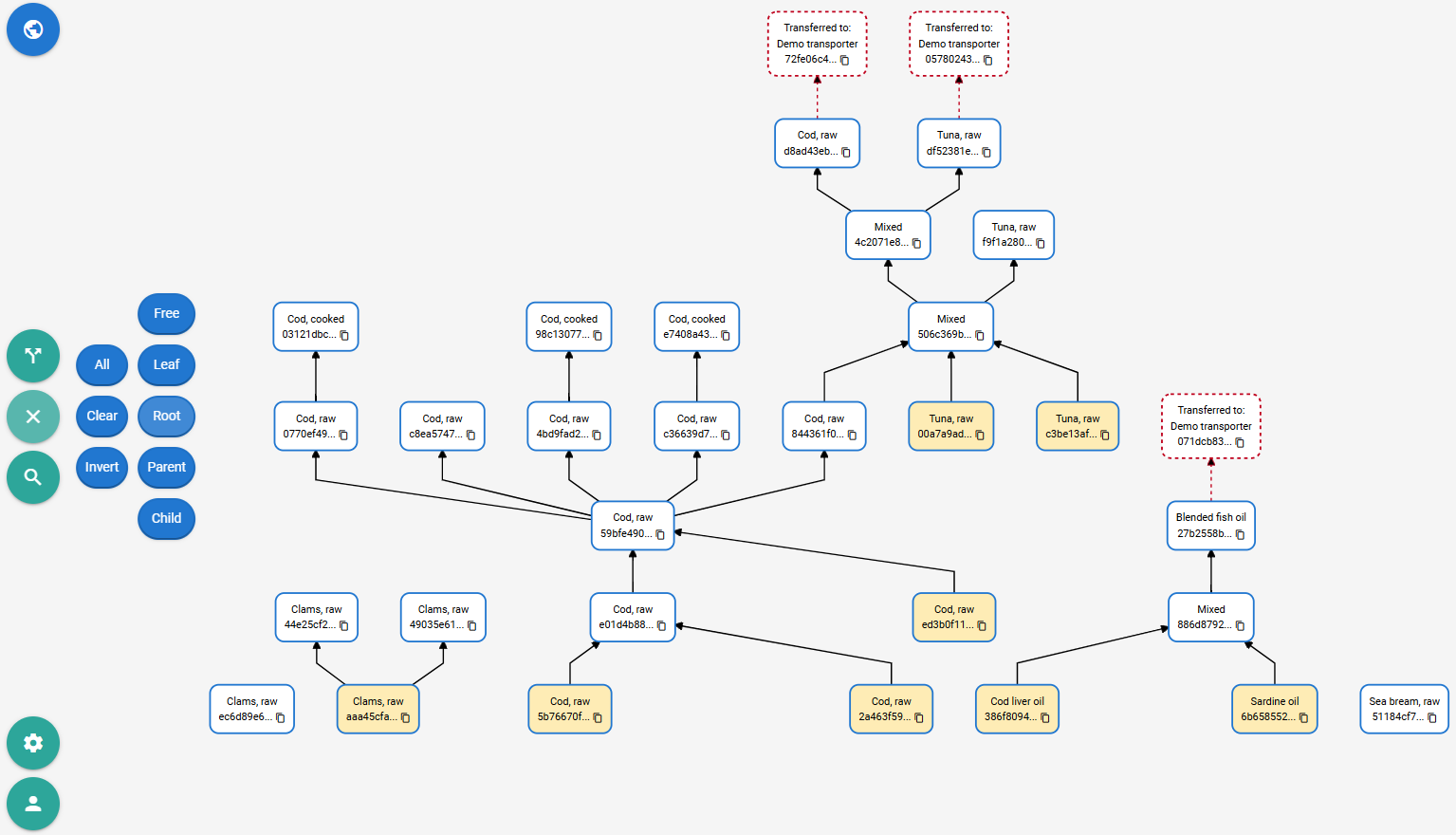
Figure 56: Parent batches wihout parents selected
Clicking Child extends the selection to child batches of all selected batches.
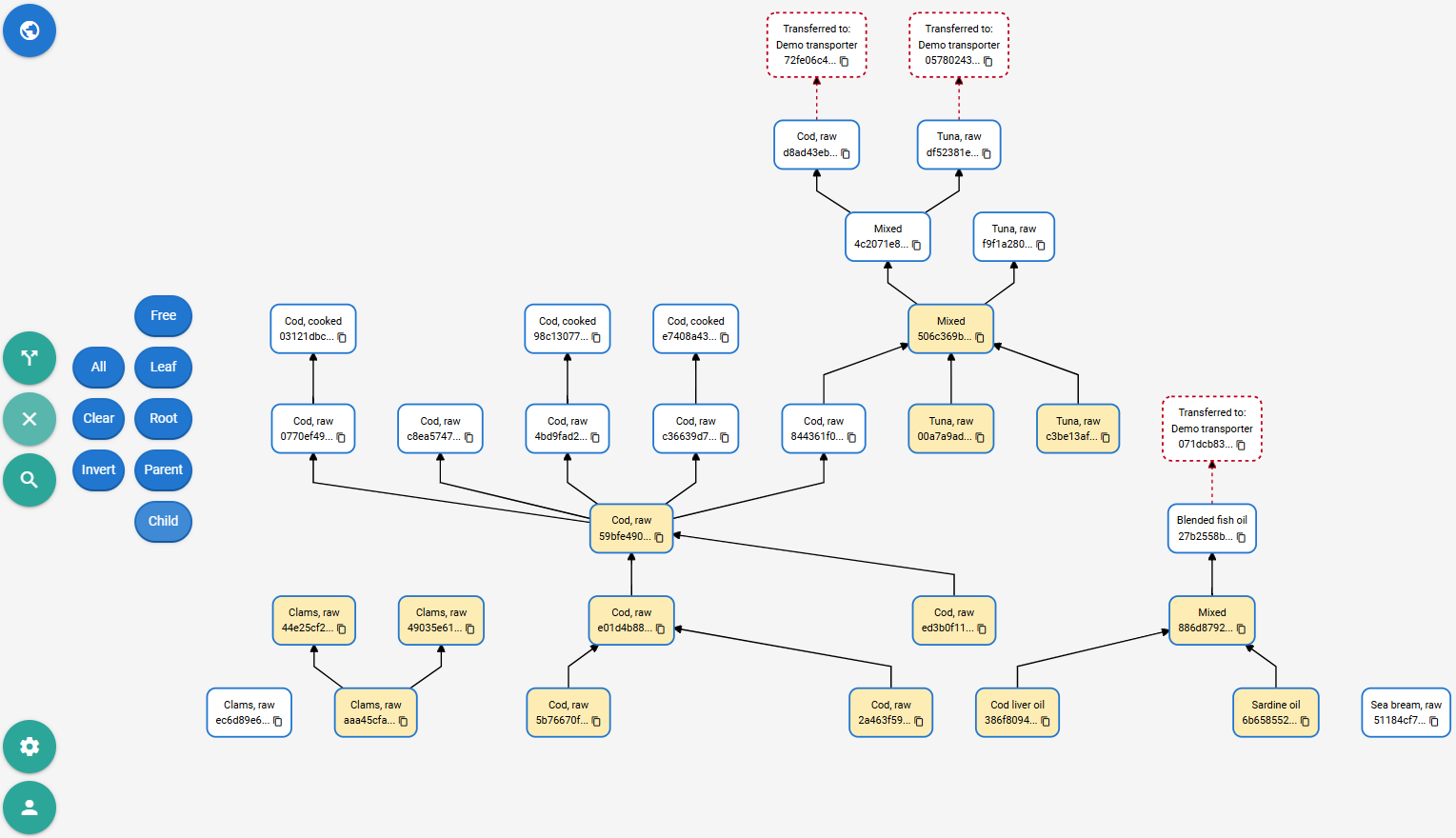
Figure 57: Child batches selected
Clicking Child again goes one step further.
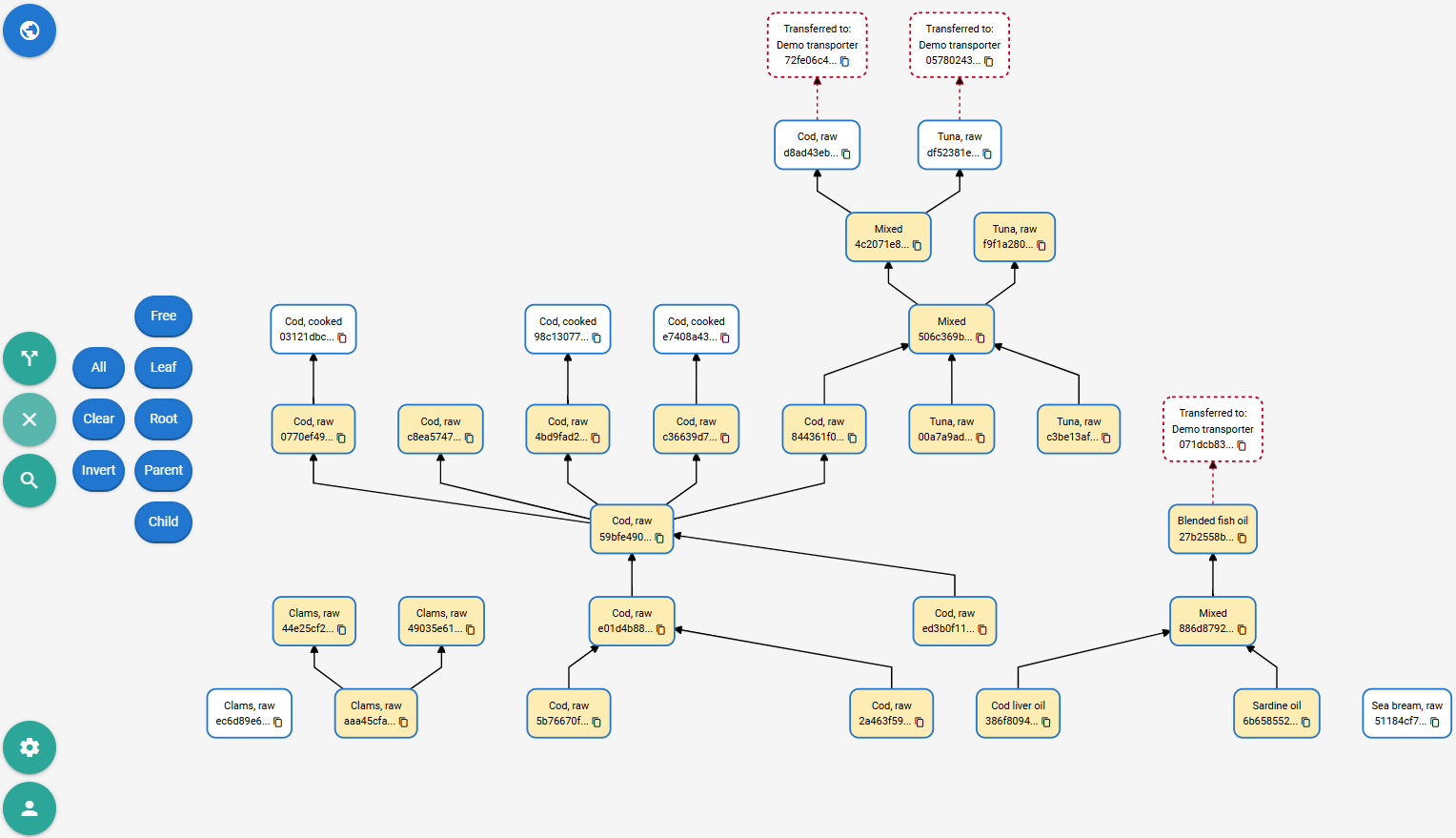
Figure 58: Child batches selected again
10. Batch Access
Within an organization, different teams can be granted or revoked access to the organization's batches (for batch transfers between organizations, see chapter 8). To do this, in the Batches table, select the rows corresponding to the batches for which access is to be managed, then click Share -> Manage access.
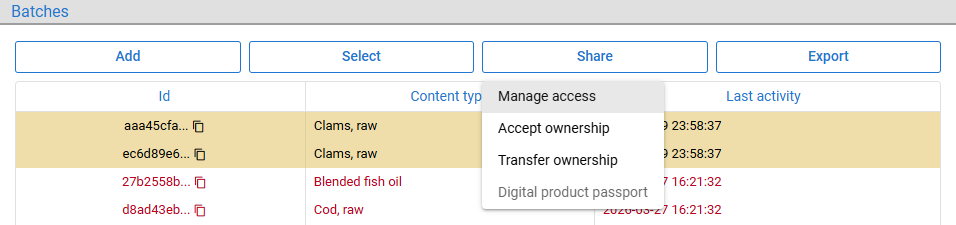
Figure 59: Selecting batches for access management
A Batch access dialog opens displaying the access history for the selected batches. There are three permission levels: Read (view data), Write (add new data) and Share (grant or revoke access). Access is added by clicking the Add button and filling out a multi-row form (see chapter 22.5), with multi-select fields (see chapter 22.4) for both the teams being granted access and the access levels to be assigned.
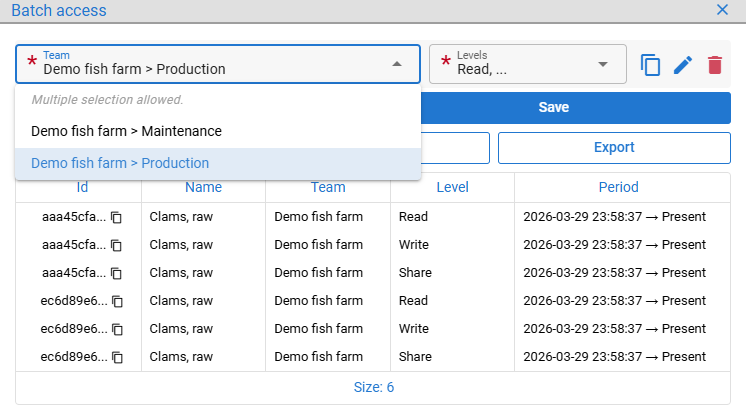
Figure 60: Extending batch access to additional team
Selected access levels are added to all selected teams, with the validity period starting from the current timestamp and spanning indefinitely. Selecting rows in the Batch access table enables the Invalidate button for ending access. No data can be deleted here; the history is fully maintained.
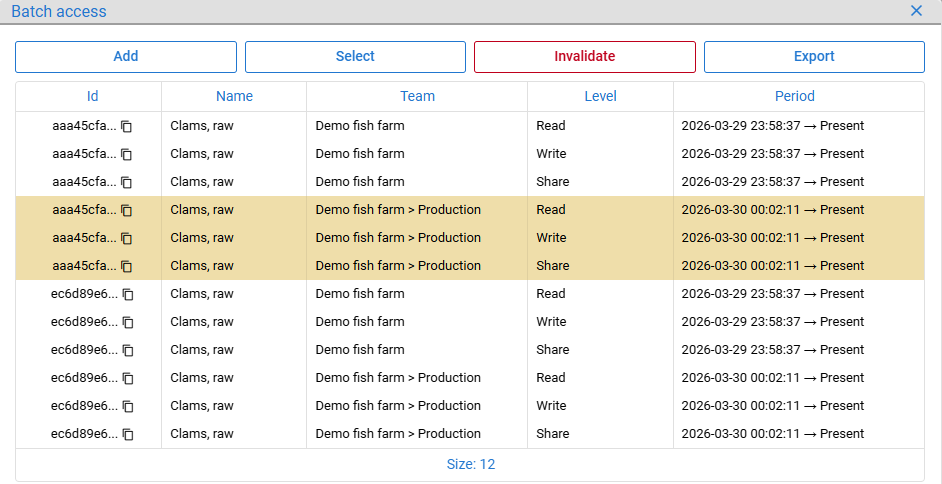
Figure 61: Batch access saved and selected
When invalidated, the validity period is set so that the current timestamp becomes the ending timestamp. For selected rows that have already been invalidated, nothing will happen and the previous validity period remains unchanged. Teams that previously had access can be granted access again.
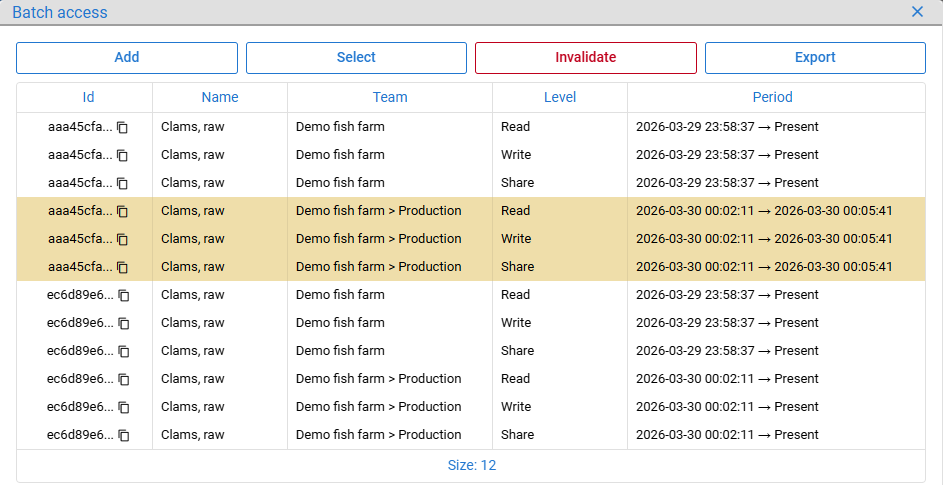
Figure 62: Batch access revoked
When a batch is created, full access rights are automatically granted to the creator's team. When batches are split, merged, or transformed, access rights are copied to the resulting batches. If batches belonging to different teams are merged, all teams get access to the resulting batch.
Batch access granting (/team/entity-access/save), revocation (/team/entity-access/remove) and search (/team/entity-access/search) are implemented as generic functionality and reused for other secured entities in the system, such as data sources (see chapter 13).
11. Batch Attributes
Attributes represent any name-value information associated with batches for a defined period or indefinitely. Examples include value chain stages, truck registration numbers, breeding pool identifiers, external codes, categories and other similar information.
Selecting batches in the left pane enables the Attributes tab, which lists all attributes for the selected batches. New attributes can be added by clicking the Add button, which starts a multi-row form (see chapter 22.5) with attribute name-value pairs. When submitted, the defined attributes are created and connected to all selected batches.
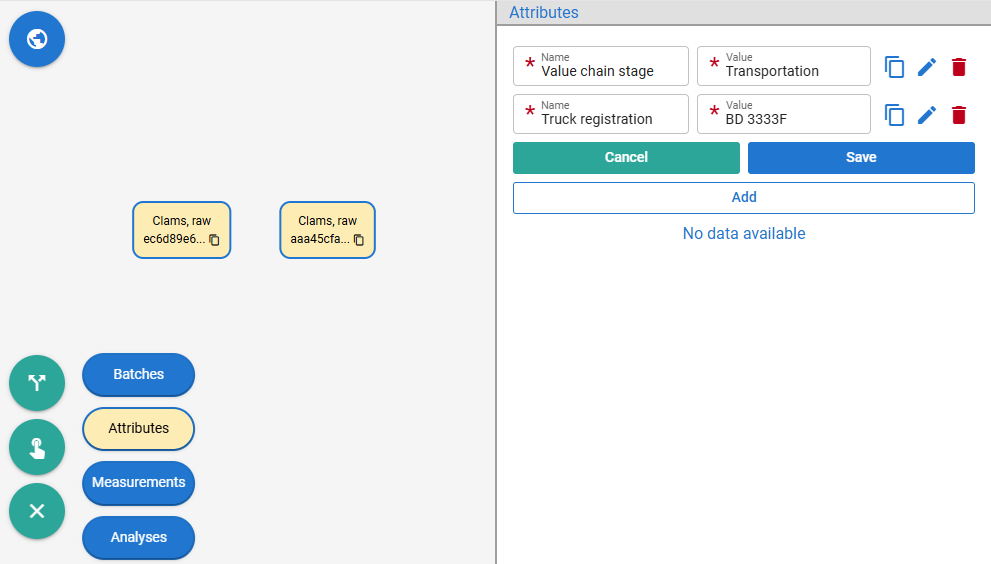
Figure 63: Connecting attributes to batches
In this example, attributes are used for grouping: the two selected batches are transported together in the same truck. The activity period begins at the current timestamp and remains active until invalidated.
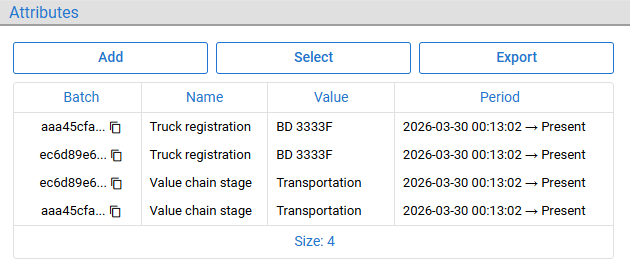
Figure 64: Attributes connected to batches
To simulate moving the batches to another truck, the current truck registration number is invalidated by selecting the corresponding rows and clicking Invalidate, after which the new truck registration number is added. When invalidated, the activity period is assigned an end timestamp. Neither attributes nor their connections to batches can be deleted, ensuring that the history remains intact.
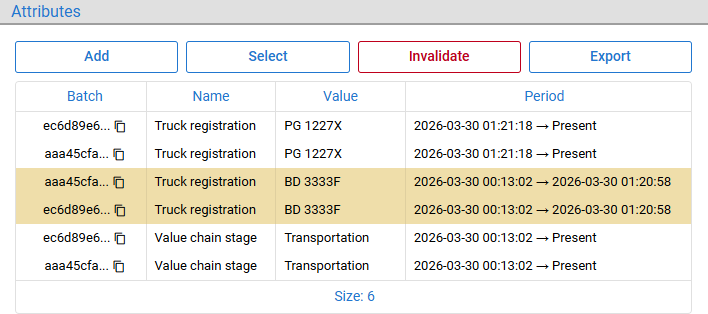
Figure 65: Attributes invalidated and new attributes saved
The Value chain stage attribute is not invalidated here because the batches are still in the transportation stage.
The same saved attributes (/batch/attribute/save) are reused by connected batches (/batch/attribute/link/save) or disconnected from them later (/batch/attribute/link/remove). Attributes and links can themselves be searched (/batch/attribute/search, /batch/attribute/link/search) and attribute values are also accepted as parameters by other APIs, like searching for batches by familiar codes or names, or finding all batches that belong to a specific group, stage, or category.
12. Data Sources
Data sources represent the origin of measurements (see chapter 15) and analyses (see chapter 17). Currently supported sources are categorized into three standard types: Manual (all such entries use a single predefined source), Device (any type of sensor) and Platform. External sources from which the FishEUTrust platform can pull data are categorized as DigitalSmart device, Cobàlia device and Cobàlia platform (see chapter 18.3).
To open the data sources dialog, click the second-to-last button in the bottom-left corner of the homepage (see chapter 4), then click the Sources button.
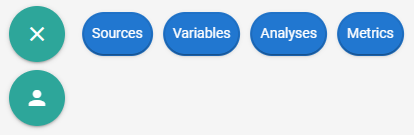
Figure 66: Platform settings - sources
New sources can be added by clicking the Add button and filling out a multi-row form (see chapter 22.5) that accepts a name, which must be unique at the system level and a type selected from the dropdown.
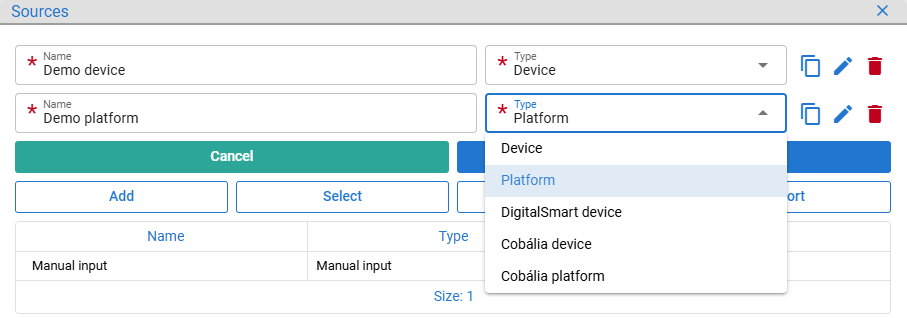
Figure 67: Adding data sources
After saving, the new sources appear in the table with their generated IDs. Sources can be deleted by clicking the Delete button if no measurements, analyses, or other traceability data have been collected for them.
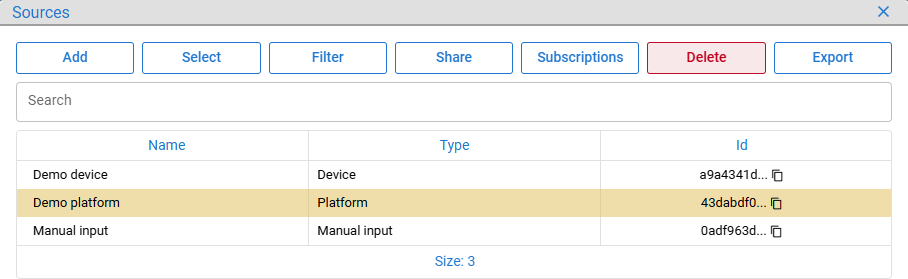
Figure 68: Deleting data sources
Data sources can be programatically searched (/data-source/search), saved (/data-source/save) and removed (/data-source/remove).
13. Data Source Access
Within an organization, different teams can be granted or revoked access to the organization's sources (see chapter 12). To do this, in the Sources table, select the rows for which access is to be managed, then click Share.
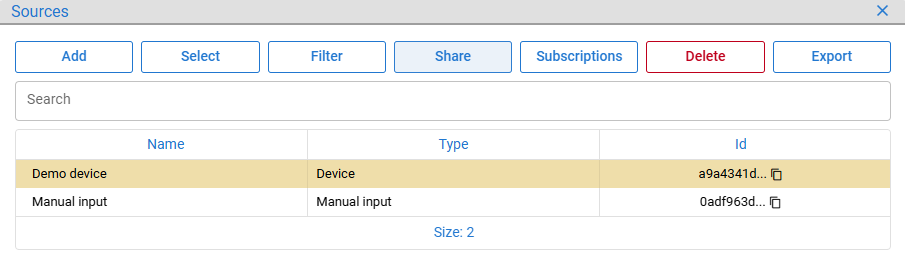
Figure 69: Selecting sources for access management
A Source access dialog opens displaying the access history for the selected sources. There are three permission levels: Read (view data), Write (add new data) and Share (grant or revoke access). Access is added by clicking the Add button and filling out a multi-row form (see chapter 22.5), with multi-select fields (see chapter 22.4) for both the teams being granted access and the access levels to be assigned.
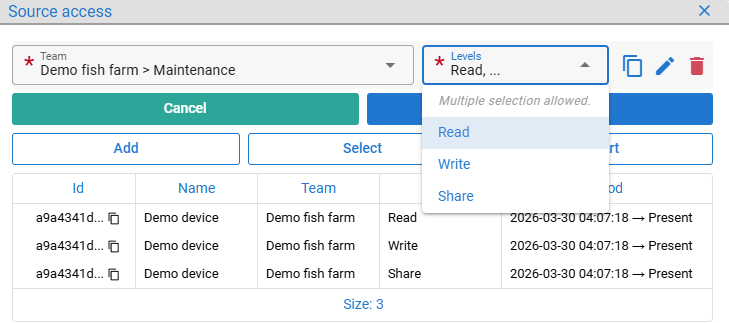
Figure 70: Extending source access to additional team
Selected access levels are added to all selected teams, with the validity period starting from the current timestamp and spanning indefinitely. Selecting rows in the Source access table enables the Invalidate button for ending access. No data can be deleted here; the history is fully maintained.
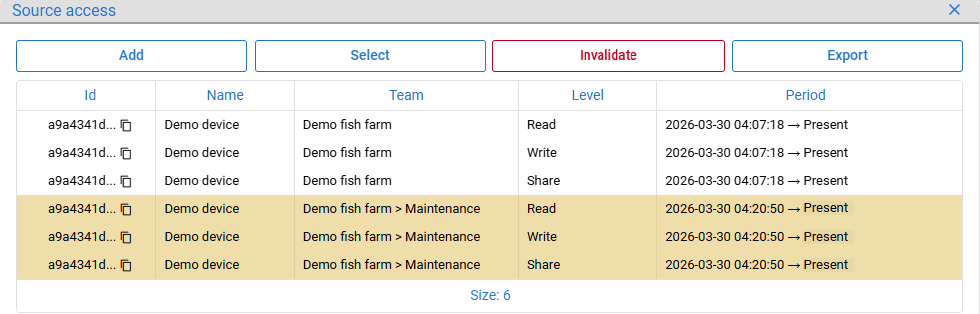
Figure 71: Source access added and selected
When invalidated, the validity period is set so that the current timestamp becomes the ending timestamp. For selected rows that have already been invalidated, nothing will happen and the previous validity period remains unchanged. Teams that previously had access can be granted access again.
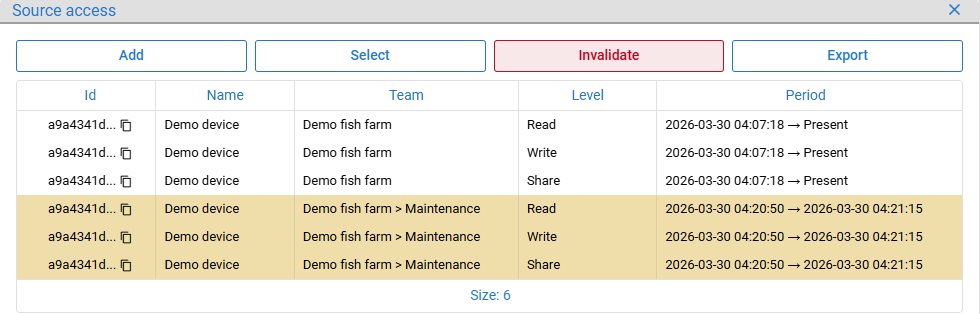
Figure 72: Source access revoked
When a source is created, full access rights are automatically granted to the creator's team.
Data source access granting (/team/entity-access/save), revocation (/team/entity-access/remove) and search (/team/entity-access/search) are implemented as generic functionality and reused for other secured entities in the system, such as batches (see chapter 10).
14. Measurement Variables
Measurement variables, such as weight, temperature and location, define what is being measured (see chapters 15 and 17). Each variable has a name (e.g., Temperature) and a predefined unit code (e.g., Celsius (°C)); the same unit code can be shared by multiple variables. Variables are globally shared, allowing data to be easily aggregated and compared across measurements, batches and organizations.
To open the Variables dialog, click the second-to-last button in the bottom-left corner of the homepage (see chapter 4), then click the Variables button.
Figure 73: Platform settings - variables
New variables can be added by clicking the Add button and filling out a multi-row form (see chapter 22.5) that accepts a name, which must be unique at the system level and a unit code selected from the dropdown.
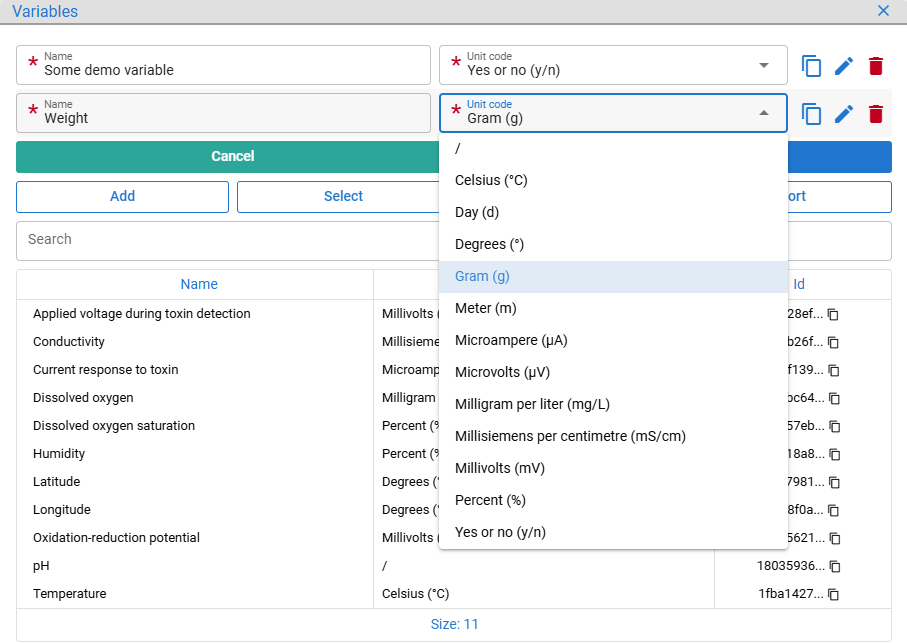
Figure 74: Adding measurement variables
After saving, the new variables appear in the table with their generated IDs. Variables can be deleted by clicking the Delete button if no measurements, analysis templates, or other traceability data have been collected for them.
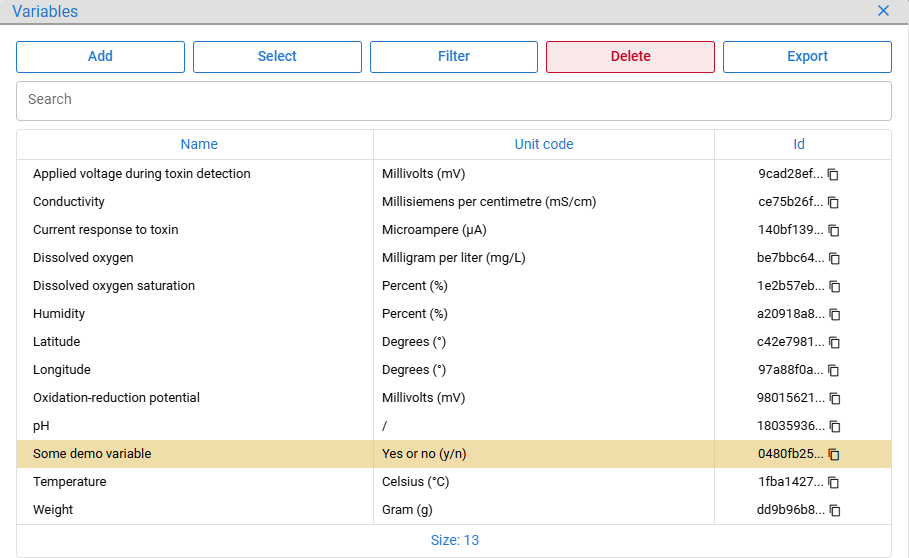
Figure 75: Deleting measurement variables
Variables can be programatically searched (/measurement/variable/search), saved (/measurement/variable/save) and removed (/measurement/variable/remove). Wherever a unit code is provided as an argument, APIs generally accept both the unit name, such as GRAM and the code, such as g.
15. Measurements
Measurements represent numerical values measured at a point in time or over a period, together with information about the measurement source, such as the sensor that recorded the value (see chapter 12) and the variable it represents, such as temperature or weight (see chapter 14).
Measurements are always connected to a batch and can be viewed by selecting one or more batches and opening the Measurements tab. New measurements can be added using the Add button, which opens a multi-row form (see chapter 22.5) for entering multiple values measured at different times for the selected source and variable.
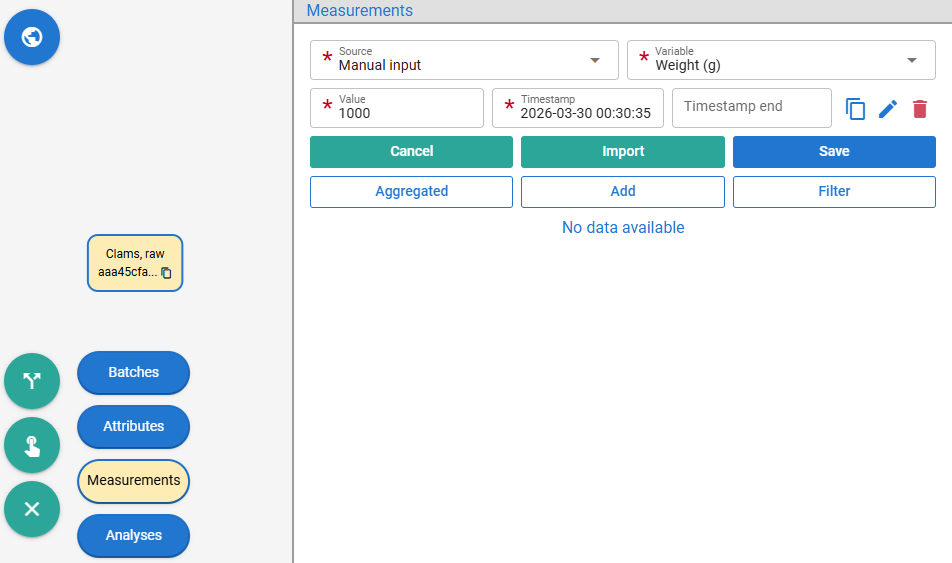
Figure 76: Adding measurements
After saving, measurements are added to the table.
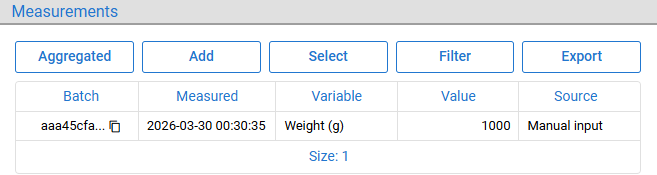
Figure 77: Measurements saved
CSV file import is supported, making it easier for stakeholders without a programmatic integration to submit larger volumes of data. It also enables the transfer of data from other systems that support CSV export. The CSV file must contain the measurement_value, measurement_timestamp and may optionally include measurement_timestamp_to columns. Timestamps must be provided in ISO 8601 UTC format.
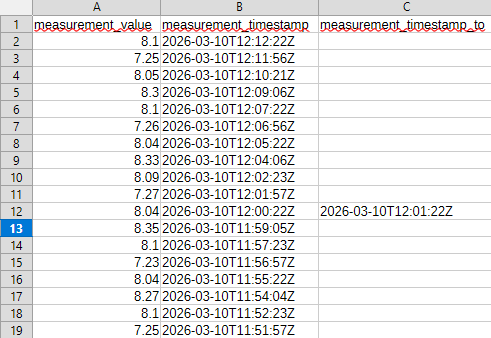
Figure 78: CSV file with measurements
To import data, click Add, then Import and select the CSV file. After the import, the data is not stored directly in the database. Instead, it populates the same form used for manual input, allowing users to review the data and address any validation errors. Invalid cells are highlighted, enabling partially valid data to be corrected to match the required format instead of rejecting the entire file.
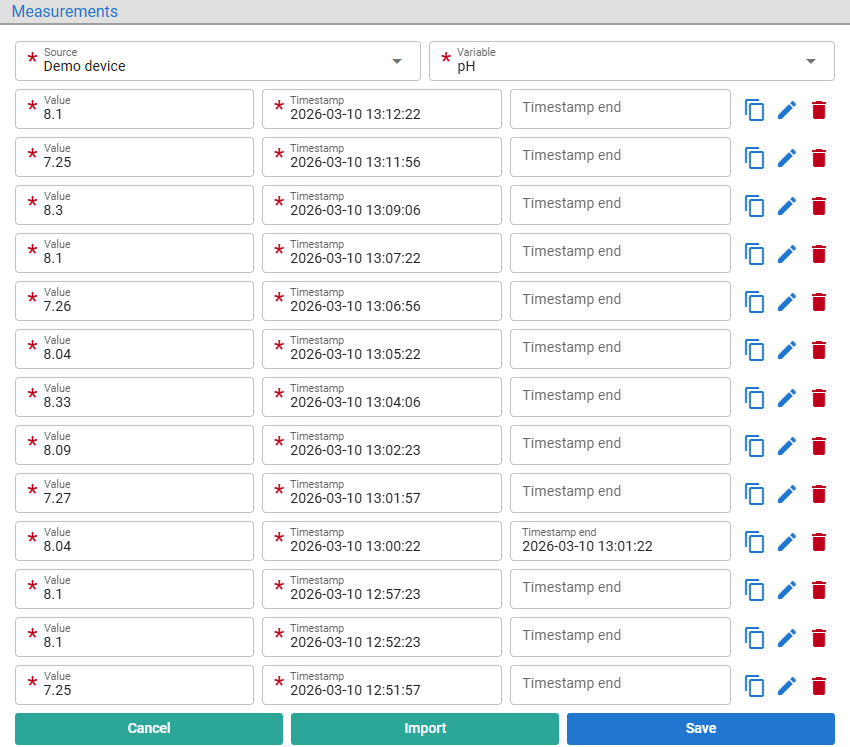
Figure 79: Imported measurements from CSV file
After saving, the measurements associated with all selected batches are added to the table.
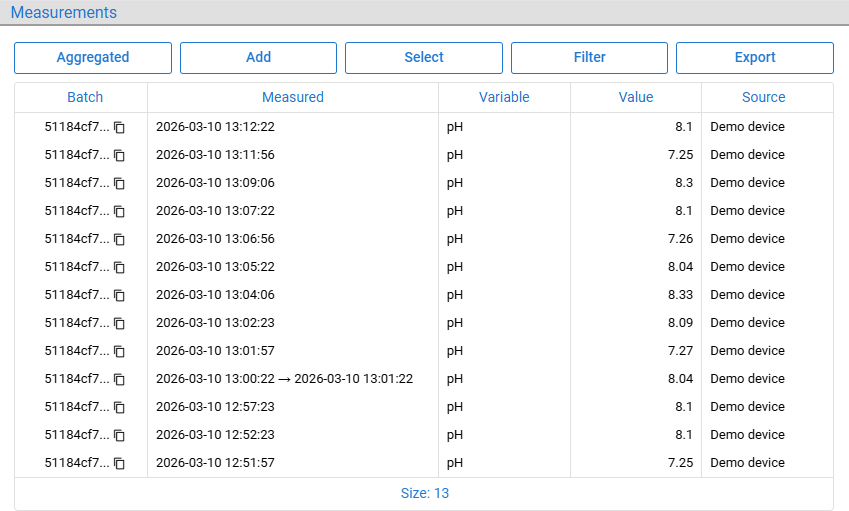
Figure 80: Imported measurements saved
When dealing with large amounts of data, such as measurements continuously received from sensors or external platforms, a raw tabular presentation becomes less useful. To maintain performance and manage memory, especially during concurrent usage, the server provides the data only in chunks through pagination.
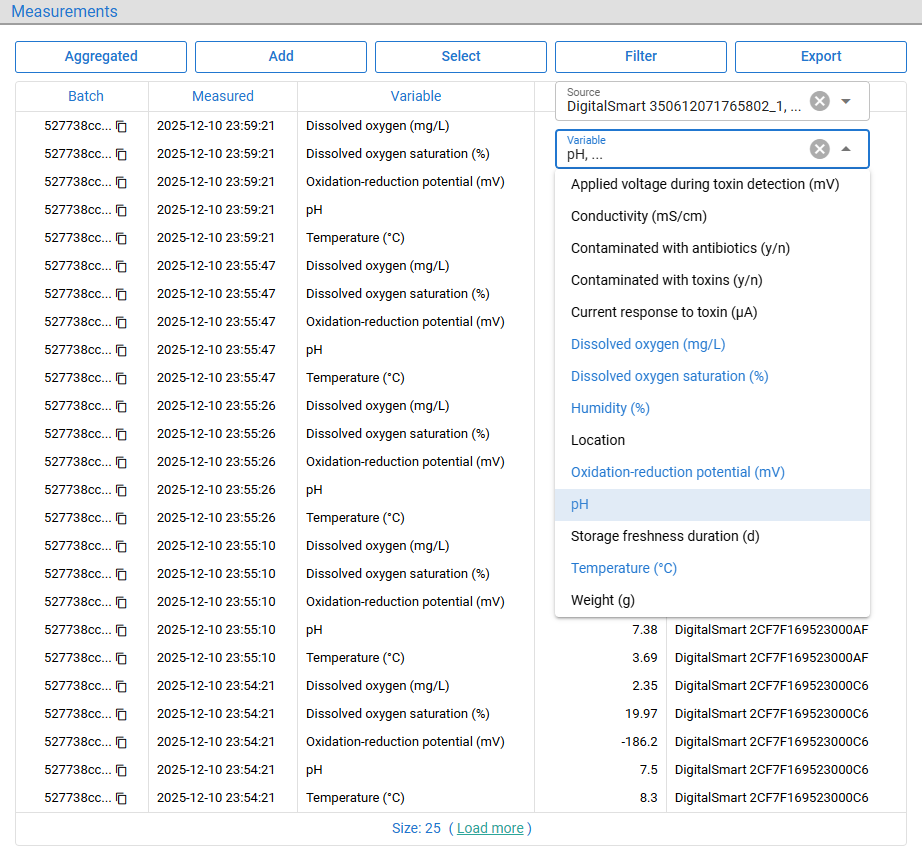
Figure 81: Tabular view of measurements
By default, 25 rows are fetched at a time, with the Load more option used to retrieve the next chunk. Filters are provided to narrow the search results by selecting the desired sources and variables.
As an alternative to the tabular view, measurements can be displayed as aggregated line charts displaying the minimum, maximum, average, median and upper and lower quartiles over selected time periods. Timestamps can be grouped by hour, day, week, month, quarter, or year. To open the aggregated view, click the Aggregated button.
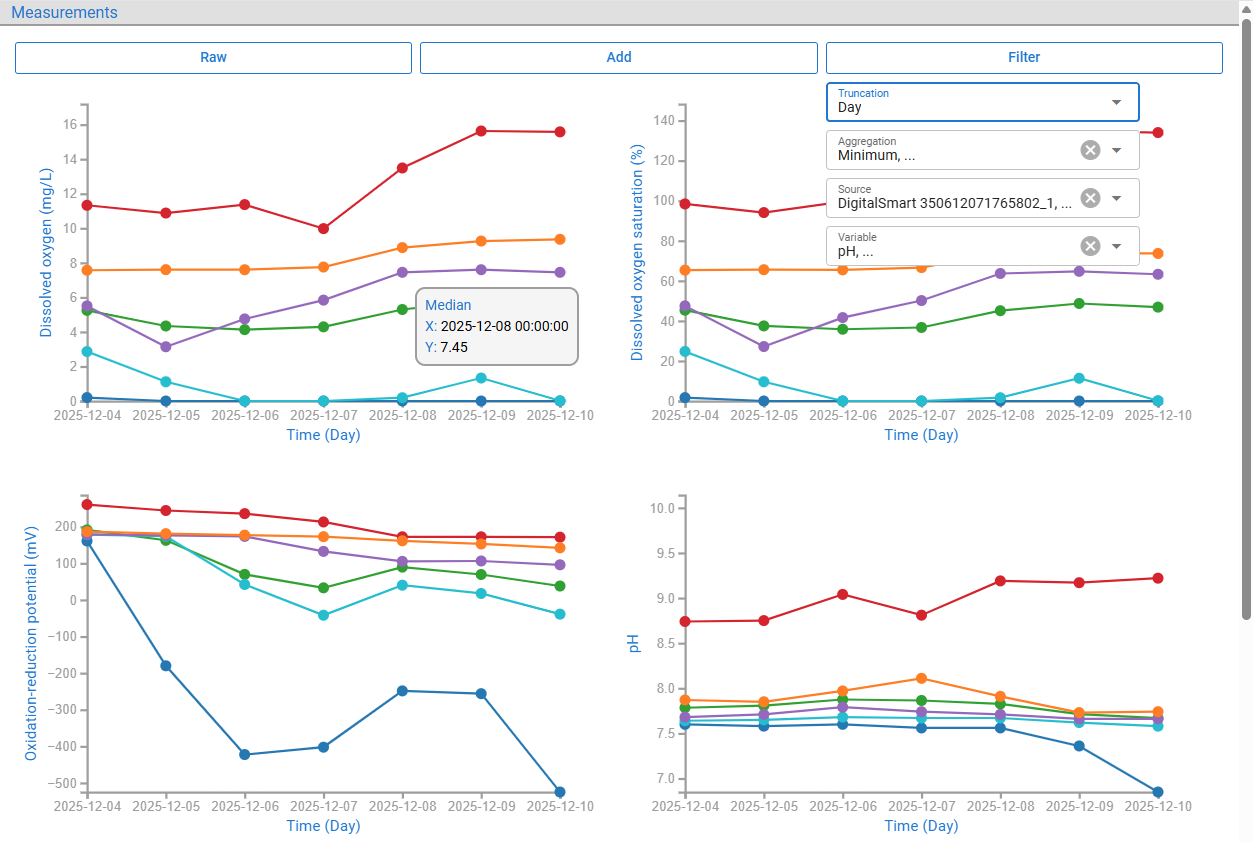
Figure 82: Aggregated view of measurements
Hovering over a data point displays its exact value and timestamp. Individual aggregation methods can be displayed or hidden and various filters can be applied. To return to the tabular view, click Raw.
Measurements can be saved (/measurement/save) by providing either a JWT (see chapter 4) or a Data Provision Token (see chapter 6). Measurement data can be searched either as raw (/measurement/search) or as aggregated (/measurement/search/aggregated).
16. Locations
Locations are represented by two measurements (see chapter 15): one for latitude and one for longitude, both with the same timestamp. When the Location variable is selected, the multi-row (see chapter 22.5) form provides two input fields per timestamp and importing data (see Figure 78) requires a CSV file with latitude and longitude columns.
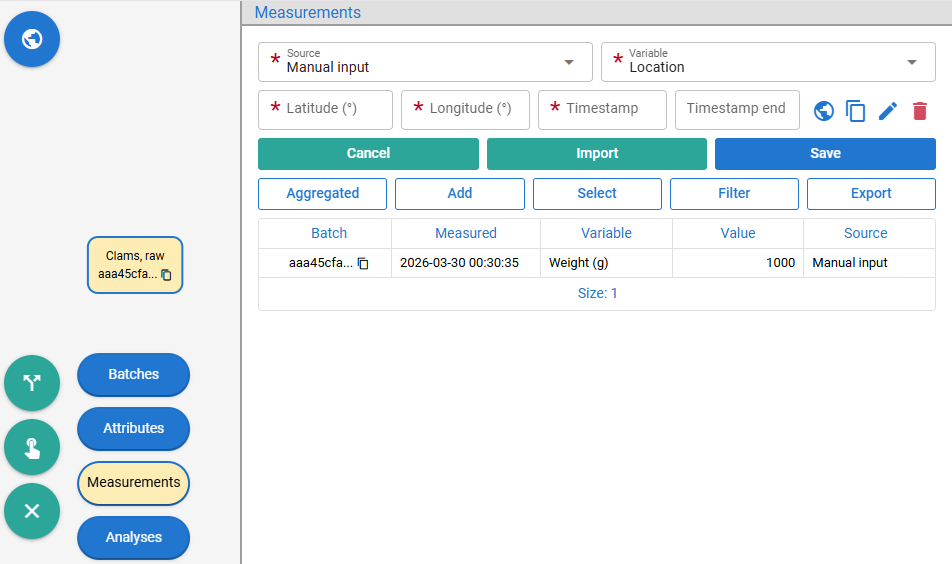
Figure 83: Adding locations
The location picker next to the Timestamp end input opens a map dialog where users can select a location.
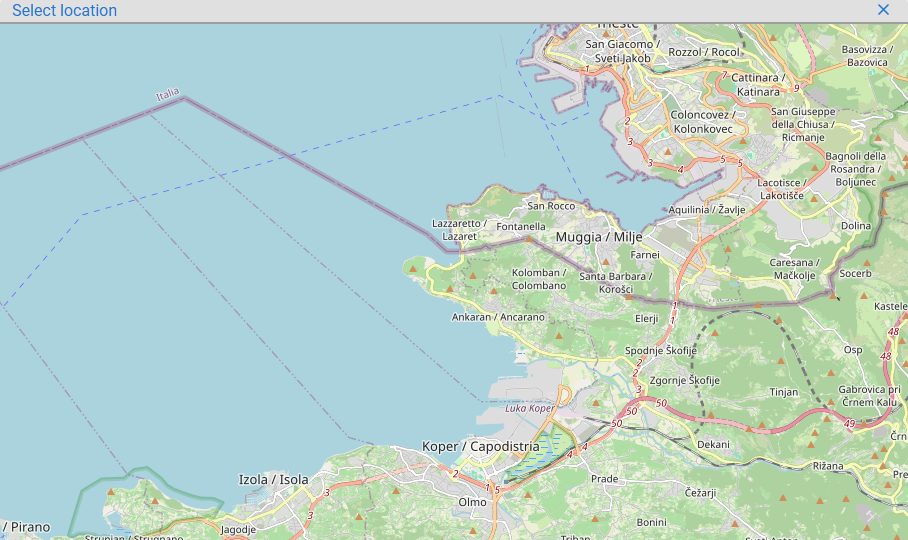
Figure 84: Location selection on the map
When a location is selected, the latitude and longitude fields are automatically populated.
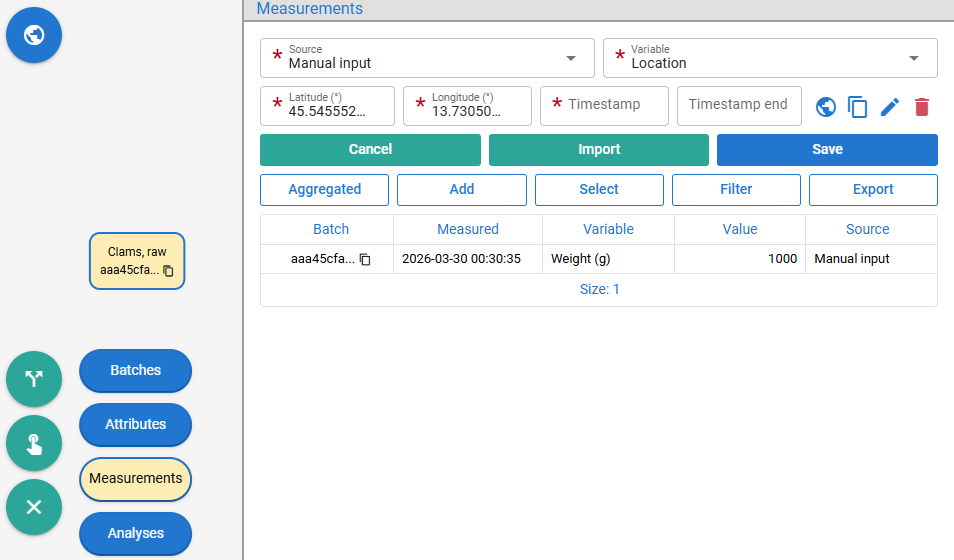
Figure 85: Latitude and longitude populated from location
When saved, the location is stored as two rows with the same timestamp.
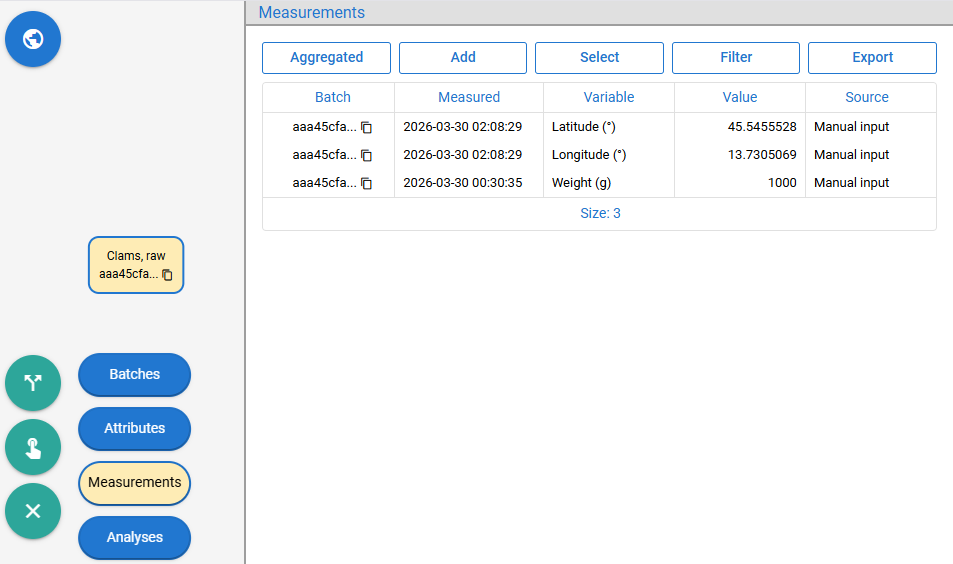
Figure 86: Location saved
When the location of a batch is known, it is displayed in a map view, which is an alternative to the batch lifecycle graph diagram (see chapter 7) and can be opened by clicking the button in the top-left corner.
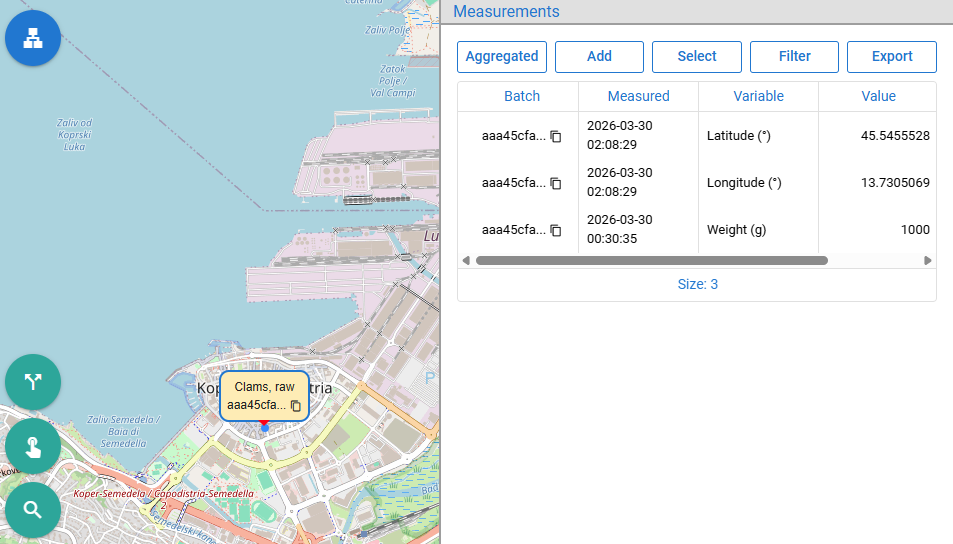
Figure 87: Batch displayed on the map
When the user adds new locations for the same batch, the platform displays the batch's movement by connecting the locations with a directed line on the map. Hovering over each point shows the details of the location entry.
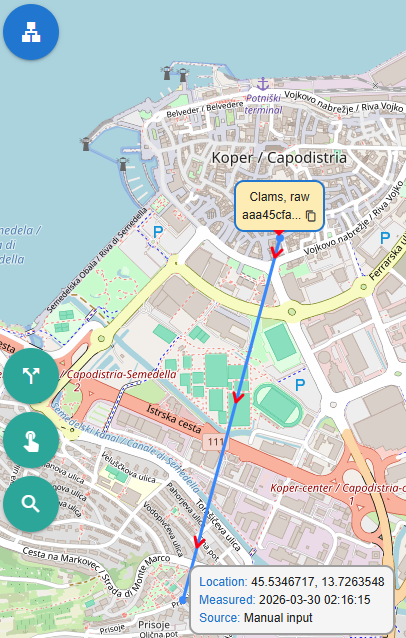
Figure 88: Batch movement displayed on the map
When a batch operation such as split, merge, or transform is applied (see chapter 7) and all resulting batches have locations, they are connected with directed lines on the map. In the example below, the batch is split into two batches.
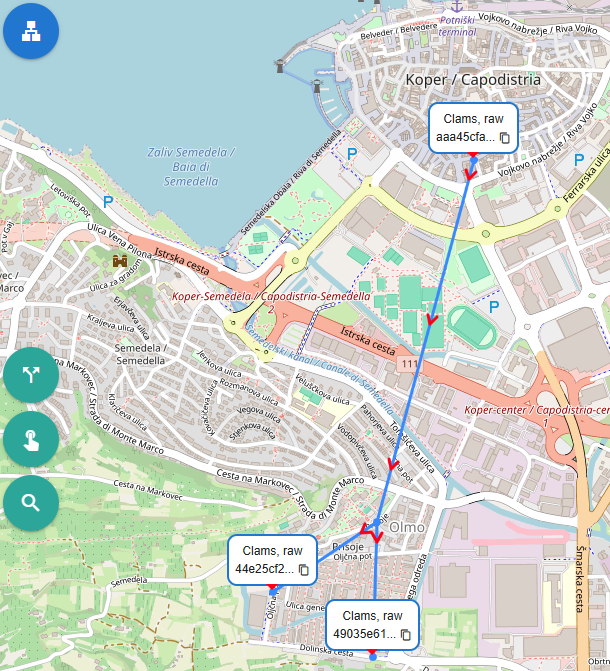
Figure 89: Batch lifecycle displayed on the map
The more location data collected, the more accurately the batch's route is displayed. In the example below, GPS sensor readings from the truck transporting the batch are shown.
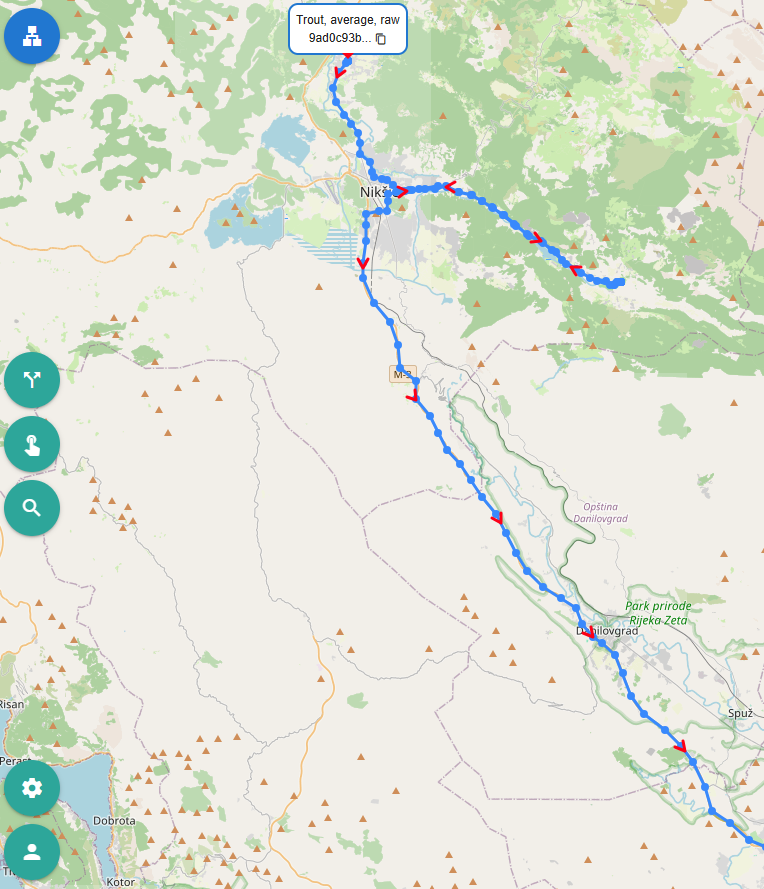
Figure 90: GPS sensor readings displayed on the map
Location measurements can be saved (/measurement/save) by providing either a JWT (see chapter 4) or a Data Provision Token (see chapter 6). When saving locations, the request is validated to ensure that each latitude value has exactly one corresponding longitude value with the same timestamp. Searching saved locations (/measurement/search/location) returns these coordinate pairs.
17. Analyses
An analysis consists of a series of two-dimensional points defined by X and Y values, where each axis can represent any measurement variable (see chapter 14). Each analysis conforms to a template that defines its name, the variables assigned to its X and Y axes and, optionally, the rules for interpreting the recorded data.
To open the Analysis Templates dialog, click the second-to-last button in the bottom-left corner of the homepage (see chapter 4), then click the Analyses button.
Figure 91: Platform settings - analysis templates
The figure below shows templates for two different toxin analyses (okadaic acid and saxitoxin) that use the same X and Y variables but differ in how the analysis is interpreted. It also shows templates for antibiotic, bacteria and freshness analyses, as well as a microplastic analysis template being defined by clicking the Add button and filling out a multi-row form (see chapter 22.5). The form requires a unique analysis name and the variables assigned to the X and Y axes (new can be added, see chapter 14).
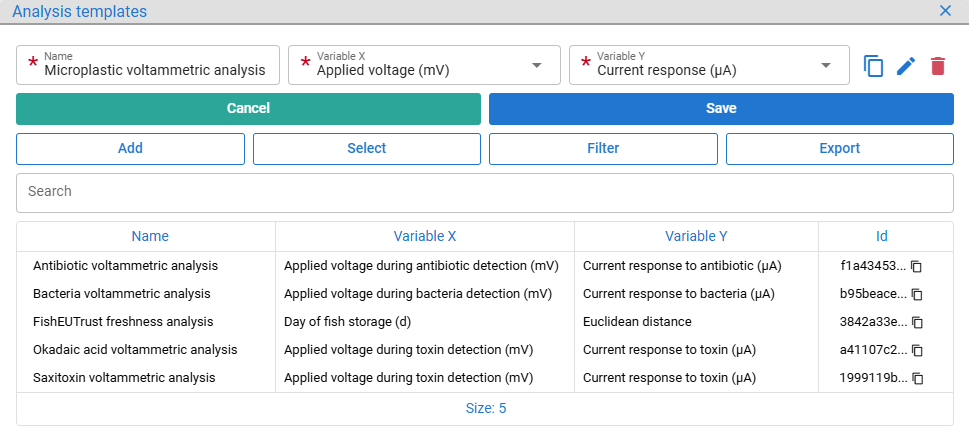
Figure 92: Adding analysis templates
After saving, the new templates appear in the table with their generated IDs. Templates can be deleted by clicking the Delete button if no analyses or other traceability data have been collected for them.
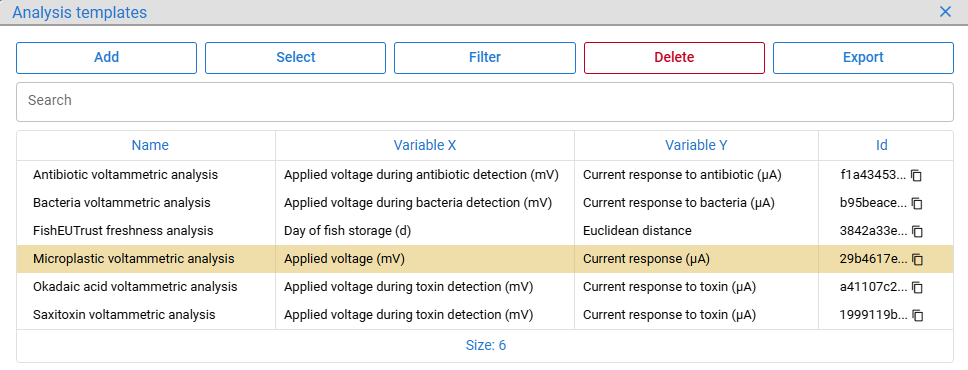
Figure 93: Deleting analysis templates
Templates can be programatically searched (/analysis/template/search), saved (/analysis/template/save) and removed (/analysis/template/remove). All APIs also support a third dimension through Z-axis values, but this is not currently displayed nor supported in the user interface because none of the project's sensors so far provides data for that dimension.
Selecting batches in the left pane enables the Analyses tab, which lists all analyses performed for the selected batches.
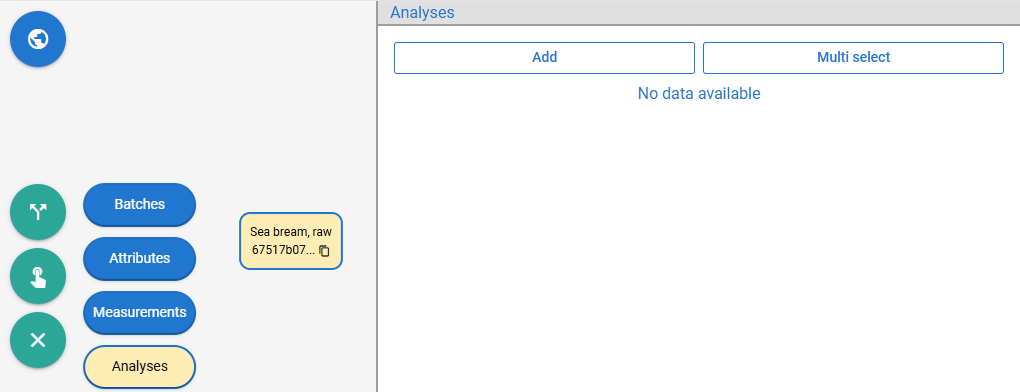
Figure 94: No analysis connected to the selected batch
New analyses can be added by clicking the Add button and selecting a batch and a template. This opens the measurement multi-row form, where multiple X–Y values can be entered. In this example, the values are Day of fish storage (d) and Euclidean distance, as the selected template is FishEUTrust freshness analysis. The form also provides a dropdown menu for selecting the analysis source (i.e., the device that performed the analysis; see chapter 12), along with fields for the timestamp when the analysis was recorded and, optionally, an end timestamp if the analysis was performed over a period of time.
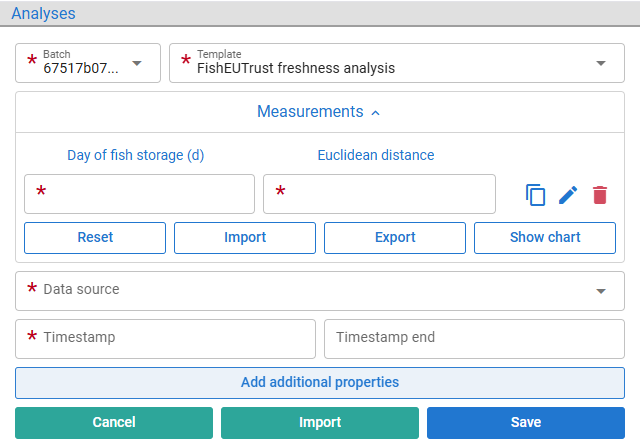
Figure 95: Analysis form with required data
Clicking Add additional properties opens a multi-row form for entering name-value pairs representing analysis metadata that does not fit into the predefined fields, such as specific conditions, the equipment used, or other contextual information that may be important for interpreting the results.
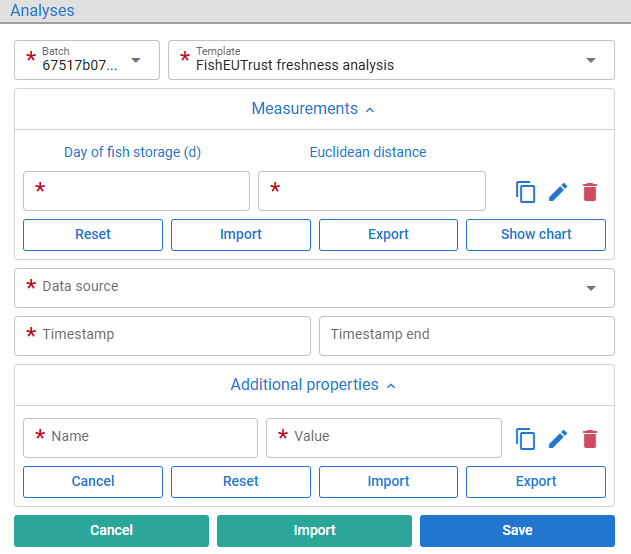
Figure 96: Analysis form with additional properties
Entering measurements and additional properties manually is error-prone, so the platform provides three CSV import options: one for measurements, one for additional properties and one for both. The following chapters demonstrate these import options in practice, with the analysis relationships and data interpretations.
Analyses can be saved (/analysis/save) by providing either a JWT (see chapter 4) or a Data Provision Token (see chapter 6). Analyses associated with batches can be searched (/analysis/search) and previewed in detail (/analysis/preview). Interpretations of some analyses are derived from their relationships with other analyses (/analysis/relationship/save), as demonstrated by toxins analysis example (see chapter 17.2). A full working example of programatically sending analysis data can be found in chapter 18.2.
17.1. Freshness Analysis Example
The output of the FishEUTrust-developed freshness sensor is a spreadsheet containing analysis metadata, followed by the measured X and Y values in two columns, which are also visualized in a chart.
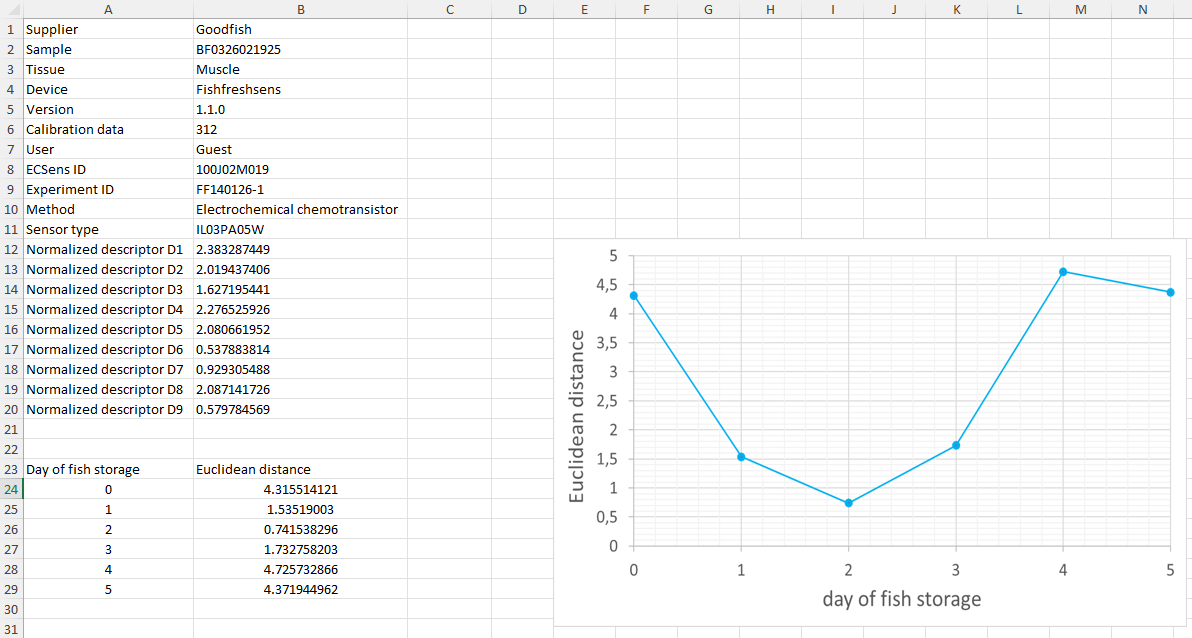
Figure 97: Freshness analysis output file
As mentioned in the description of Figure 96, all data from the output file (converted to CSV format: freshness.csv) can be imported into the analysis form by clicking the teal-colored button Import.
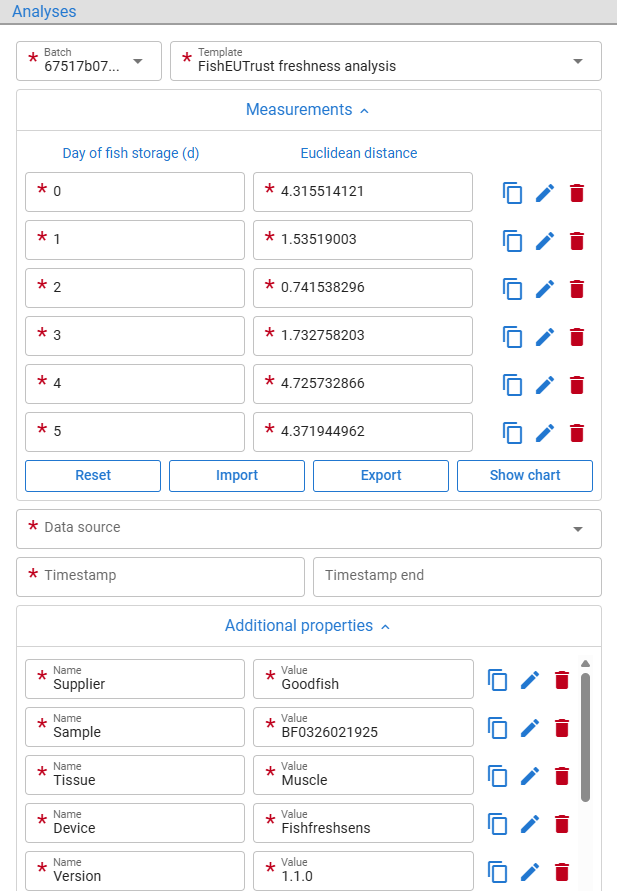
Figure 98: Imported analysis data from CSV file
The measurements can be viewed in tabular form and as a chart by clicking Show chart.
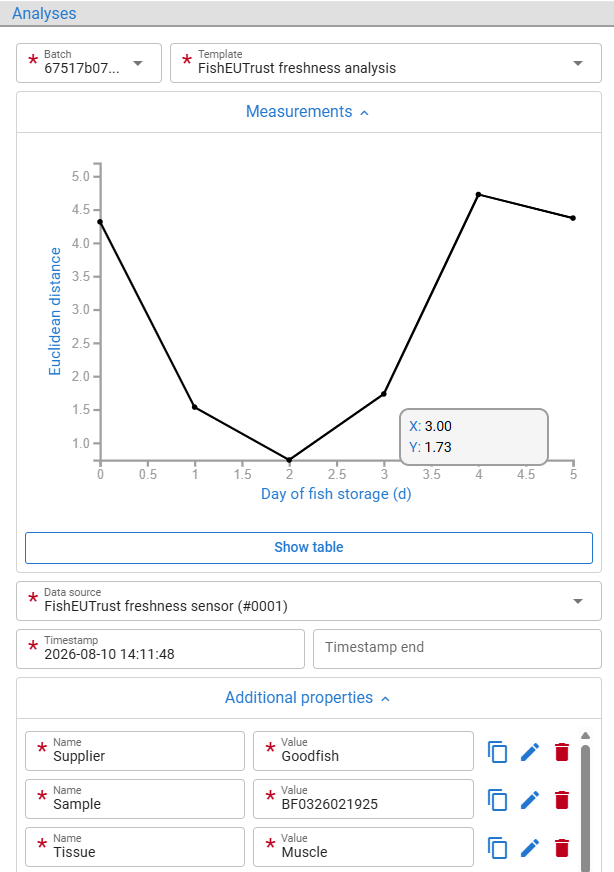
Figure 99: Chart view of the analysis measurements
When saved, the platform attempts to interpret the analysis. In this case, the interpretation is based on the value with the lowest Euclidean distance, which corresponds to the estimated storage time, i.e., two days.
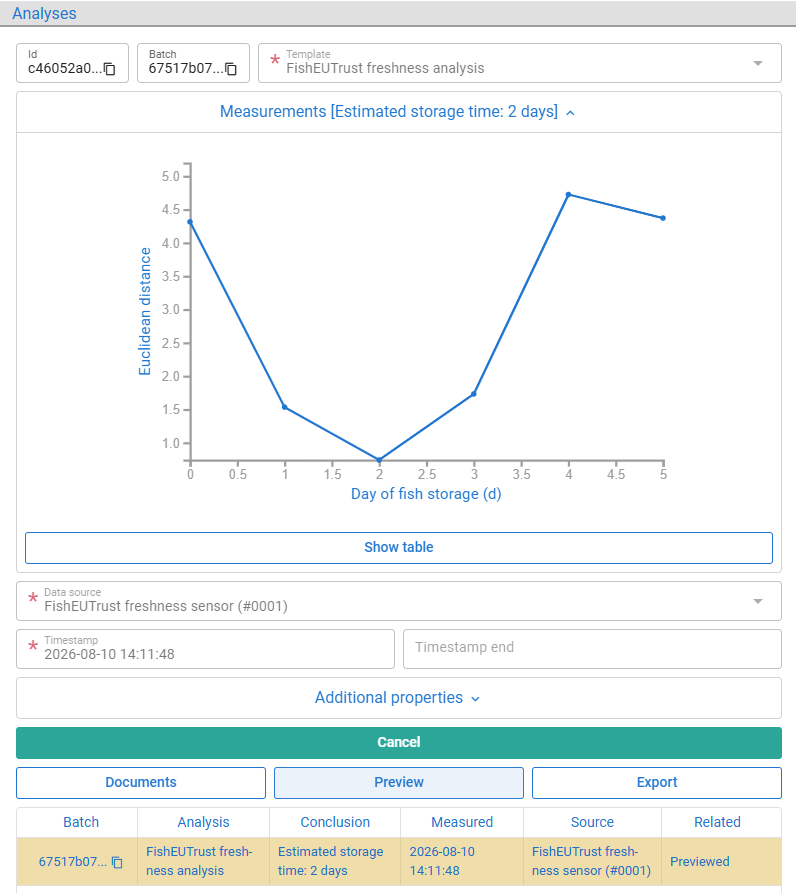
Figure 100: Freshness analysis saved and interpreted
The saved freshness analysis is displayed in the table together with its conclusion. Details can be viewed by clicking the row and then the Preview button. Since there is no clear good-or-bad interpretation in this case, the conclusion is shown in blue and left for the user to interpret further.
17.2. Toxins Analysis Example
The interpretation of toxin analyses is more complex then that of freshness (see chapter 17.1), as it compares potentially contaminated samples with a blank solution that is free of toxins.
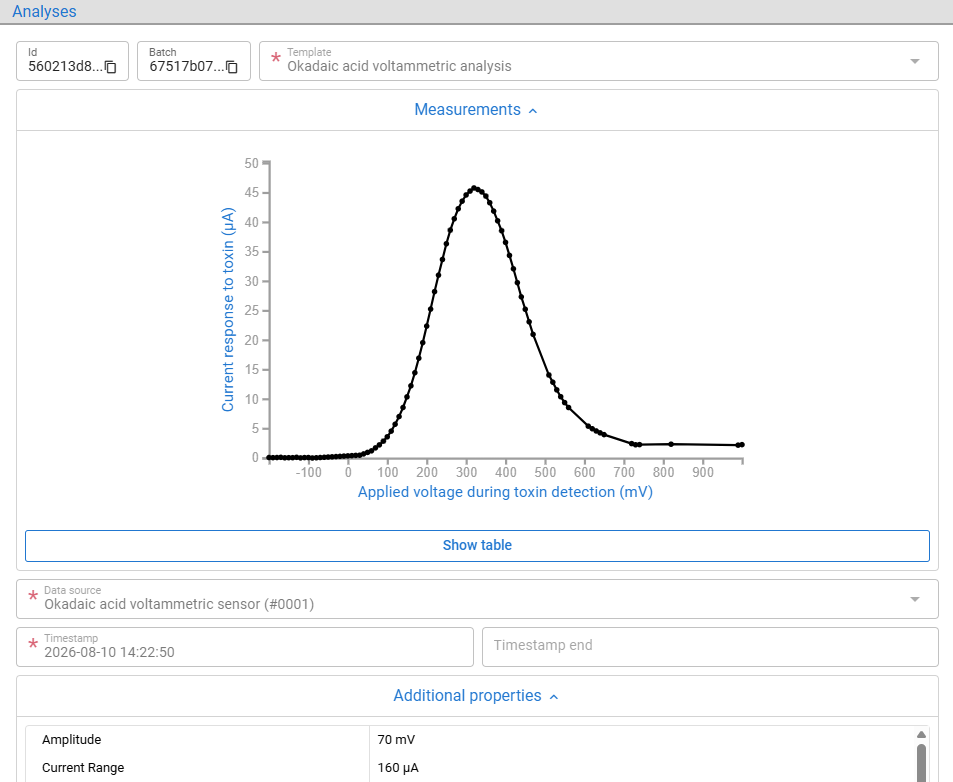
Figure 101: Okadaic acid analysis for toxin contamination
Users must import both the blank solution analysis (toxins_blank.csv) and the analysis of the potentially contaminated sample (toxins_sample_safe.csv and toxins_sample_contaminated.csv). Both analyses use the same data format shown in the image above. The potentially contaminated sample should then be selected by clicking Preview, followed by selecting the blank solution analysis and clicking Relate selected -> Reference to create a link between the two analyses.
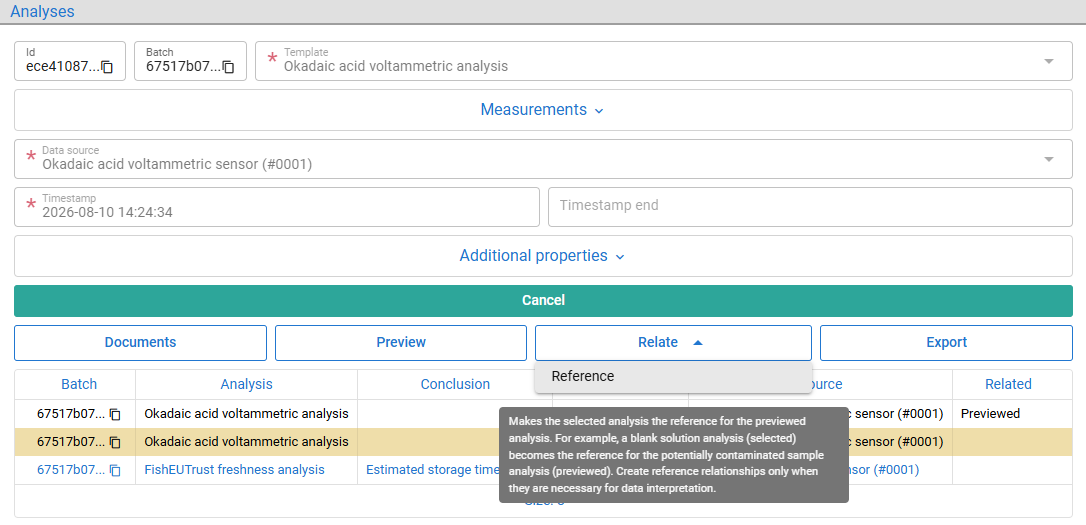
Figure 102: Linking the sample analysis to the blank solution for interpretation
After the relationship is formed, the interpretation is applied automatically. In the first case, the sample is considered Safe, meaning it is not contaminated with toxins and is therefore displayed in green.
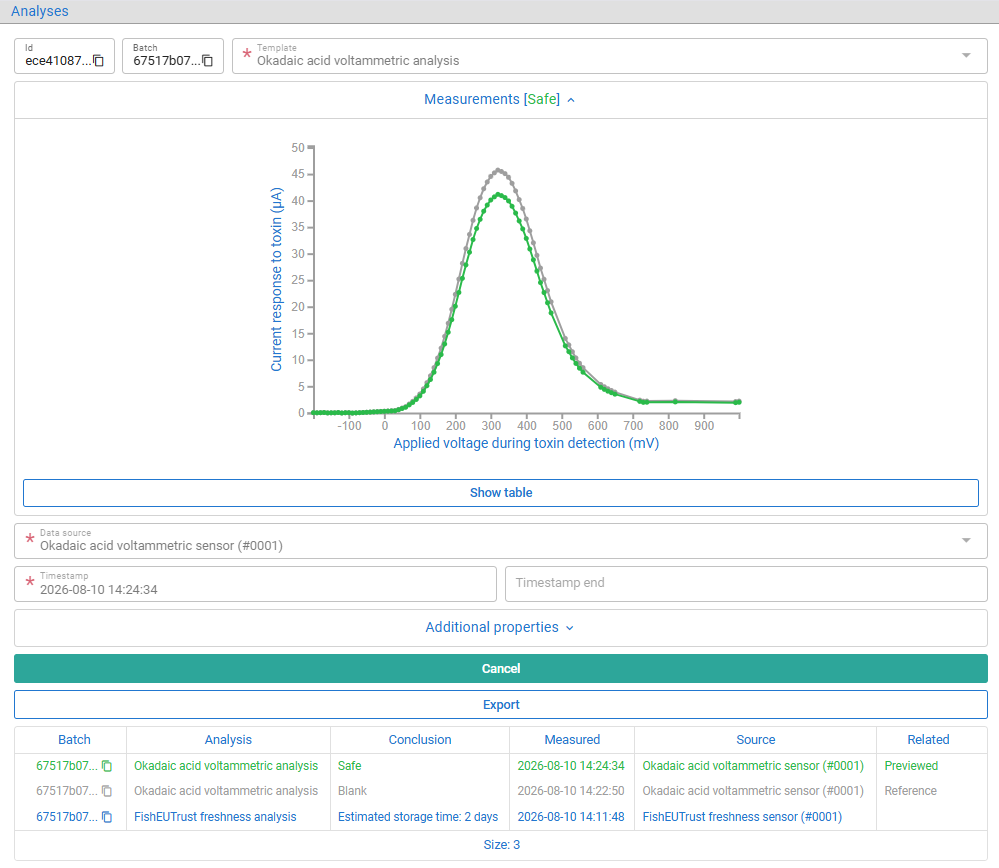
Figure 103: Sample not contaminated with toxins
Multiple sample analyses can reference the same blank solution. If a contaminated sample is imported and related to the blank, as is the second case, it is marked in red, with a conclusion indicating that the sample is Contaminated.
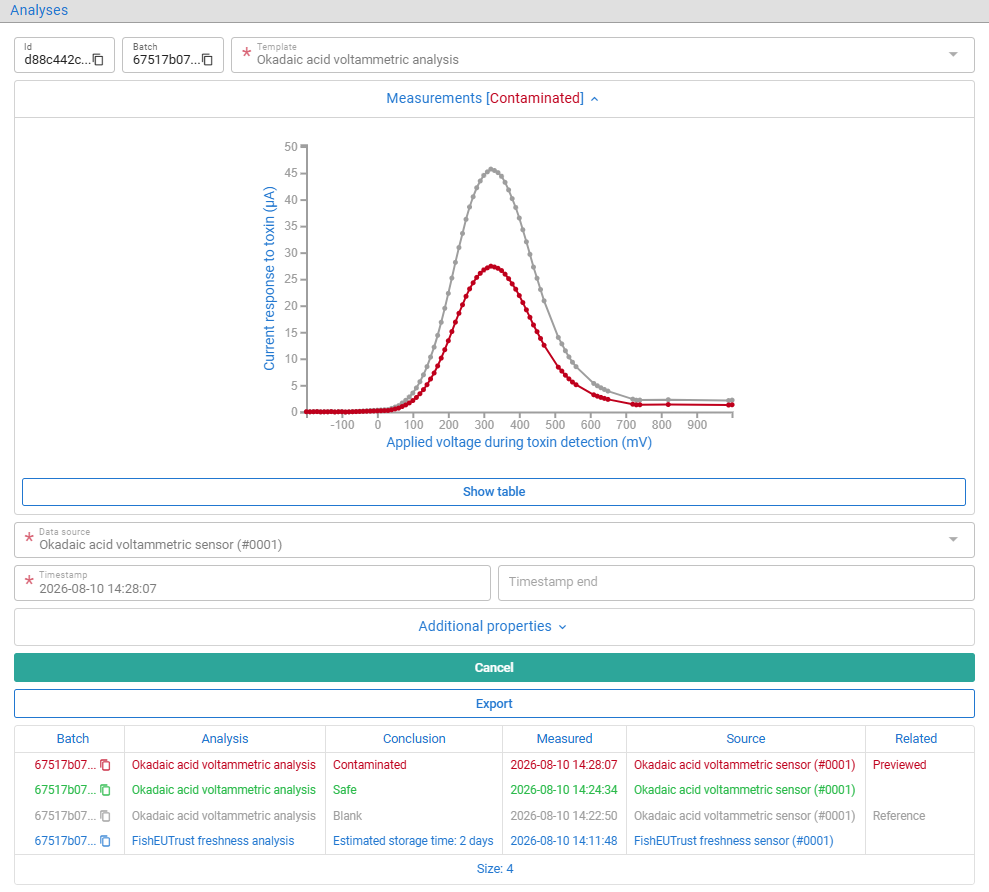
Figure 104: Sample contaminated with toxins
The blank solution is interpreted as Blank and shown in grey.
To interpret the toxin analysis, the ratio between the highest value of the sample analysis and the highest value of the blank analysis is calculated. If this ratio is lower than 75% for okadaic acid analysis or 50% for saxitoxin analysis, the sample is considered contaminated; otherwise, it is considered safe. Blank analyses are referenced by others but do not reference any others themselves.
17.3. Antibiotic and Bacteria Analysis Examples
As in the previous examples, the simplest way to enter the analysis data is by clicking the teal-colored Import and picking the sensor spreadsheet outputs (converted to CSV format) for the antibiotic (antibiotics_contaminated.csv, antibiotics_safe.csv) and bacteria (bacteria_contaminated.csv, bacteria_safe.csv) analyses.
A peak is a noticeable high point in the measured signal, formed when the signal rises and then falls. The presence and height of these peaks can indicate the presence and degree of contamination. In the first imported sample, a significant peak is present, so the sample is interpreted as Contaminated with antibiotics.
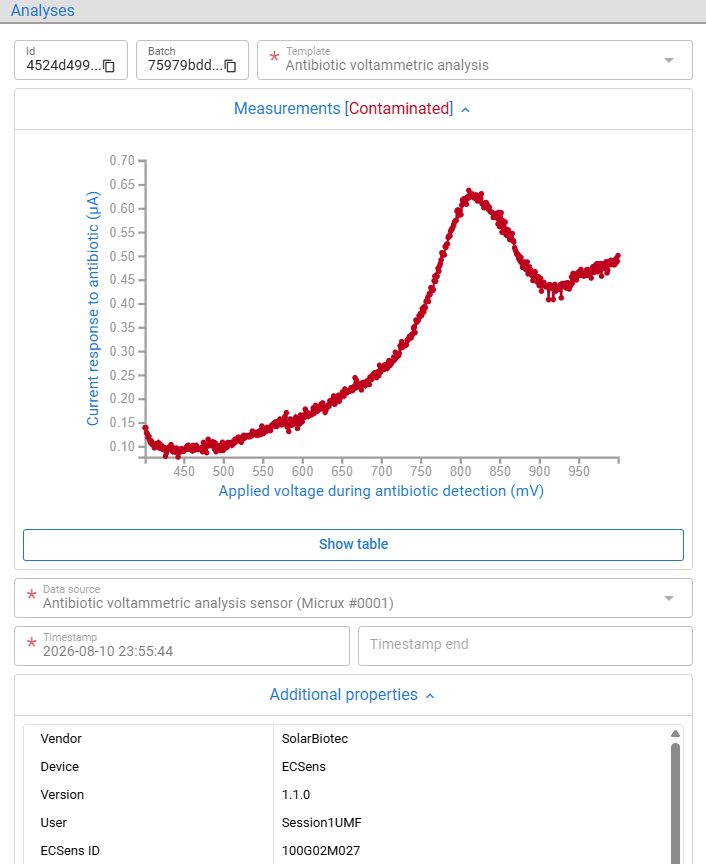
Figure 105: Sample contaminated with antibiotics
The second antibiotics analysis sample is interpreted as Safe because no significant peaks are present.
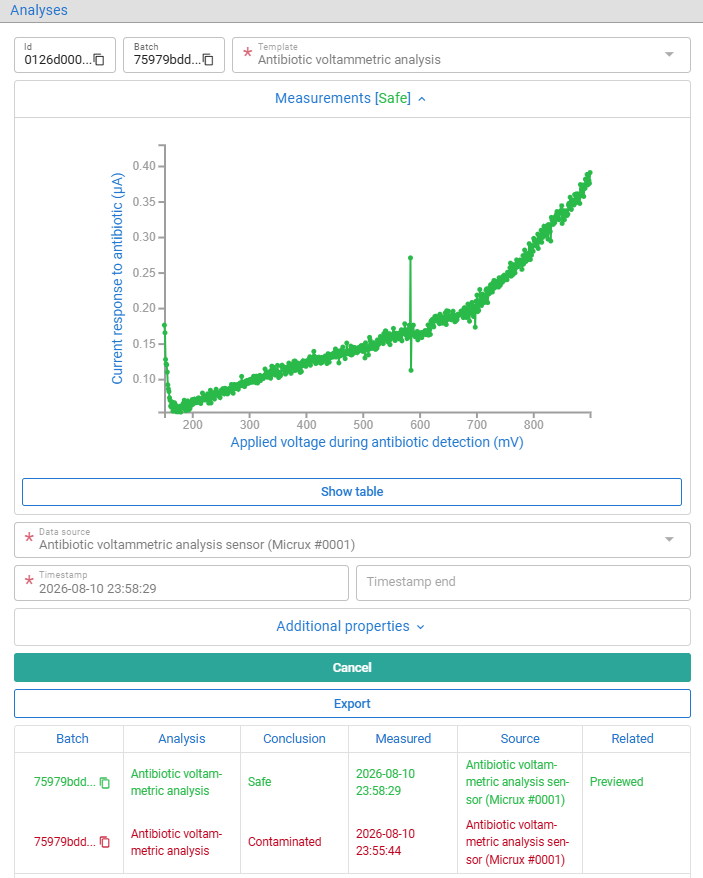
Figure 106: Sample not contaminated with antibiotics
As with the antibiotics analysis, the first imported bacteria sample is interpreted as Contaminated because a significant peak is present around 800 mV and 900 mV. The height of the voltammetric peaks indicates the degree of contamination with bacteria or antibiotics: the higher the peaks, the greater the contamination.
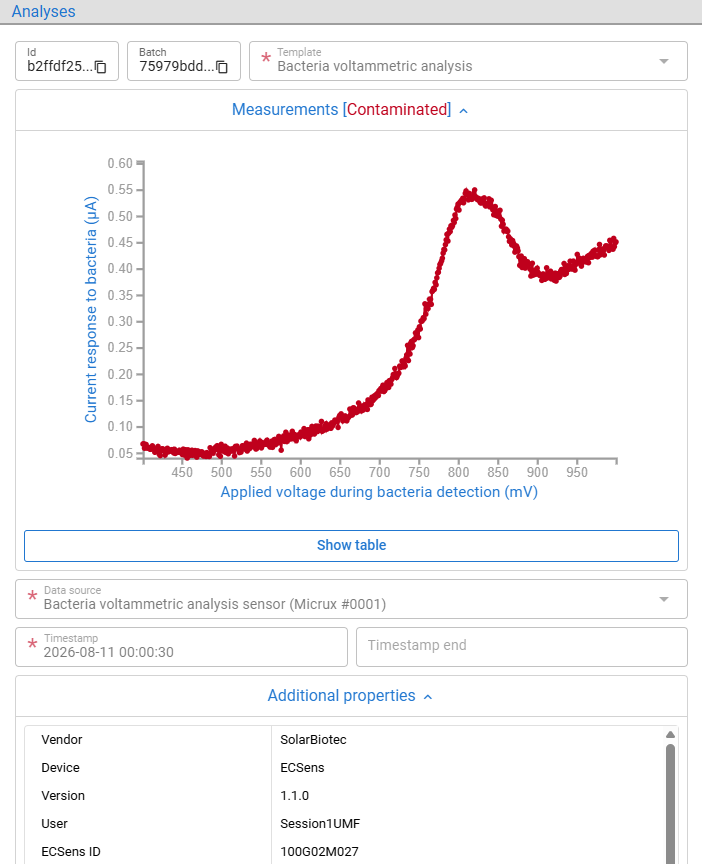
Figure 107: Sample contaminated with bacteria
The second bacteria analysis sample is interpreted as Safe because no significant peaks are present.
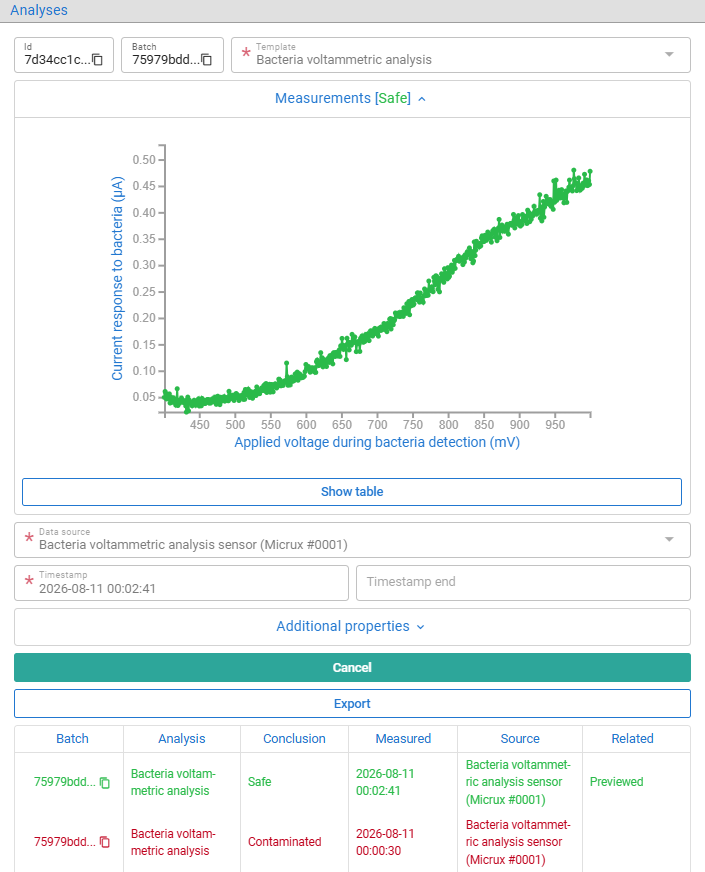
Figure 108: Sample not contaminated with bacteria
In both analyses, the measured signal is first smoothed by averaging nearby measurements, which reduces small fluctuations and makes the overall shape of the signal easier to analyze. The smoothed signal is then examined at regular intervals, comparing each point with points before and after it. A peak is identified when the signal is sufficiently higher than its surrounding values.
18. Data Source Subscriptions
Data sources can be linked to batches indirectly by subscribing to the same attributes to which the bathces are linked.
As described in chapter 11, placing a batch in a truck or a breeding tank can be represented in the platform by assigning a truck registration number or tank identifier as an attribute of the batch.
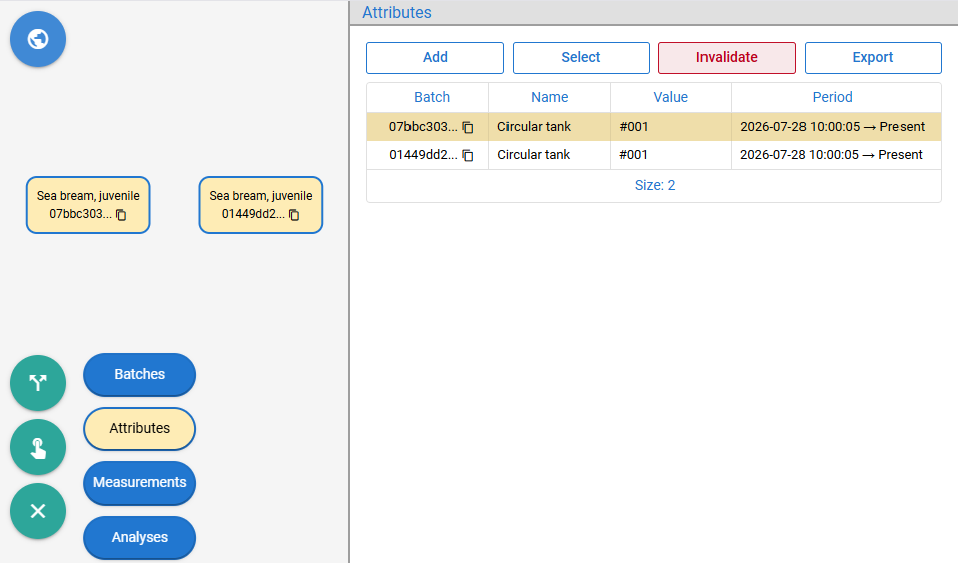
Figure 109: Batch in a breeding tank represented by an attribute
The same approach can be used for data sources. For example, placing a GPS device in a truck or a water quality sensor in a breeding tank can be represented by subscribing the data source to the corresponding truck registration number or tank identifier.
This can be done by first opening the Sources dialog, as described in the chapter 12 and defining a new data source if needed. Then, select the sources for which the subscriptions are to be defined and click Subscriptions.
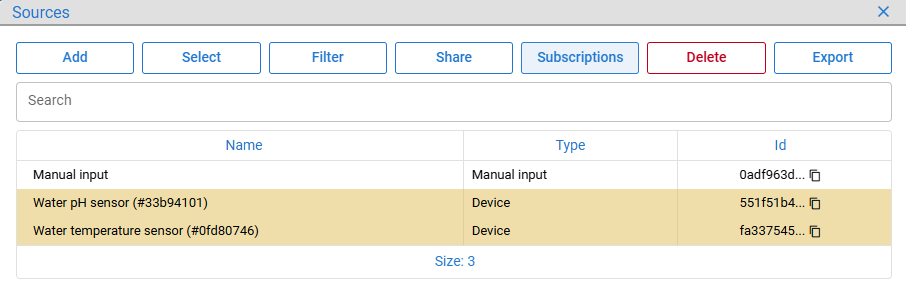
Figure 110: Opening the dialog for defining source subscriptions
This opens the Subscriptions dialog, where new sources can be added by clicking the Add button. This starts a multi-row form (see chapter 22.5) with attribute name-value pairs, since multiple subscriptions can be defined per source.
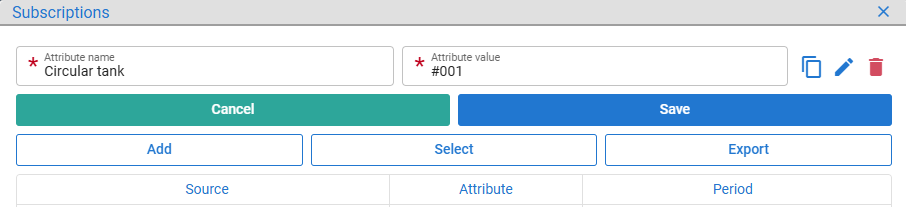
Figure 111: Subscribing a data source to a breeding tank
When submitted, the defined attributes are connected to all selected data sources.
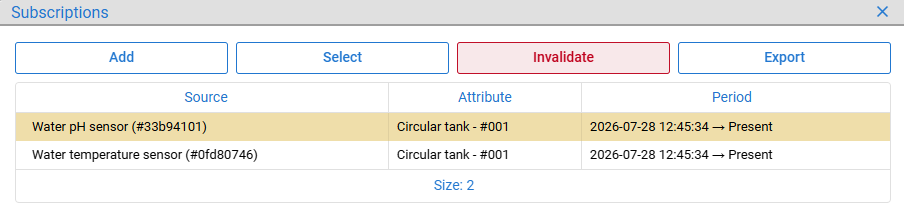
Figure 112: Data source in a breeding tank represented by an attribute
When both sides are connected through the same attributes, sending data from the data source, such as measurements (see chapter 18.1) or analyses (see chapter 18.2), without providing batch IDs for the connection, automatically associates that data with the batches linked to the same attributes as the data source.
To stop receiving data for a batch, its attribute needs to be invalidated by clicking Invalidate in the Attributes dialog shown in Figure 109. In this example, invalidating the attribute simulates removing the batch from the circular tank. Similarly, to stop connecting data from a data source to batches, the source subscription needs to be invalidated by clicking Invalidate in the Subscriptions dialog shown in Figure 112. This simulates removing a sensor from a tank.
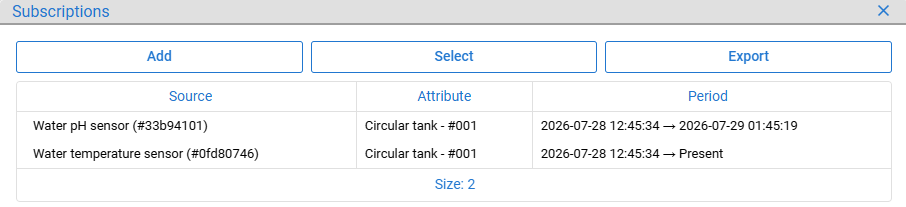
Figure 113: Data source subscription invalidated
When invalidated, the subscription is assigned a timestamp that marks the end of its activity period.
Data source subscriptions can be programatically searched (/data-source/subscription/search), saved (/data-source/subscription/save) and invalidated (/data-source/subscription/remove).
18.1. Sending Measurements From Devices
The following is an example of how to structure an HTTP request for sending measurements from a device.
POST /feutpc/measurement/save
Content-Type: application/json
X-Data-Provision-Token: e197b3ff-2568-4e7a-82a8-8a7cf673b97d

{
  "data_source_id" : "16f10e2c-5742-432e-a032-d46f2dd65b42",
  "measurements"   : [
    {
      "measurement_variable_id" : "a20918a8-cecc-4780-acca-0f6efd0123c0",
      "measurement_timestamp"   : "2026-07-29T08:26:20.928Z",
      "measurement_value"       : 70
    },
    {
      "measurement_variable_id"   : "18035936-d71c-4ba8-a536-bbadfc6daef4",
      "measurement_timestamp"     : "2026-07-29T08:26:20.928Z",
      "measurement_timestamp_end" : "2026-07-29T09:26:20.928Z",
      "measurement_value"         : 8.05
    },
    {
      "measurement_variable_id" : "1fba1427-94fb-4f60-bb5f-f1b78a68ed81",
      "measurement_timestamp"   : "2026-07-29T08:26:20.928Z",
      "measurement_value"       : 17.09
    },
    {
      "measurement_variable_id" : "1fba1427-94fb-4f60-bb5f-f1b78a68ed81",
      "measurement_timestamp"   : "2026-07-29T09:26:20.928Z",
      "measurement_value"       : 19
    }
  ]
}
The POST HTTP method is used with the URI https://feut.belit.co.rs/feutpc/measurement/save. The Content-Type header specifies that the request body is in JSON format, while the X-Data-Provision-Token header contains the raw data provision token (see chapter 6).
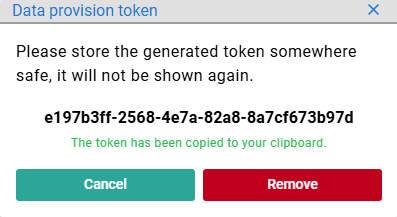
Figure 114: Copied data provision token
In the request body, the data_source_id field is required. Here, the ID of a water quality sensor is used (see chapter 12).
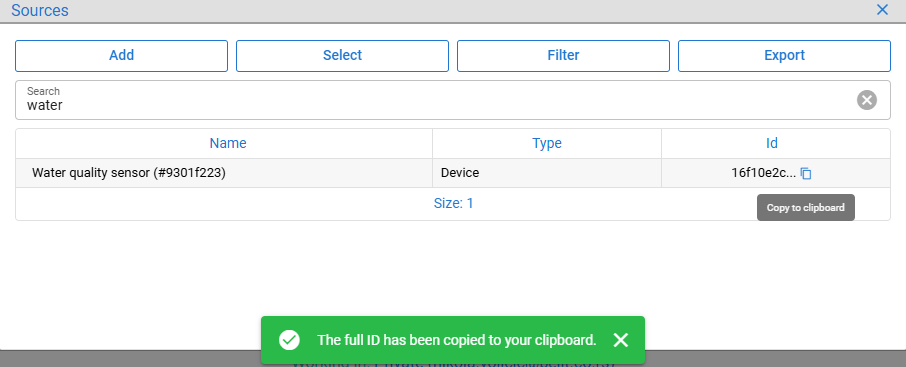
Figure 115: Copied data source ID
The other required field is measurements, which must be a non-empty array of measurement objects. Each measurement contains a measurement_variable_id that identifies the variable being measured (see chapter 14). Since each measurement object has its own variable ID, a single request can submit heterogeneous measurements for a data source. In this example, one Humidity, one pH and two Temperature measurements are sent.
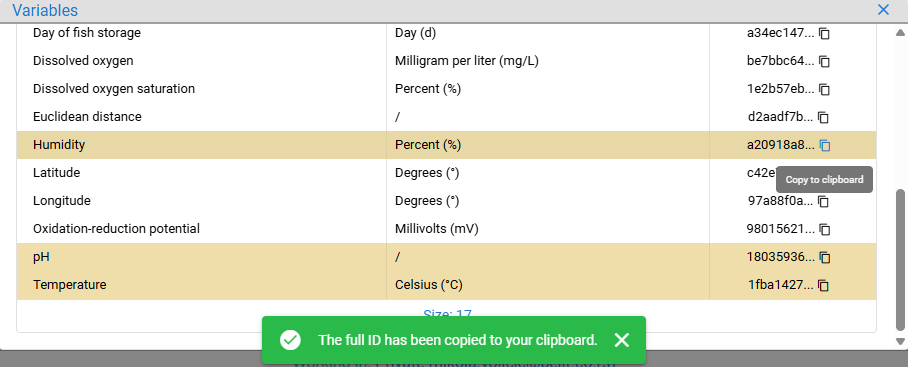
Figure 116: Copied measurement variable ID
For each measurement, measutement_timestamp is required and represents when the measurement_value was measured. If the optional measurement_timestamp_end is provided, measurement_timestamp represents the start of the measurement period for which the average measurement_value is provided. Timestamps must be provided in ISO 8601 UTC format (note the timestamp difference in Figure 119, as the local timezone is used for display).
The only remaining information is which batch, or more generally what entity, the measurement was performed for. This can be provided using the optional entity_ids field, which accepts an array of IDs like entity_ids: ["431e7eea-0e40-45de-ba5c-a1b49eb8f38f", "86c6d7c0-9fb2-4c6c-aedb-51566a59f8db"] for the selected batches below (see chapter 7).
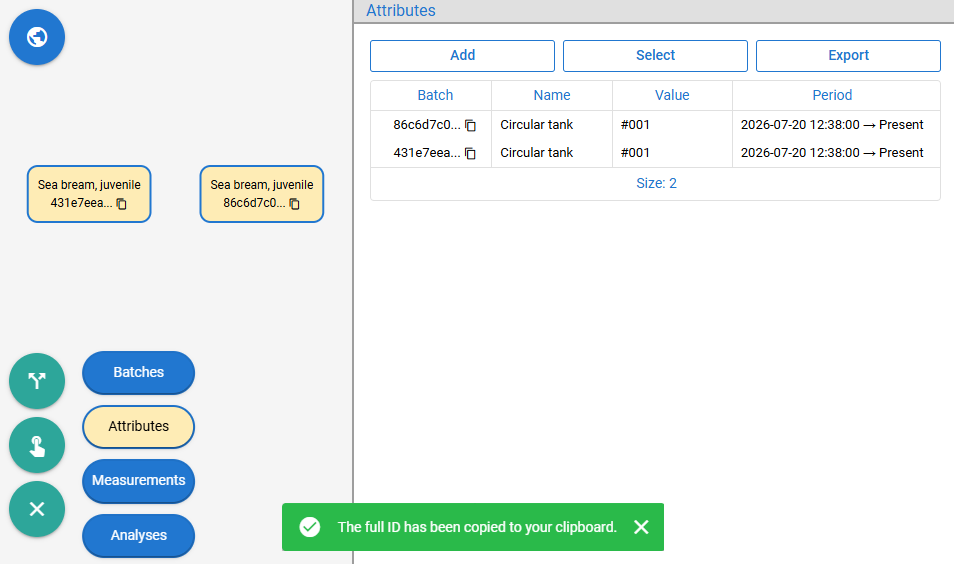
Figure 117: Batches connected to attribute and copied batch ID
Sending batch IDs directly in the request requires device applications to maintain or accept a collection of these IDs. To avoid this, attributes can be used as a level of indirection, as described in chapter 18. Batches are assigned attributes (representing tanks) and data sources are subscribed to the same attributes. This allows the platform to determine the destination of the measurements, while the client application remains decoupled from this logic and only handles the analysis itself.
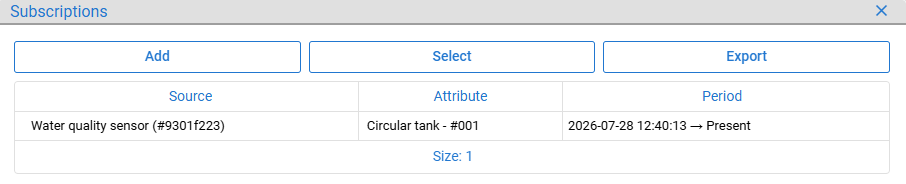
Figure 118: Data source subscribed to attribute
When the request is submitted, all provided measurements are associated with all batches subscribed via attributes.
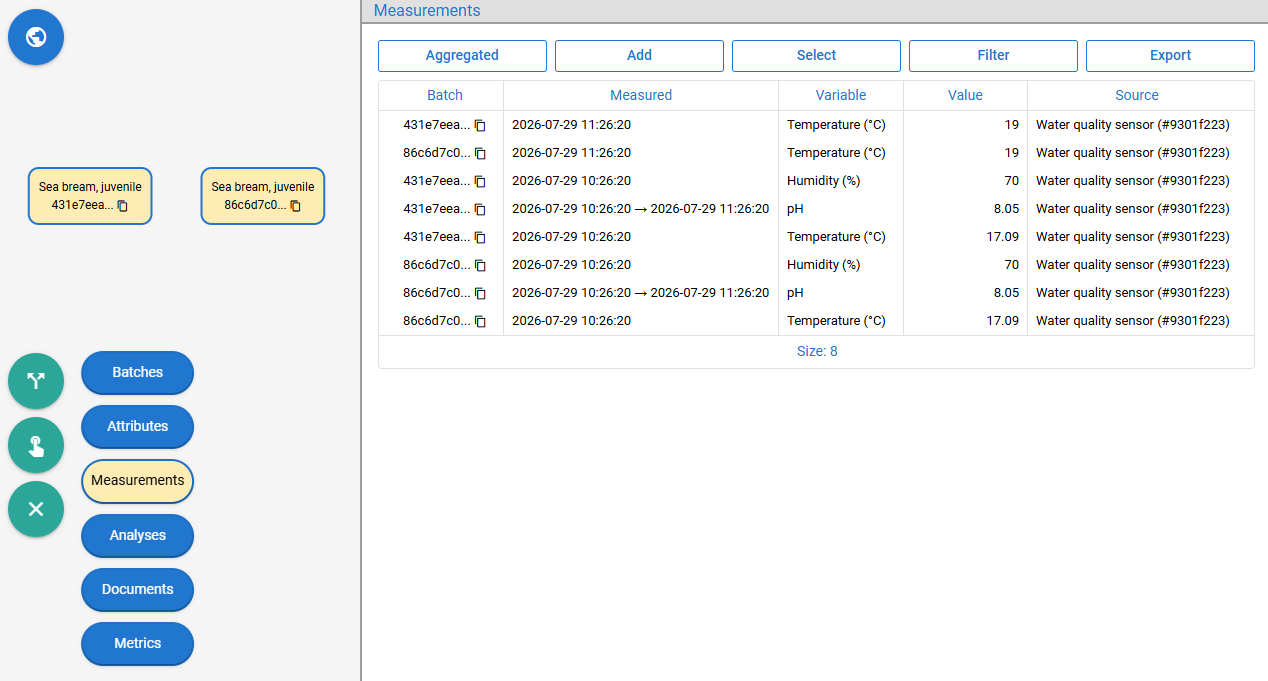
Figure 119: Measurements connected by attribute subscription
Stopping batches from receiving data can be done by invalidating either the batch attribute connections (see chapter 11) or the data source subscriptions (see chapter 18).
18.2. Sending Analyses From Devices
The following is an example of how to structure an HTTP request for sending analyses from a device.
POST /feutpc/analysis/save
Content-Type: application/json
X-Data-Provision-Token: e197b3ff-2568-4e7a-82a8-8a7cf673b97d

{
  "data_source_id"         : "1c8446cb-123d-4529-ac74-f2e0bf7a0487",
  "analysis_template_id"   : "a41107c2-aa61-48e4-947b-fd327cc83dd0",
  "analysis_timestamp"     : "2026-07-30T13:39:44.578Z",
  "analysis_timestamp_end" : "2026-07-30T13:39:44.778Z",
  "x_values" : [
    -199.9819336, -189.9755859,  -179.9692383,  -169.9628906,
    -159.956543,  -149.9985352,  -139.9921875,  -129.9858398,
    -119.9794922, -109.9731445,   -99.96679688,  -89.98461914,
     -79.98461914, -69.98461914,  -59.98461914,  -49.98461914,
     -39.98461914, -29.98461914,  -19.98461914,   -9.984619141,
       0.015380859, 10.01538086,   20.01538086,   29.99487305,
      39.98913574,  49.98339844,   59.98974609,   69.99609375,
      79.95410156,  89.96044922,   99.96679688,  109.9731445,
     119.9311523,  129.9375,      139.9438477,   149.9501953,
     159.956543,   169.9628906,   179.9692383,   189.9755859,
     199.9819336,  209.9882813,   219.9462891,   229.9042969,
     239.9589844,  249.9169922,   259.9716797,   269.9296875,
     279.984375,   289.9423828,   299.9487305,   309.979248,
     319.888916,   329.9194336,   339.9499512,   349.9804688,
     359.8901367,  369.9206543,   379.9511719,   389.9575195,
     399.9638672,  409.9702148,   419.9765625,   429.9829102,
     439.9892578,  449.9956055,   459.8569336,   469.8632813,
     509.9370117,  519.9191895,   529.9013672,   539.8835449,
     549.8657227,  559.8479004,   609.8554688,   619.9101563,
     629.9648438,  639.8261719,   649.8808594,   719.8044434,
     729.810791,   739.8171387,   819.84375,     989.9033203,
     999.7646484
  ],
  "y_values" : [
    0.030685801,  0.004329629,  0.026136171,   0.062779613,
   -0.016473709,  0.00309322,   0.00309762,    0.062744409,
   -0.034188226,  0.019923327,  0.026734579,  -0.051436339,
   -0.011364877,  0.028706584,  0.068778045,   0.108849511,
    0.148920968,  0.188992426,  0.229063898,   0.269135356,
    0.309206814,  0.349278271,  0.389349729,   0.418293118,
    0.642650604,  0.9002195,    1.162909985,   1.663285732,
    2.172637463,  2.798075199,  3.542041063,   4.50672102,
    5.675104618,  6.976880074,  8.514248848,  10.31526947,
   12.19570923,  14.41270065,  16.8806057,    19.5136528,
   22.32263184,  25.21023178,  28.17171288,   30.96460342,
   33.62516022,  36.29105377,  38.61170578,   40.53026581,
   42.23014069,  43.51368332,  44.56955338,   45.22895813,
   45.75473785,  45.49045563,  45.08355713,   44.38152313,
   43.25533676,  41.8295784,   40.18326569,   38.51754761,
   36.52485657,  34.31299973,  32.04288101,   29.68940735,
   27.28120422,  25.17974472,  23.05025864,   20.91765976,
   14.02431107,  12.80380249,  11.50566864,   10.34833527,
    9.347343445,  8.511978149,  5.347637177,   4.912578583,
    4.536712646,  4.218185425,  3.912437439,   2.391563416,
    2.193069458,  2.217781067,  2.28609848,    2.129261017,
    2.212844849
  ],
  "attributes" : [
    {"name" : "Galvanoplot ID",  "value" : "100G02M019"                    },
    {"name" : "Experiment Name", "value" : "GPE_2026.07.30_15.39.44.578"   },
    {"name" : "Date",            "value" : "2026.07.30 - 15:39:44"         },
    {"name" : "Method",          "value" : "Differential Pulse Voltammetry"},
    {"name" : "Ei",              "value" : "-200 mV"                       },
    {"name" : "Ef",              "value" : "1000 mV"                       },
    {"name" : "Step",            "value" : "10 mV"                         },
    {"name" : "Width",           "value" : "50 ms"                         },
    {"name" : "Period",          "value" : "200 ms"                        },
    {"name" : "Amplitude",       "value" : "70 mV"                         },
    {"name" : "Quiet Time",      "value" : "1 sec"                         },
    {"name" : "Hold Bias",       "value" : "No"                            },
    {"name" : "Current Range",   "value" : "160 μA"                        }
  ]
}
The POST HTTP method is used with the URI https://feut.belit.co.rs/feutpc/analysis/save. The Content-Type header specifies that the request body is in JSON format, while the X-Data-Provision-Token header contains the raw data provision token (see chapter 6).
Figure 120: Copied data provision token
In the request body, the data_source_id field is required. Here, the ID of a toxin sensor is used (see chapter 12).
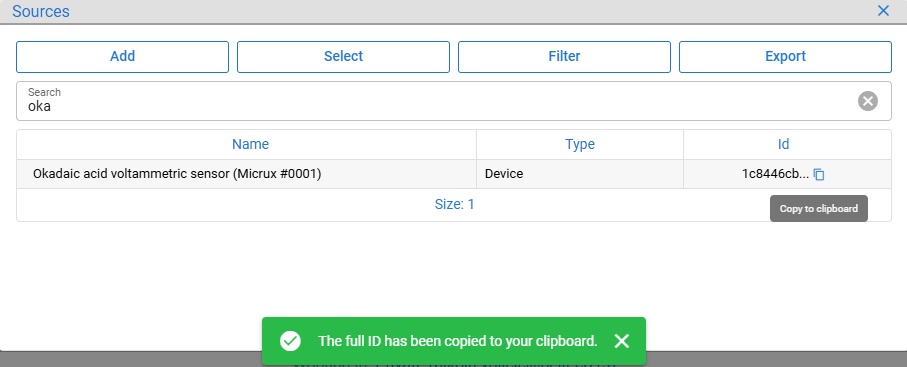
Figure 121: Copied data source ID
The required analysis_template_id field specifies that an Okadaic acid voltammetric analysis was performed, with the x_values array containing the Applied voltage during toxin detection (mV), plotted on the X-axis and the y_values array containing the Current response to toxin (µA), plotted on the Y-axis (see chapter 17).
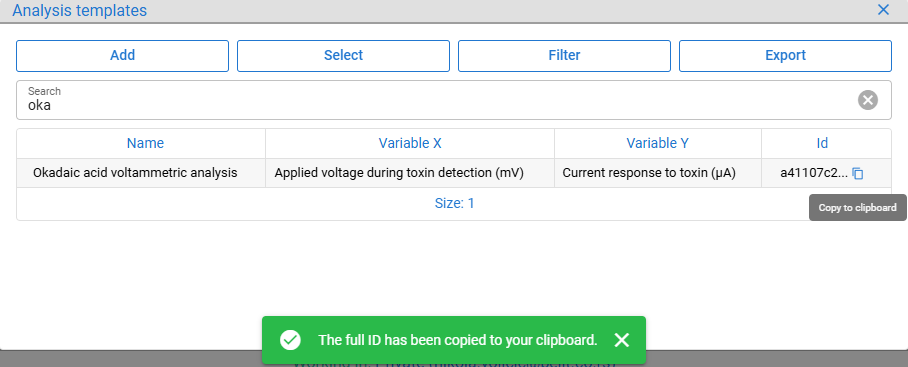
Figure 122: Copied analysis template ID
The analysis_timestamp field, recording when the analysis was performed, is required, while the optional field analysis_timestamp_end shows how long the analysis took to complete. Timestamps must be provided in ISO 8601 UTC format (note the timestamp difference in Figure 125, as the local timezone is used for display).
The only remaining information is the batch, or more generally the entity, for which the analysis was performed. This can be provided using the optional entity_id field like entity_id: "80c3dd26-ceb8-468b-9980-62b61ffda354" for the first batch shown below (see chapter 7).
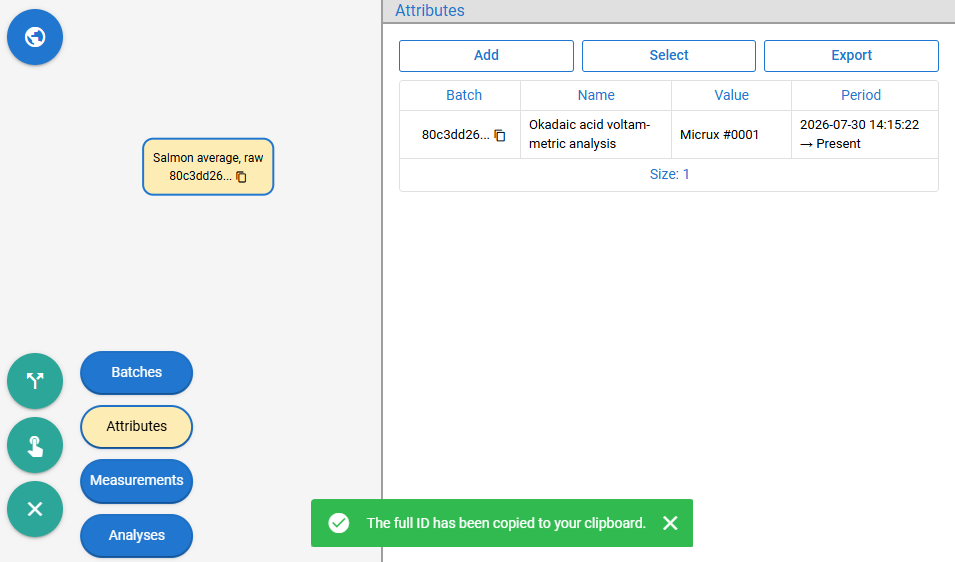
Figure 123: Batch connected to attribute and copied batch ID
Sending the batch ID directly in the request requires device applications to maintain or accept a batch ID for every analysis. To avoid this, attributes can be used as a level of indirection, as described in chapter 18. Batches are assigned attributes (representing analysis devices) and data sources are subscribed to the same attributes. This allows the platform to determine the destination of the analysis data, while the client application remains decoupled from this logic and only handles the analysis itself.

Figure 124: Data source subscribed to attribute
When the request is submitted, the provided analysis is associated with a batch via attribute subscription. If multiple batches have the same attribute, only the batch with the most recent subscription receives the analysis, since an analysis can be associated with only one batch.
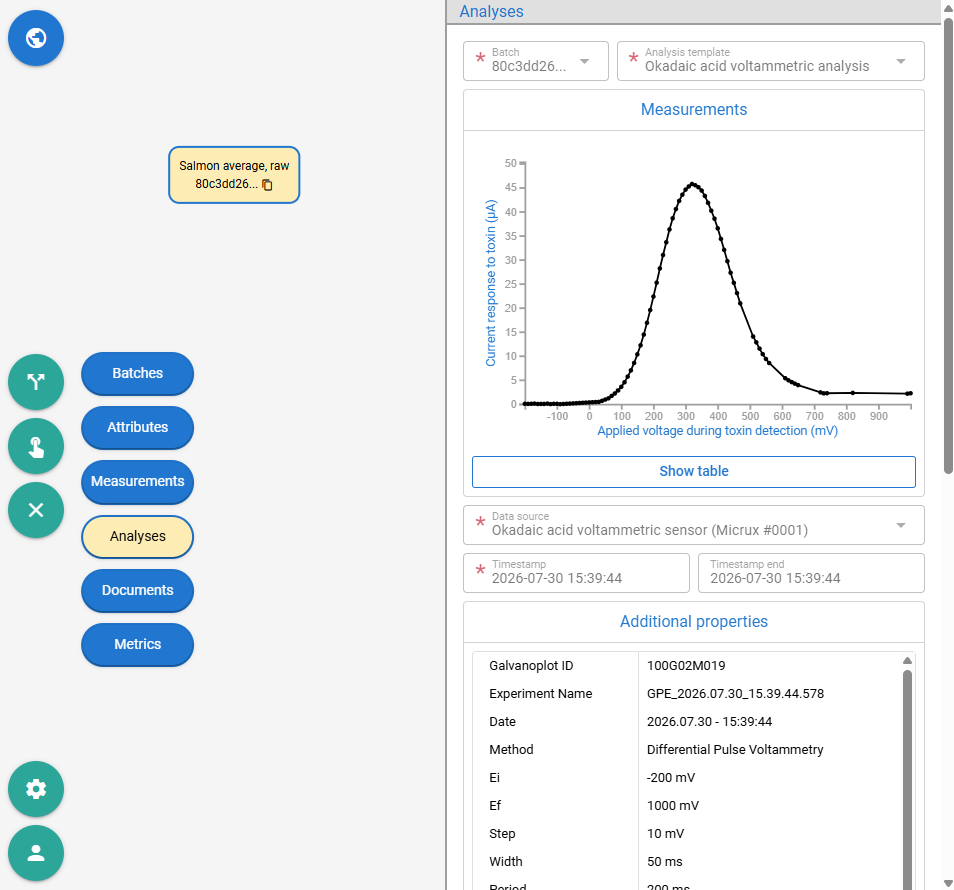
Figure 125: Analysis connected by attribute subscription
The API call described so far is sufficient for antibiotic, bacteria and freshness analyses (see chapters 17.1 and 17.3). For toxins analysis (see chapter 17.2), it is necessary to upload one analysis representing the blank solution and one or more analyses representing samples tested for contamination and relate them to the blank analysis.
If the described request is successfully executed, the response will provide the generated analysis_id.
{
  "analysis_id": "3a1fc156-b0e4-4f01-9914-f327b1599618"
}
Since that data was for the blank solution, another request to the same API must be made for the sample to be checked for contamination. This generates another analysis_id, for example 381e894f-4363-448f-bb2a-42b5af08293d. Once both analyses are saved, they can be related by providing their generated IDs: the sample ID as analysis_id and the blank solution ID as related_analysis_id, along with the REFERENCE value for the relationship_type.
POST /feutpc/analysis/relationship/save
Content-Type: application/json
X-Data-Provision-Token: e197b3ff-2568-4e7a-82a8-8a7cf673b97d

{
  "analysis_id"         : "381e894f-4363-448f-bb2a-42b5af08293d",
  "related_analysis_id" : "3a1fc156-b0e4-4f01-9914-f327b1599618",
  "relationship_type"   : "REFERENCE"
}
The same POST method with headers containing the data provision token is used as in the previous request, with the URI https://feut.belit.co.rs/feutpc/analysis/relationship/save. After saving the relationship, the Conclusion column is populated for analyses and their rows are colored.
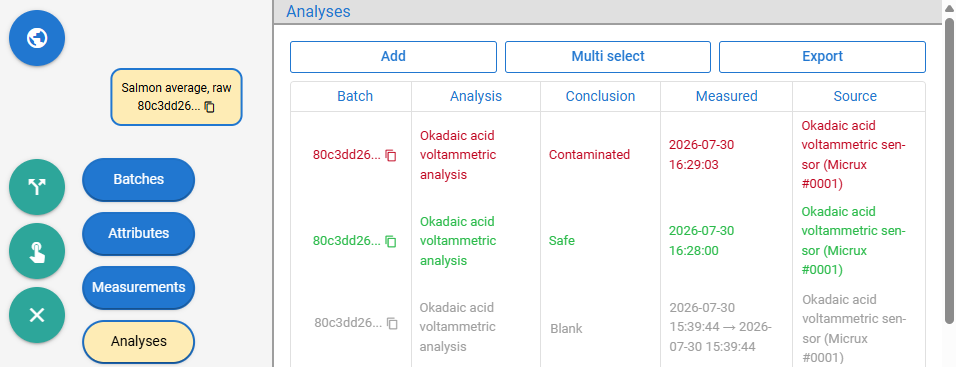
Figure 126: Analyses related and interpreted
Disconnecting a batch from receiving data can be done by invalidating either the batch attribute connection (see chapter 11) or the data source subscription (see chapter 18).
18.3. Pulling Third-Party Measurements
The process of adding third-party data sources is similar to adding standard sources (see chapter 12), as the same dialog is used, but additional information is required. For all sources, an access token (hidden in the image below) issued by the third-party platform must be provided to allow the FishEUTrust platform to authenticate and access the data. In addition, DigitalSmart device requires information about what the device is monitoring (water quality data from Breeding or humidity and GPS data from Transportation), while the Cobàlia device requires the unique ID of the probe.
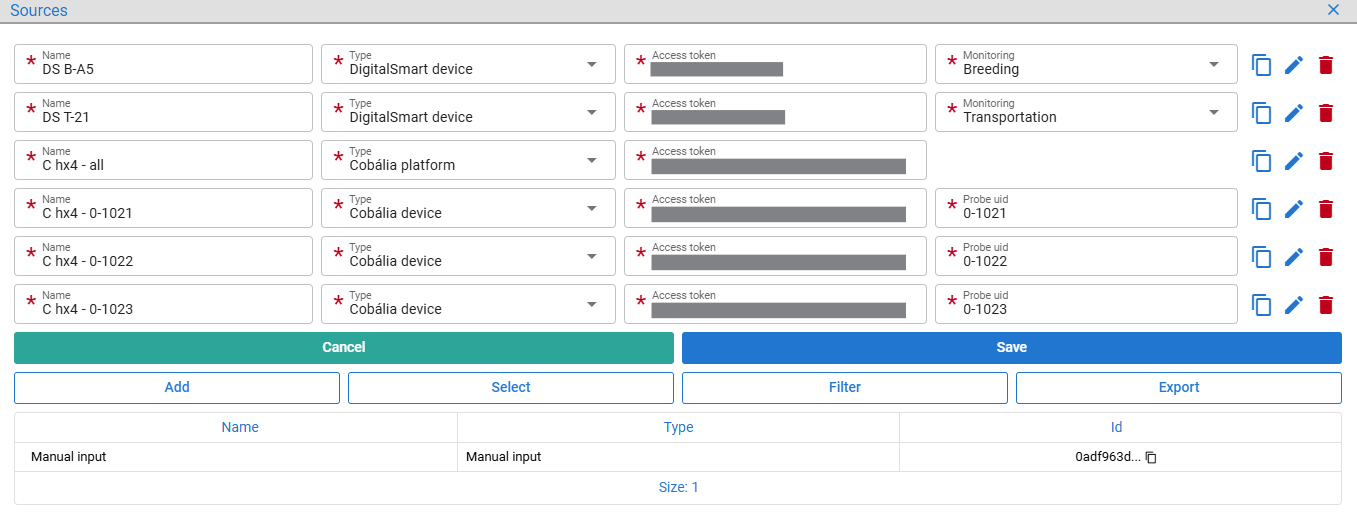
Figure 127: Adding third-party data sources
Different sources of type Cobália platform and Cobália device can share the same access token. For Cobália platform type, all measurements from all Cobália probes associated with the token will be associated with a single FishEUTrust data source. For the Cobália device type, the data pulled using the access token is split by Cobália probe IDs and associated with corresponding data sources in the FishEUTrust platform.
After the third-party sources are created, they need to be subscribed to the attributes (see chapter 18). Once the batches are marked with the same attributes (see chapter 11), they will start receiving data from Cobália every 15 minutes, covering the previous 15-minutes period, and from DigitalSmart every 30 minutes, covering the previous 30-minutes period. The 15- and 30- minute schedules are subject to change.
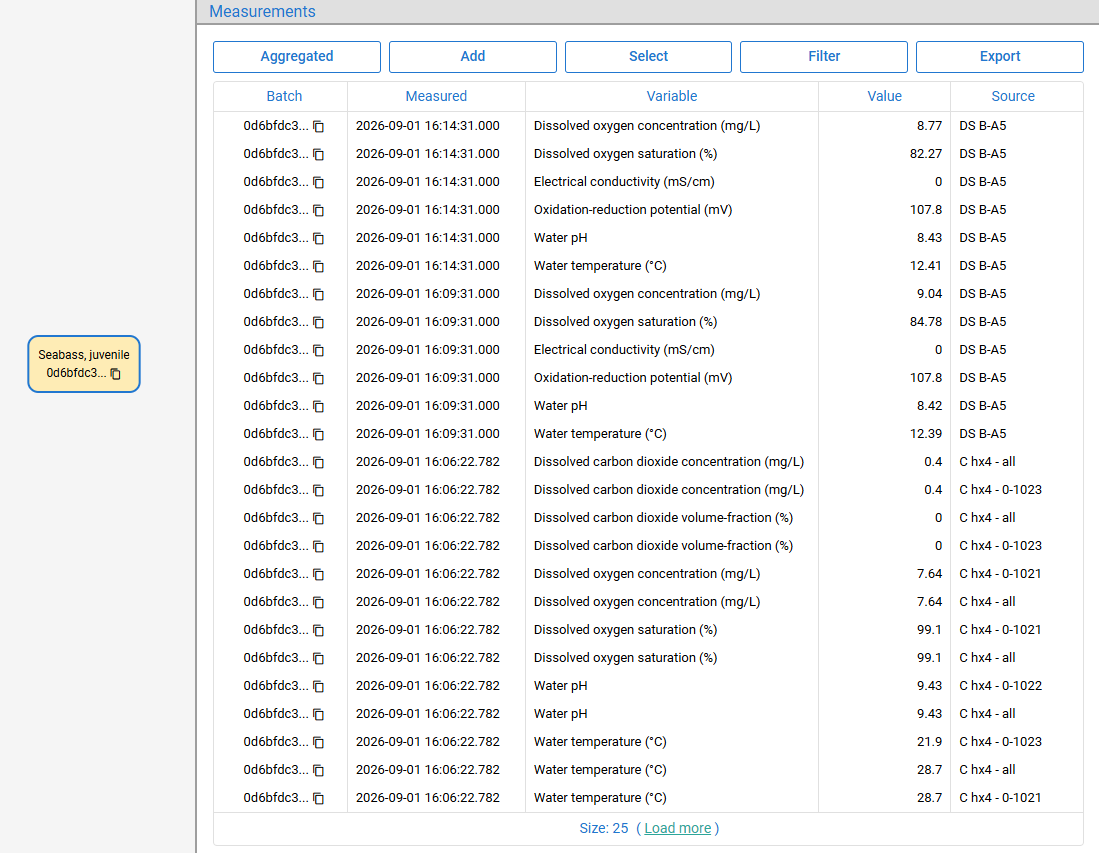
Figure 128: Third-party measurements synchronized
Data sources linked to the DigitalSmart platform can be backfilled (/integration/sync/source/digital-smart) by providing the time range and, optionally, the IDs of the sources for which data should be pulled. For sources linked to OxyGuard Cobàlia (/integration/sync/source/cobalia) only the latest available data can be pulled.
APIs from third-party platforms will be called only once per access token, regardless of how many FishEUTrust data sources are configured with that token.
19. Documents
Documents, such as certificates, inspection reports, laboratory results, invoices, data import files, logs and other relevant records, can be uploaded in any file format, including PDF, DOCX, XLSX, JSON and others.
To attach documents to batches, select one or more batches, open the Documents tab and click Add. This opens a multi-row form (see chapter 22.5), with each row containing a File picker and a descriptive Type dropdown. The type can be selected from existing options or defined inline as a new option.
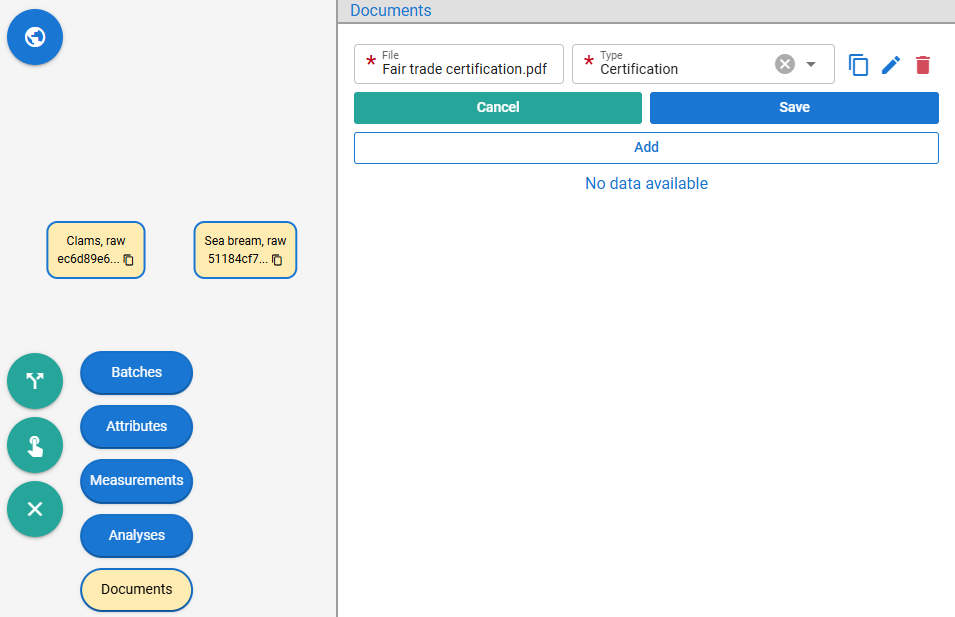
Figure 129: Uploading document for batches
Once uploaded, the document is linked to the selected batches and displayed in the table, where it can be downloaded by selecting it and clicking Download.
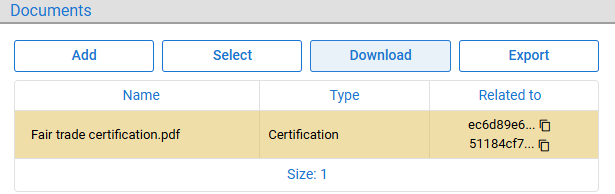
Figure 130: Batch document uploaded
The same upload workflow is also available from the Measurements tab (see chapter 15). After selecting one or more measurement rows, clicking Documents opens the upload form for the selected measurements.
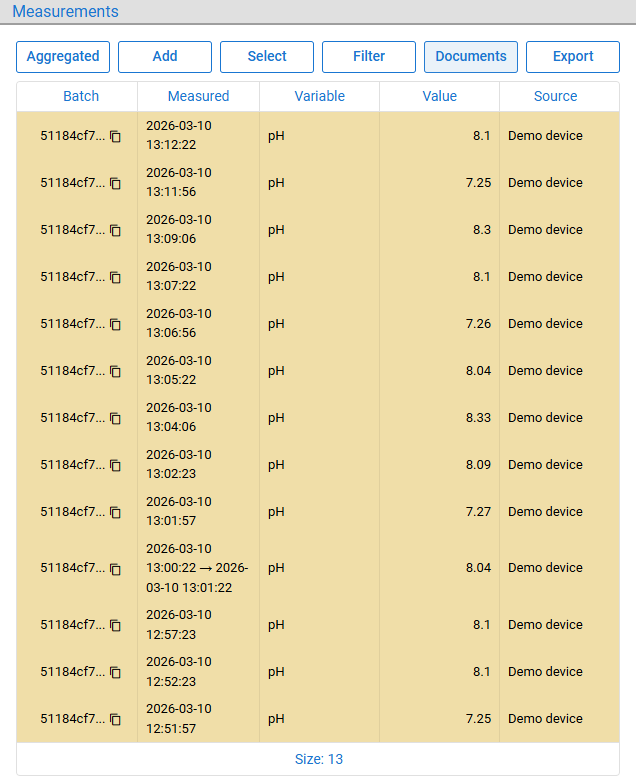
Figure 131: Selecting measurements for document upload
In the example below, a new document type is defined.
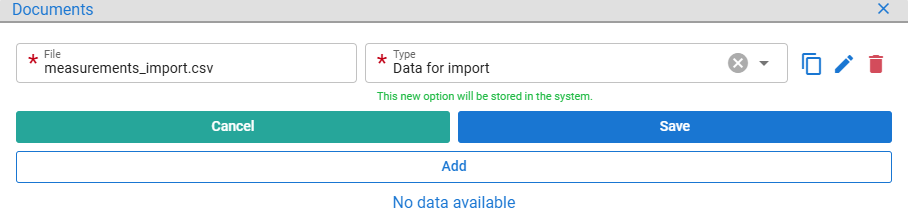
Figure 132: Uploading document for measurements
The uploaded document is linked to all selected measurements, as shown in the Related to column.
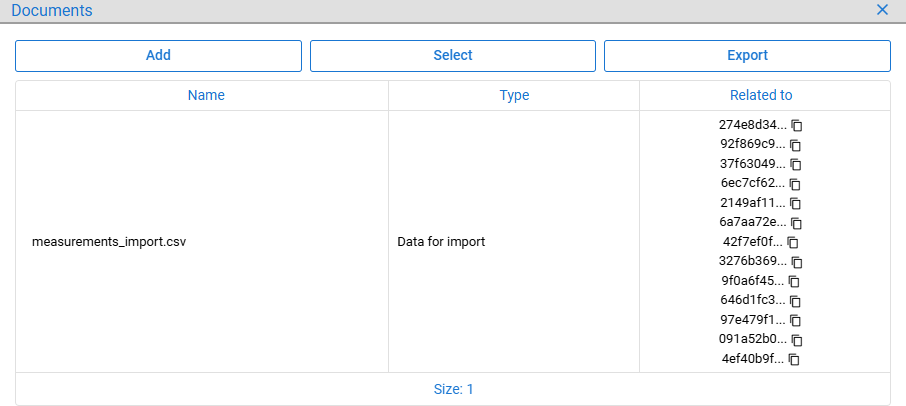
Figure 133: Measurements document uploaded
The same upload workflow is also available from the Analyses tab (see chapter 17). After selecting one or more analyses rows, clicking Documents opens the upload form for the selected analyses.
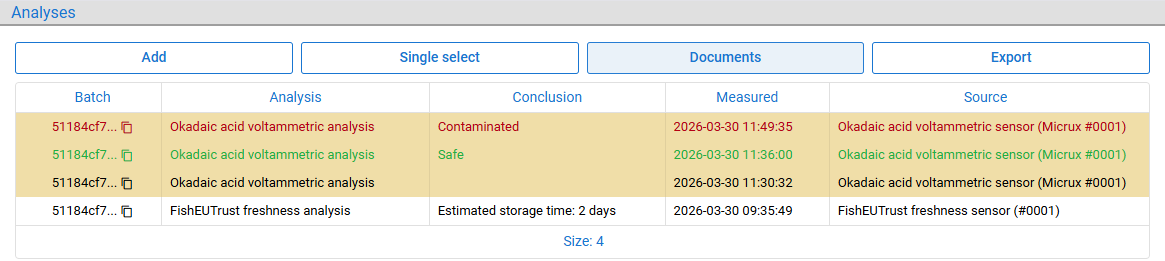
Figure 134: Selecting analyses for document upload
In the example below, a new document type is defined.
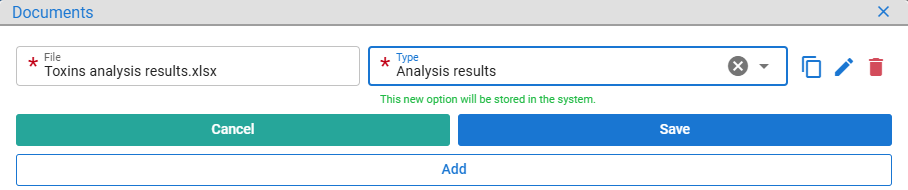
Figure 135: Uploading document for analyses
The uploaded document is linked to all selected analyses, as shown in the Related to column.
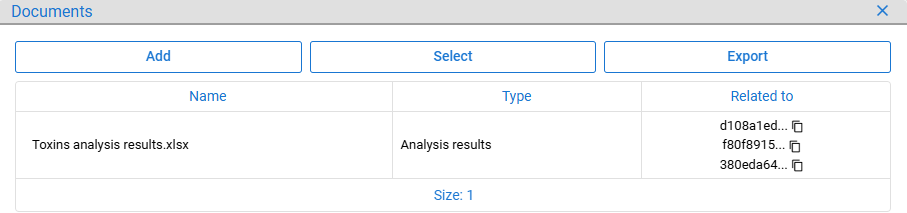
Figure 136: Analyses document uploaded
Note that the batch Documents tab also displays all documents from measurements and analyses related to the selected batches. Therefore, all three documents are listed in the image below.
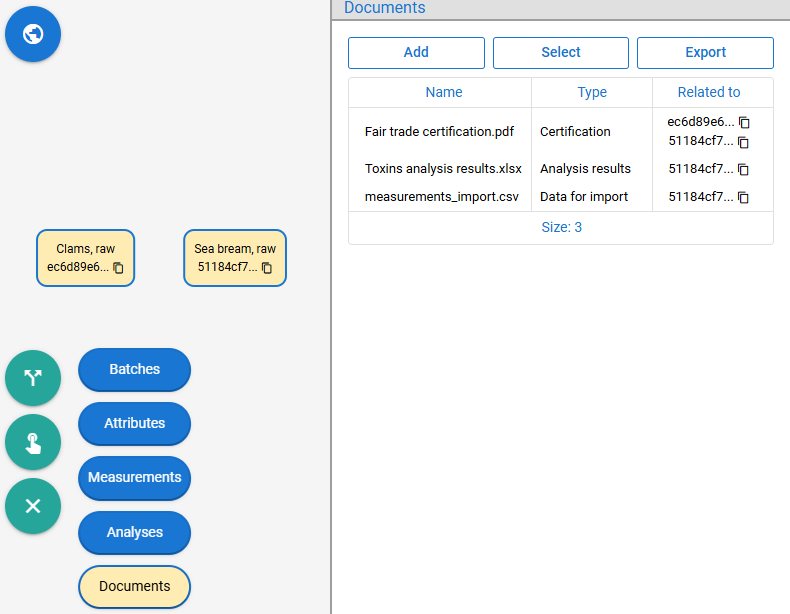
Figure 137: Implicit and explicit batch documents
Document upload (/document/upload), search (/document/search) and download (/document/download) are generic and work for batches, measurements and analyses and may be extended to other entities in the future.
20. Metrics - Product Components and Impacts
Metrics represent nutrient values, product components and impacts such as HENI scores and GHG emissions. These metrics are not associated with specific batches but with food or products in general.
When batches are selected, the Metrics tab displays the metrics associated with the selected batches' content types.
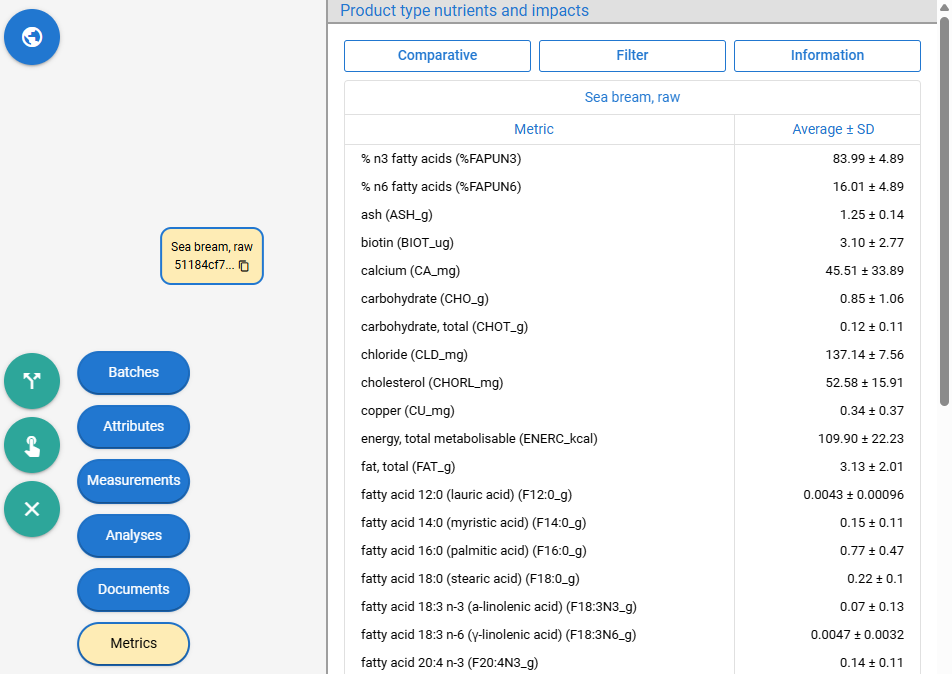
Figure 138: Metrics for selected batch
Details about the data, including its sources and meaning, can be viewed by clicking the Information button.
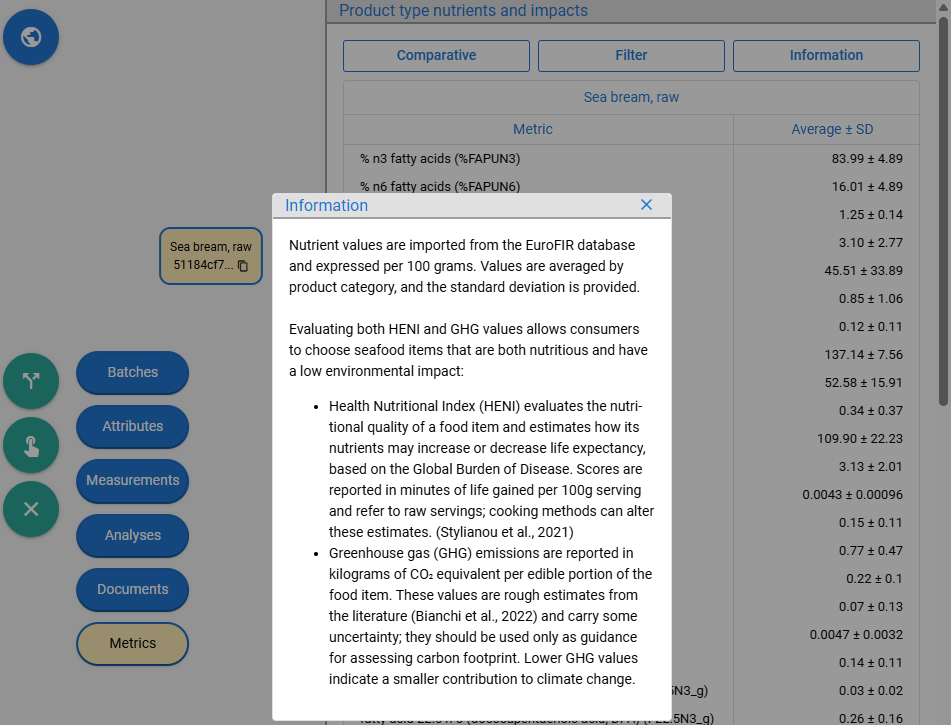
Figure 139: Information dialog about metrics
Displayed metrics can be narrowed down to specific product categories and metric types.
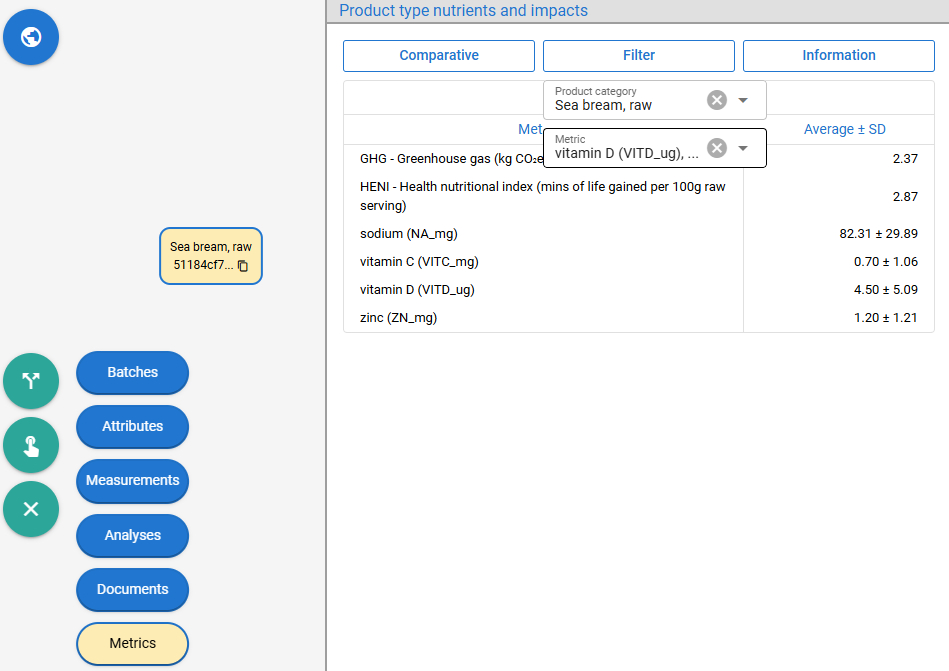
Figure 140: Metric filtering
When the selection includes batches with different content types, the metrics for each type are displayed. As shown in the figure below, the displayed metrics include Cod, raw and Tuna, raw, which are derived from the Mixed type, as well as Sea bream, raw, which represents the explicitly selected batch content type.
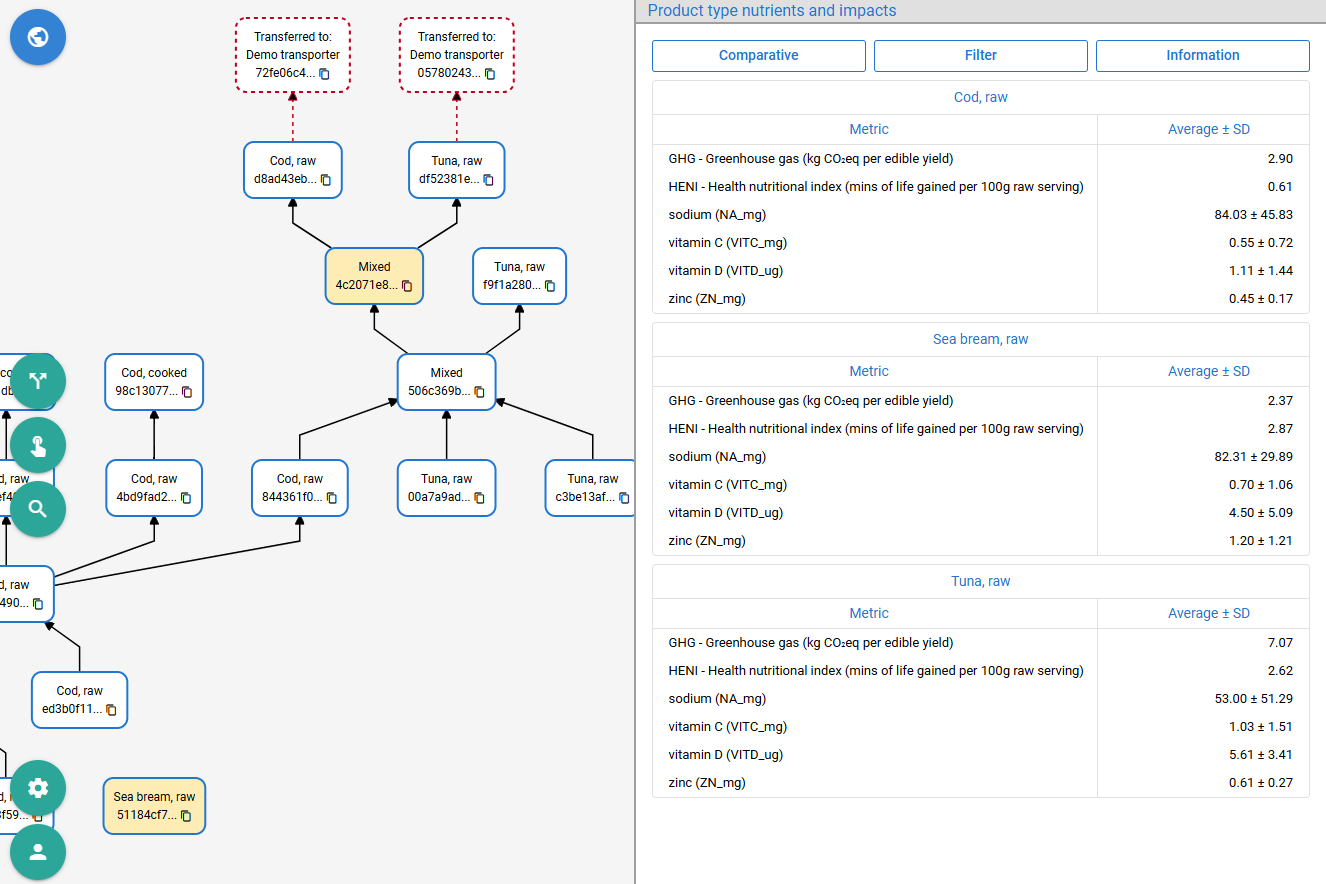
Figure 141: Metrics for selected batches with different content types
The same information can also be displayed in a comparative view by clicking the Comparative button. In this view, metrics are combined into a single table instead of being separated into different tables by food or product type. Columns represent different metrics and rows represent their values for all selected types. The table can be sorted by any metric in ascending or descending order.
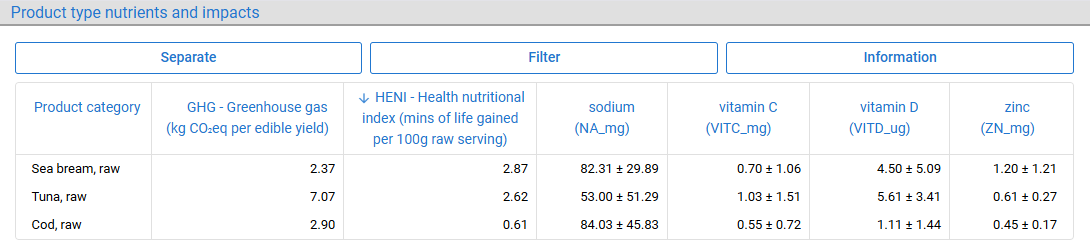
Figure 142: Comparative view of metrics
Metrics can be previewed and compared without selecting batches by clicking the second-to-last button in the bottom-left corner of the homepage (see chapter 4) and then selecting the Metrics button.
Figure 143: Platform settings - metrics
This opens the same tables with the same options as shown above, but in a separate full-screen dialog.
Nutrient metrics are imported from the EuroFIR FoodEXplorer database (/knowledge/product/metric/value/import) and linked to specific products under different locale-specific names, which are then grouped into categories (/knowledge/product/category/save or /import). Some metrics, such as HENI and GHG, are calculated only at the category level (/knowledge/product/category/metric/value/save or /import). Although the platform calculates metrics (/knowledge/product/metric/search) for both products (/knowledge/product/metric/value/search) and categories (/knowledge/product/category/metric/value/search), the user interface currently presents only categories (/knowledge/product/category/search) because they are more consistent and follow established naming conventions. Since category-level metrics are calculated as the average of the metrics for the products they contain, the corresponding standard deviation is also provided.
21. Digital Product Passports
Digital product passports provide a mobile-optimized, preview-only view of the same components available in the platform for external users, such as end consumers, who typically do not register for the platform.
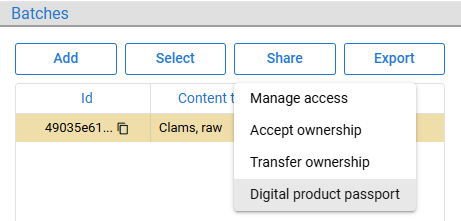
Figure 144: Digital product passport creation
To make a passport accessible, it must be created on the homepage (see chapter 7) by selecting an active batch, choosing Share -> Digital product passport and providing the product name, after which the passport can be shared with external users.
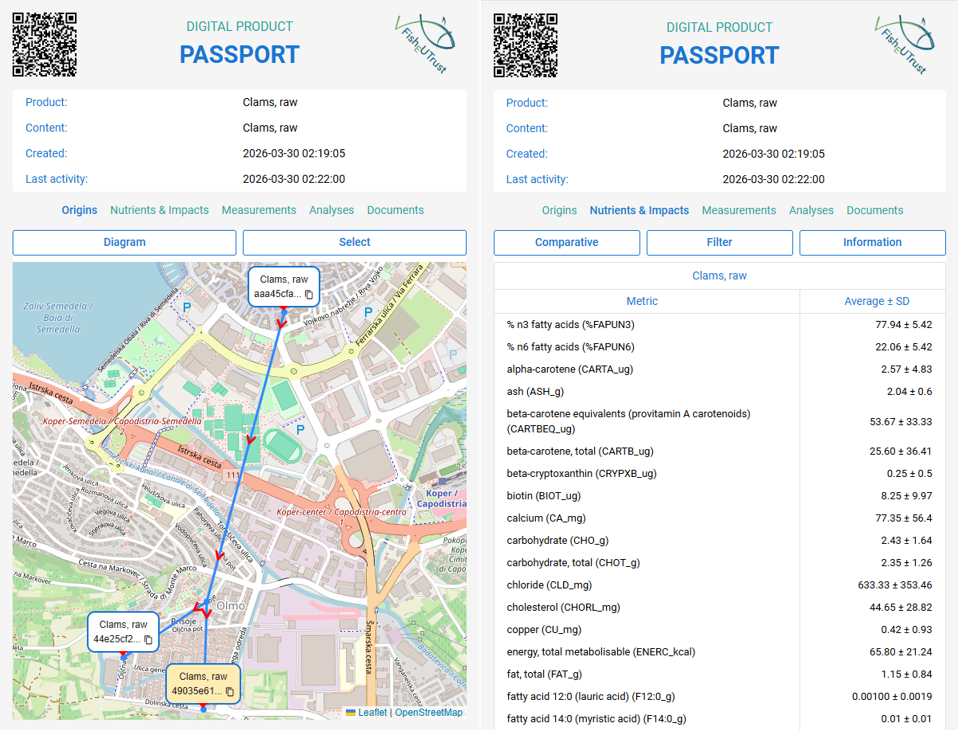
Figure 145: Digital product passport - origins and nutrients tabs
The QR code is generated to allow anyone who scans it to access the digital product passport via the embedded link, regardless of whether they have a platform account.
22. Common UI Patterns
This chapter covers user interface patterns and reusable components that recur throughout the platform.
22.1. ID Truncation and Copying
The platform identifies entities like batches, variables, sources, measurements, analyses and others using 36-character UUIDs. To keep graphs and tables readable, the user interface displays only the first eight characters followed by an ellipsis. The full ID can be copied using the copy-to-clipboard icon.
This style is used in batch lifecycle graphs shown in chapter 7.
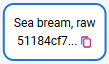
Figure 146: Truncated ID in a node with the copy icon
It is also used in every table column displaying IDs.
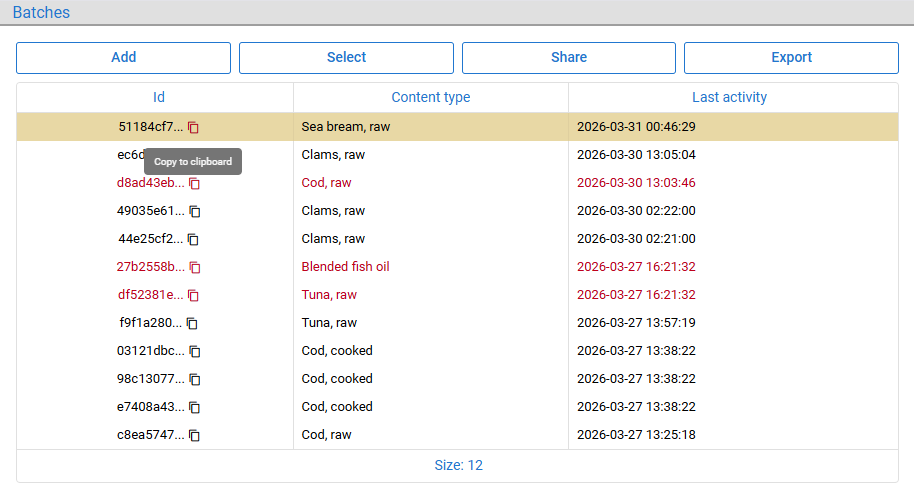
Figure 147: Truncated IDs in a table with the copy icon
When Copy to clipboard is clicked, the full ID is copied and a notification is displayed.

Figure 148: Notification after ID copy
22.2. Selecting Rows
Every table has a Select menu at the top, offering row selection options: 1) select All rows, 2) Clear selection, 3) Invert selection, 4) select rows Above the bottommost selected row and 5) select rows Below the topmost selected row.
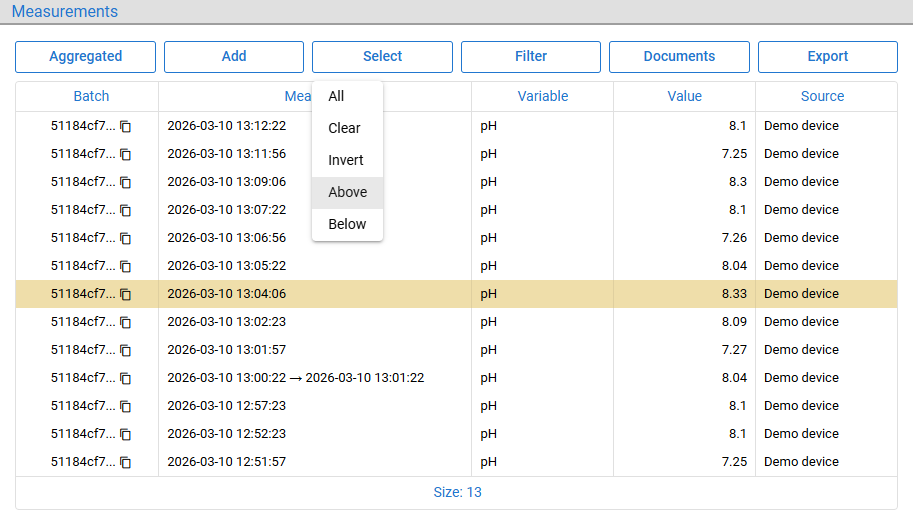
Figure 149: Options for selecting rows
In the example above, all rows above the selected row, including that row, are selected.
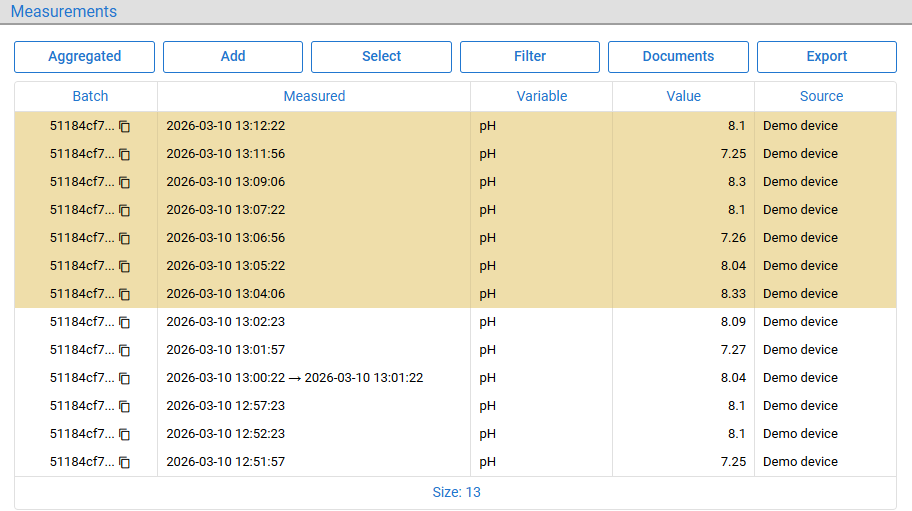
Figure 150: Rows selected
22.3. Exporting Rows
Each table's rows can be exported to CSV files by choosing either All rows or Selected rows in the Export menu.
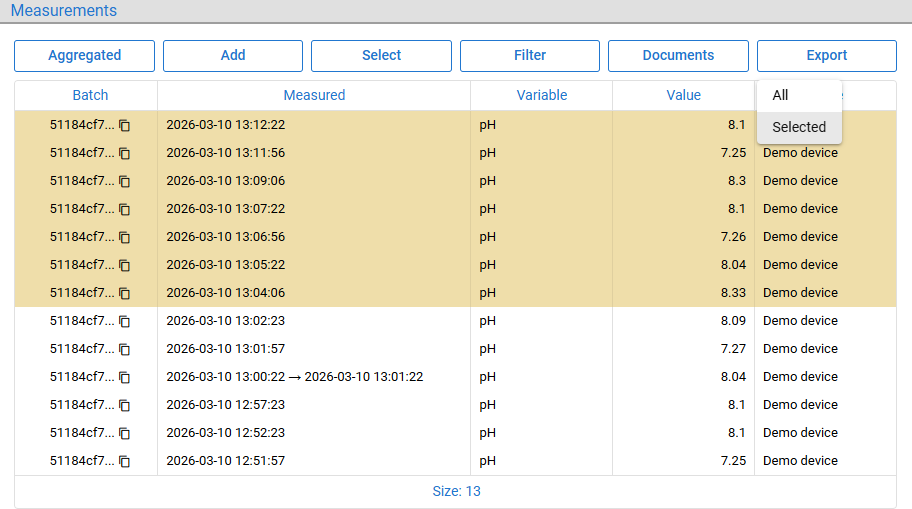
Figure 151: Options for exporting rows
Note that exported data may have more columns than the table, use column names intended for programmatic use rather than the localized labels, contain full UUIDs instead of truncated and use timestamps in ISO 8601 UTC format.

Figure 152: Rows exported to CSV
22.4. Dropdowns and Filters
Two types of dropdowns are used: the static codebook offers a hardcoded set of options and the extendable dropdown offers existing options and allows adding new ones, serving as a completable input.
In the example below, a data source can either be of type Device or Platform; no other type is allowed.
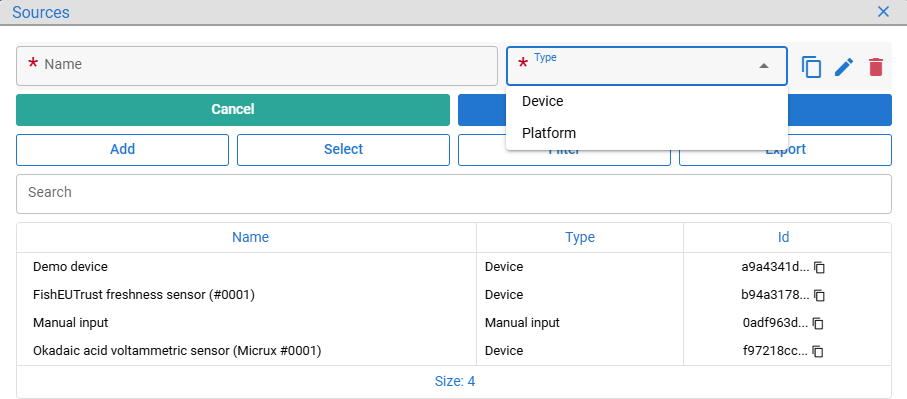
Figure 153: Hardcoded dropdown
In extendable dropdowns, there is a note stating: "Select an option, or press ENTER or TAB to add a new one." This is shown in the example below, where a new document type, Locations, is being added.
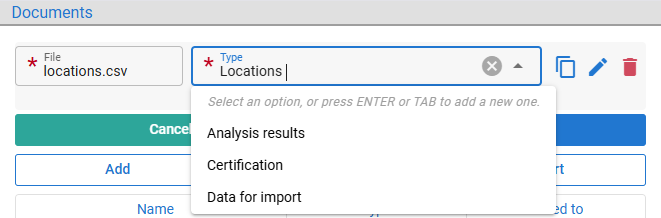
Figure 154: Extendable dropdown
After ENTER or TAB is pressed, the new option is added and a green note appears stating: "This new option will be stored in the system." This makes it easier for users to spot typos if they didn't intend to add a new type.
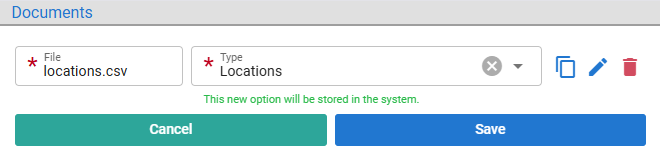
Figure 155: New option added to dropdown
Most filters are multi-select dropdowns: clicking an option toggles whether it is part of the active filter.
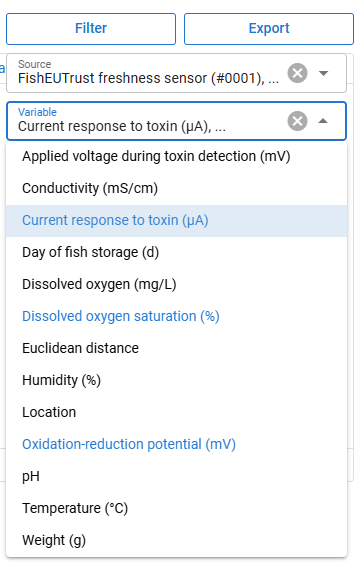
Figure 156: Multi-select filter
Filters with free-text input perform a Trigram search on all row data and sort the results by matching score.
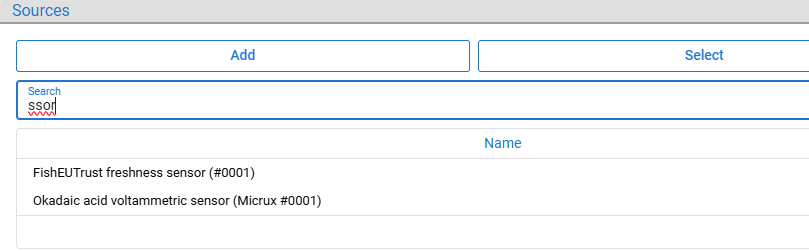
Figure 157: Trigram search input
Static codebook data can be searched (/system/codebook-data/search) and cached on the client side, as it never changes without a platform redeployment. Extendable dropdown rows can be saved (/system/dropdown-data/rows/save), imported from CSV (/system/dropdown-data/rows/import), searched (/system/dropdown-data/rows/search/all, /system/dropdown-data/values/search/all, /system/dropdown-data/values/search) and (un)hidden by administrators (/system/dropdown-data/rows/toggle-hide).
22.5. Multi Row Form
Defining multiple similar entries and saving them at once can be done using multi-row forms, supported by bulk insertion within a single transaction on the server side.
The Copy entry option duplicates an existing row so that only the fields that differ need to be edited.
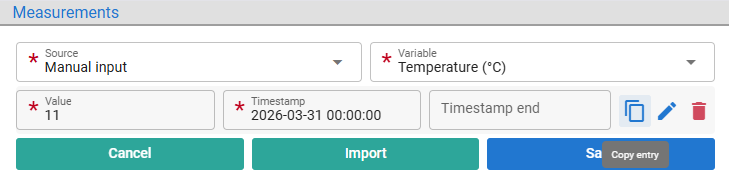
Figure 158: Copy entry option
The Clear entry option keeps the row but empties its inputs.
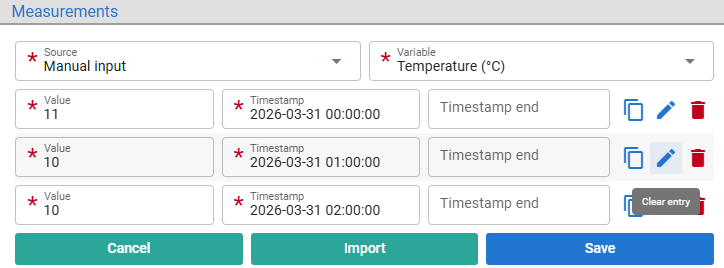
Figure 159: Clear entry option
The Delete entry option removes the row from the form.
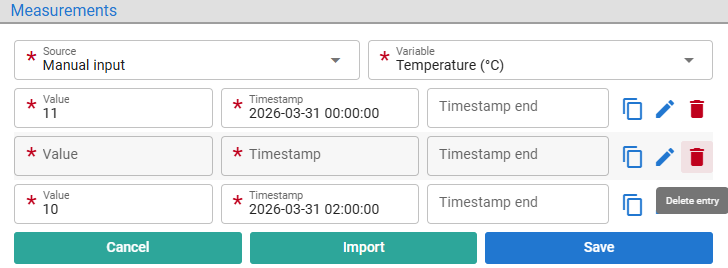
Figure 160: Delete entry option
Clicking Save submits the form.
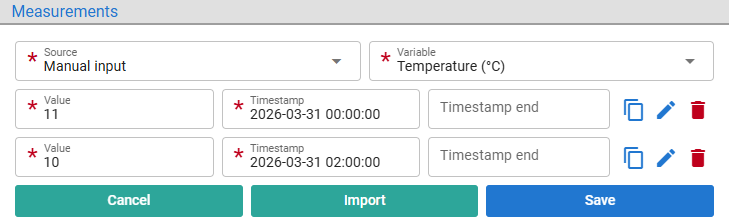
Figure 161: Final form state
23. HookIT Browser Game
HookIT is a turn-based simulation problem-solving browser game with an educational and promotional purpose: raising awareness about the seafood value chain and demonstrating how the FishEUTrust platform addresses real-world challenges. The game can be accessed here: https://feut.belit.co.rs/game/ and has its own built-in tutorial for the gameplay, which won't be repeated in this manual.
Although the game runs in a browser and requires no installation, it can still be installed as a PWA for a more native-like experience, especially when played on a mobile phone.
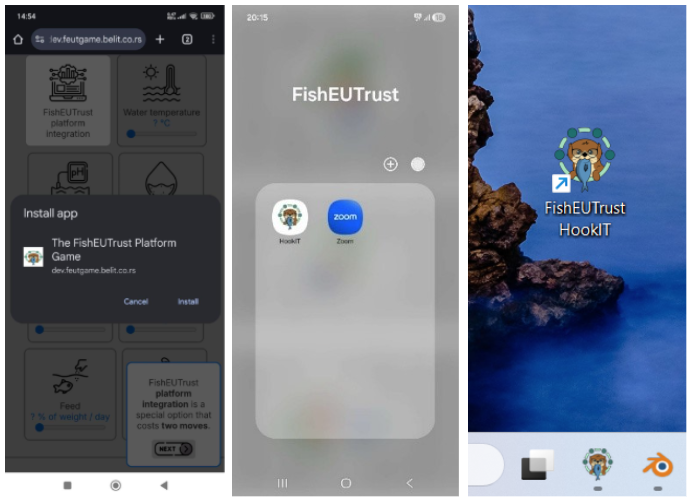
Figure 162: HookIT installed as a PWA
The PWA installation and uninstallation guide is available at the link below:
https://developer.mozilla.org/docs/Web/Progressive_web_apps/Guides/Installing
The game integrates with the platform by storing leaderboard (/game/save, /game/search) and retrieving the quiz questions (/knowledge/quiz/question/next) which are partially imported (/knowledge/quiz/question/save, /knowledge/quiz/question/import) and partially generated from metric data such as nutrients and impacts (see chapter 20). Since the game shares data interpretation rules with the platform and is largely data-driven and dynamic, the long-term plan is to make it fully configurable through a game builder dashboard.
24. TODO Frequently Asked Questions (FAQ)
24.1. What the Platform Is Not About
24.2. Batch Spliting Content Distribution
Q: When a batch is split, where is the information about how the content is distributed across the resulting splits stored?
A: This can be tracked using measurements such as weight or quantity (see chapter 15).
24.3. Beginning of the Value Chain
Q: When does a batch begin? Does it start in the fishpond, or only when the fish are harvested from the pond or caught from the sea? The platform allows for complete flexibility in this regard.
A: One way would be to represent the fishpond as a group, while the fish or a series of fish in the pond is treated as a single batch. This batch can later be split and harvested in parts - by splitting the batch and keeping one portion in the pool group while pulling the other part outside - or harvested all at once. This approach allows measurements related to the fishpond to be linked to the group representing the pond and automatically and implicitly, to all the batches within that group.
24.4. Inconsistent Batch Measurement or Analysis Timestamp
- Before Batch Creation
- After Batch Operation
24.5. Invalid Measurement or Analysis Data Is Not Rejected
Data interpretation is used for marking invalid measurements.